SharePoint AI Image Classifier (Azure)
Solutions Architect, YouTuber, Team Lead
Microsoft guide SharePoint AI image classifier with Azure Functions and GitHub Copilot, Teams alerts, Power Platform
Key insights
- SharePoint image tagging: Microsoft 365 automatically analyzes supported images and writes descriptive tags into library metadata to improve search and organization.
These tags help users and Copilot find images without manual labeling. - Azure Function hosted skill: a custom pattern where an AI classifier runs in Azure Functions and integrates with SharePoint or Power Automate.
This is a custom extension, not the same as the built-in SharePoint image tagging feature. - Image Tags metadata column and processing behavior: tags are stored in the managed Image Tags column and can be edited by users.
Only newly uploaded images are processed automatically and tags can take roughly 5 minutes to 24 hours to appear. - Supported file types: the service accepts common formats (bmp, png, gif, jpeg, jpg, tiff) and many RAW camera formats (arw, cr2, dng, nef, raf, rw2, sr2, etc.).
This broad support makes it practical for enterprise photo libraries and camera-originated assets. - Advantages: automatic tagging reduces manual work, improves search and filtering, and enhances Copilot relevance in content-heavy sites.
Microsoft’s service works out of the box without training custom models, though custom Azure-hosted classifiers remain an option for specialized needs. - Demo workflow highlights: the video shows building a classifier in VS Code, prompting Copilot to scaffold code, choosing an AI model, reviewing agent tools, authenticating SharePoint, testing the flow, and sending a Teams notification.
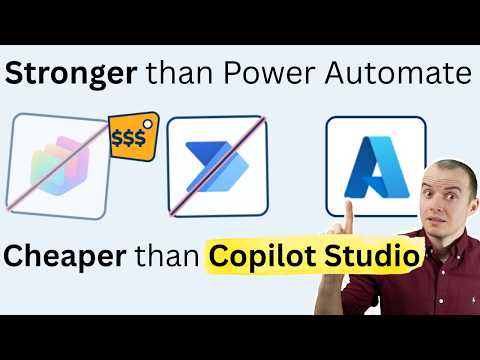
That flow demonstrates how to connect a custom Azure Function classifier to SharePoint without Copilot Studio, Power Automate, or AI Builder in the example.
Overview of the Video
Sean Astrakhan of Untethered 365 demonstrates a practical build of a vehicle-damage image classifier that runs when images are uploaded to a SharePoint library. The video walks through an end-to-end setup using VS Code, an Azure Functions-hosted skill, and a chosen AI model, notably without using Copilot Studio, Power Automate, or AI Builder. In addition, the demo includes authenticating to SharePoint, testing the workflow, and sending a notification to Teams. Consequently, the clip serves as a how-to for teams that want a custom, code-first integration for image analysis.
What the Demo Actually Shows
First, the author starts in VS Code and prompts Copilot to scaffold parts of the project, streamlining initial development. Then, he chooses an AI model and shows the agent tools and configuration needed to host an inference endpoint as an Azure Functions skill. After that, he authenticates to SharePoint and deploys a trigger that analyzes newly uploaded images, illustrating how the classifier tags or flags damage. Finally, the workflow is tested and adjusted, and the demo ends by sending a notification into Teams to alert stakeholders about new results.
Technical Approach and Integration
The video emphasizes a serverless pattern where an Azure Functions endpoint acts as a hosted skill that receives image payloads and returns classification results. This approach integrates with SharePoint by writing results into metadata fields, allowing documents and images to carry structured tags that improve search and filtering. In contrast to built-in SharePoint image tagging, which automatically writes Image Tags metadata for supported files, the custom path gives engineers control over model selection and response handling. Thus, teams gain flexibility, but they also take on more responsibility for model updates, monitoring, and scaling.
Benefits and Tradeoffs
One clear benefit of the custom solution is control: developers choose the model, tune thresholds, and decide how results map to metadata or notifications. However, this control comes with tradeoffs because custom systems usually require extra work for authentication, error handling, and ongoing maintenance. Moreover, using a hosted skill can improve latency and customization compared with sending data to a generic managed service, but it can also increase operational costs and the need for logging and diagnostics. Therefore, organizations must weigh the value of tailored accuracy and integration against the resources needed to operate the solution reliably.
Operational Challenges and Practical Tips
Authentication to SharePoint and secure handling of tokens present an early challenge; the video shows how to configure credentials and consent so the function can write metadata. In addition, the author highlights testing and iterative fixes to the workflow because real-world images vary widely in quality and format, which can lead to misclassifications or delayed metadata updates. For example, supported file types and asynchronous processing windows mean that tags may not appear immediately, and teams should plan for retries and human review. Consequently, robust logging, clear error messages, and a review loop help reduce false positives and improve trust in automated tags.
When to Choose Custom vs Built-in Features
Choosing a custom Azure Functions-hosted classifier makes sense when you need specialized labels, custom thresholds, or integration patterns that built-in features do not support. On the other hand, organizations that prefer low maintenance and predictable billing may favor the built-in SharePoint Image Tags and Content AI services, which require less engineering and no model training. Furthermore, compliance and data governance often push teams toward solutions that keep processing inside approved cloud boundaries, so evaluate whether a hosted custom skill meets your policies. Ultimately, pilot testing with representative images and measuring both accuracy and operational cost will clarify which path delivers the best return.
Conclusion and Practical Next Steps
Sean Astrakhan’s video provides a clear, hands-on example for building a vehicle-damage classifier that integrates with SharePoint using a custom Azure Functions-hosted skill, and it highlights the practical steps from scaffolding in VS Code to sending a Teams notification. While the custom route offers flexibility and control, teams should plan for ongoing maintenance, testing, and potential cost tradeoffs compared with built-in tagging features. For organizations considering this approach, the recommended next steps are to run a small pilot, measure classification accuracy, and validate operational procedures for authentication, retries, and human review. In this way, you can balance innovation with reliability and ensure a production-ready deployment.
.jpeg?w=700&output=webp)
Keywords
SharePoint AI image classifier, Azure Function image classifier, Azure Functions hosted skills, SharePoint hosted skills Azure, Image classification for SharePoint, Automate image tagging SharePoint, Azure Cognitive Services image classification, SharePoint AI integration with Azure Functions