Microsoft Workflows: Automate Your Day
Principal Technical Specialist @ Microsoft | Engineer | YouTuber
Microsoft Copilot Studio Workflows masterclass: automate email with Copilot AI, practical steps and agent building tips
Key insights
- Workflows is Microsoft’s automation layer for Microsoft 365 that links apps and services to automate repetitive tasks like approvals, notifications, task creation, and content handling.
It reduces manual steps by letting workflows run on events or schedules and move data between apps where work happens. - Copilot now adds an AI-driven interface so users can describe actions in natural language and get a generated workflow instead of building every trigger and action manually.
This conversational approach speeds creation and helps non-developers express needs in plain sentences. - Microsoft provides a unified experience inside Teams and SharePoint with ready-made templates for common scenarios, so teams can discover, create, and manage flows without leaving their daily workspace.
Templates cut setup time and offer a quick start for routine processes. - The new Workflows layer runs on top of Power Automate, using triggers (messages, uploads, form responses), schedules, and Microsoft 365 data (calendars, lists, documents) to send outputs to Outlook, Teams, SharePoint, Planner, and other services.
This keeps advanced capabilities available while simplifying the surface users interact with. - Key benefits include faster setup, a lower technical barrier through a low-code or natural-language-first approach, and tighter integration into daily tools to improve productivity and reduce errors.
The experience aims to scale from simple templates to enterprise-grade flows backed by Power Automate. - Expect phased rollouts and preview channels for the updated features; demos show one configuration and may not behave the same in every tenant.
Test workflows, run a security review, and validate connectors and permissions before broad deployment, especially for agent flows or automated actions that access sensitive data.
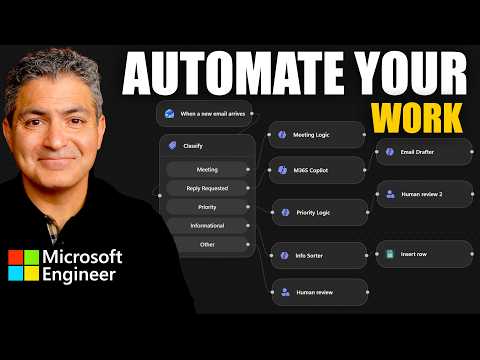
In a recent YouTube masterclass, Shervin Shaffie of Collaboration Simplified demonstrates how Microsoft’s new automation features can speed routine work. The video, presented as an educational session, walks viewers through creating an automated email workflow using a new tool inside Copilot Studio called Workflows. Importantly, Shaffie frames the content as guidance and examples rather than official corporate policy, and he emphasizes testing and security for any real deployments. As a result, the session reads as practical instruction for IT professionals and power users exploring AI-assisted automation.
What the Masterclass Demonstrates
Shaffie begins by showing how to describe desired behavior in plain terms and let the tool generate the automation. He uses straightforward prompts such as asking for daily summaries or actions triggered by file uploads, which highlights the shift toward natural language input. Then, he steps through refining the generated workflow and adjusting triggers and actions inside the editor to match organizational needs. Throughout, he stresses that this conversational setup can speed initial creation while allowing manual editing afterward.
Consequently, the session highlights both template-driven scenarios and the option to build from scratch when templates do not match a use case. Shaffie switches between the simplified Copilot-driven view and the more detailed builder to show how both approaches interact. This dual view demonstrates how the new experience sits on top of existing automation technologies so users can graduate from simple to advanced setups. In turn, the video provides a clear learning path for people who want to move beyond point-and-click automation.
How Workflows and Copilot Fit Together
The video explains that the new Workflows interface is integrated with familiar surfaces like Teams and SharePoint, making automation discoverable where people already work. Shaffie shows how a generated flow can react to events such as new messages, file uploads, or scheduled triggers, and then route outputs to Outlook, Teams, or other Microsoft 365 services. Additionally, he clarifies that the automation is powered by the broader Power Automate infrastructure, so existing connectors and enterprise features remain available. This interoperability reduces surprises when teams move flows into production.
Moreover, the masterclass highlights a newer Workflows agent inside Copilot that can create and edit flows through conversation. Shaffie demonstrates asking Copilot to modify a flow to add an approval step and shows the tool performing the change, which speeds iterative development. However, he also points out that some complex actions still require manual configuration in the underlying builder. Therefore, Copilot acts as an accelerant rather than a full replacement for skilled automation designers.
Benefits: Speed, Accessibility, and Integration
The video makes a convincing case that templates and natural language lower the barrier for non-developers to automate work. As Shaffie demonstrates, users can achieve common tasks faster by starting with a generated workflow and then refining it, which saves initial setup time. Furthermore, embedding the experience in daily tools like Teams and SharePoint helps automation fit naturally into existing processes rather than forcing tool switching. Consequently, organizations can scale routine automations while keeping users productive in familiar apps.
Also, the platform’s connection to Power Automate preserves enterprise continuity and advanced capabilities for teams that need them. Shaffie shows how flows created in the Copilot-driven interface can be extended with advanced actions, connectors, and governance controls. Thus, organizations gain both ease of entry for casual users and depth for IT professionals. In short, the approach aims to blend accessibility with the power required for enterprise scenarios.
Tradeoffs and Practical Challenges
Despite clear benefits, the masterclass addresses several tradeoffs and caveats that organizations must consider. For example, AI-assisted generation can produce flows that look correct but require careful review for security, permissions, and data handling. Shaffie repeatedly recommends tenant-specific testing and security reviews because generated logic may depend on connectors or conditions that behave differently across environments. Hence, governance and testing remain essential.
Additionally, there are maintenance and debugging challenges when automation is created conversationally. While Copilot speeds creation, complex error handling, conditional logic, and long-term maintenance can still demand a more conventional low-code approach. Shaffie notes that teams should plan for documentation, versioning, and monitoring just like any production automation. Therefore, organizations face a balance between rapid iteration and the discipline needed for reliable, auditable workflows.
Rollout Considerations and Final Takeaway
The masterclass also touches on rollout and availability, explaining that updated experiences may reach users through staged releases on different Microsoft surfaces. Shaffie advises administrators to review tenant settings and release channels before broad adoption so that expectations match what users will see. He stresses incremental adoption: begin with low-risk automations, refine governance, and then scale to more critical processes. Consequently, this staged approach reduces operational risk and improves adoption success.
In conclusion, the YouTube session by Shervin Shaffie offers a practical look at how Microsoft’s new Workflows experience brings conversational automation into everyday work. It showcases clear advantages in speed and accessibility while honestly addressing security, maintenance, and governance tradeoffs. For organizations considering these tools, the masterclass provides a useful roadmap that balances rapid experimentation with the discipline needed for production systems. Overall, the video is a valuable learning resource for anyone planning to adopt AI-assisted automation in Microsoft 365.

Keywords
Microsoft Power Automate, workflow automation, automate your work, Power Automate tutorial, Microsoft workflows, Power Automate masterclass, low-code automation, Power Automate RPA