Microsoft 365 Copilot: Outlook AI Chief
Principal Group Product Manager - Microsoft Education
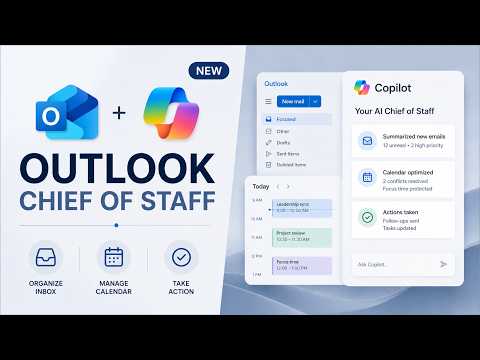
Outlook with Microsoft Copilot triages inbox, drafts replies and preps meetings to save time using Copilot Chat
Key insights
- Microsoft 365 Copilot in Outlook: A built-in AI that acts like a chief of staff for your inbox and calendar.
It helps with drafting, summarizing, scheduling, and follow-ups so you spend less time on routine work. - In-canvas drafting: Copilot writes and edits email drafts directly inside the Outlook window.
This keeps the draft visible, reduces copy/paste steps, and cuts formatting surprises. - Agentic assistant: Copilot can take multi-step actions, not just answer one-off requests.
It can carry out tasks like scheduling meetings, setting follow-ups, and updating calendar items on your behalf. - Work IQ: The assistant uses your email, calendar, meeting context, and relationships to give more relevant suggestions.
That context helps Copilot tailor tone, priorities, and suggested next steps. - Calendar automation: Use Copilot to schedule meetings from threads, manage RSVPs, book focus time, and adjust availability.
These features speed up coordination and keep your calendar aligned with priorities. - Practical tips & rollout: Best for people who spend lots of time on email, scheduling, and meeting prep.
Some action features require Copilot Premium and are in the Frontier preview as of spring 2026, with rollout across new Outlook on web, Windows, iOS, and Android.
Overview: What Mike Tholfsen Demonstrates
In a recent YouTube video, Mike Tholfsen walks viewers through practical ways to use Microsoft 365 Copilot inside Outlook, positioning it as an AI chief of staff. He highlights eight tips that show how the updated Outlook experience lets the assistant draft messages, summarize threads, prepare meeting notes, and take action on calendar items. Moreover, Tholfsen demonstrates that the tool now works directly in the Outlook canvas, which cuts down on copy-and-paste steps and keeps edits visible as they happen. Overall, the video frames Copilot as a workflow assistant rather than a simple text generator.
Key Features and How They Work
First, the video explains the shift to in-canvas drafting, where Copilot writes and refines drafts directly inside an open email instead of producing separate text to paste. Next, Tholfsen shows the use of Copilot Chat to create rules, summarize conversations, and extract action items while you stay in your inbox. Additionally, he demonstrates calendar automation features that schedule follow-ups, book focus time, and handle RSVPs based on availability and priorities. As a result, users see less context switching and a smoother flow from intent to execution.
Practical Benefits for Daily Work
For people who spend significant time organizing email and meetings, the updates promise real time savings because Copilot can triage, draft, and schedule without leaving Outlook. Furthermore, the assistant uses contextual signals from your emails, meeting history, and relationships through what Microsoft calls Work IQ, which aims to make suggestions more relevant. This context-aware behavior helps produce drafts that match tone and intent, and it can prepare meeting briefs or agendas quickly. Consequently, teams and individuals can focus more on decisions and less on administrative details.
Tradeoffs: Speed Versus Control
However, the new agentic capabilities introduce tradeoffs between automation and user control, which Tholfsen touches on in the video. On one hand, automatic scheduling and in-place edits save time, but on the other hand, they require careful review to avoid mistakes or unintended changes to calendar items. Moreover, users must balance convenience with governance, especially in organizations that require strict oversight of email and scheduling behaviors. Therefore, adopting these features successfully depends on configuring permissions, training users, and keeping review steps in place.
Challenges, Risks, and Adoption Considerations
Tholfsen also points out operational challenges such as rollout timing, access requirements, and preview-stage limitations, noting that some agentic features are currently in the Frontier preview and that certain actions require Copilot Premium. In addition, there are privacy and compliance questions to consider because the assistant uses mail and calendar context to make recommendations, so organizations must assess data handling and retention policies. Meanwhile, technical limitations and occasional misunderstandings by the AI mean that human oversight remains essential to catch errors and maintain professional tone. Ultimately, teams should pilot features with a small group before broad deployment to identify policy and user-experience gaps.
Rollout, Devices, and Final Takeaways
According to the video, Microsoft began rolling the newer Outlook experience to modern endpoints earlier this spring, and related Copilot Chat capabilities are expanding to mobile clients as well. For those who rely on Outlook, the most important practical shift is that Copilot now acts on workflows rather than simply suggesting copy, which can change day-to-day inbox and calendar management. In conclusion, Tholfsen’s demonstration highlights both productivity gains and the need for careful governance, and it suggests that organizations will benefit most when they pair the tool with clear rules and user training. Therefore, readers should evaluate the features in a controlled setting and weigh convenience against oversight before making wide changes to how teams manage mail and meetings.

Keywords
Microsoft 365 Copilot Outlook, Outlook Copilot features, Copilot email assistant, AI chief of staff Outlook, Copilot productivity tips, Copilot calendar automation, Microsoft 365 Copilot security compliance, Microsoft 365 AI assistant