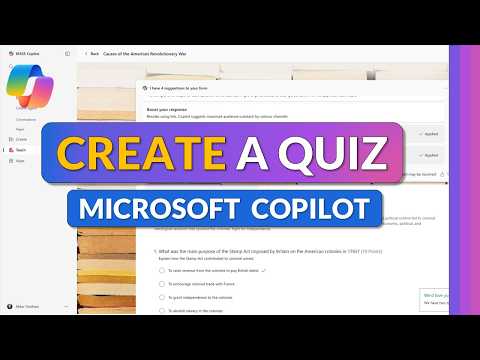
Microsoft 365 Copilot: Create AI Quizzes
Principal Group Product Manager - Microsoft Education
Microsoft three sixty five Copilot Teach module instantly creates AI quizzes via Microsoft Forms in Teams for educators
Key insights
- Teach module
Video demo walks through creating quizzes inside the Microsoft 365 Copilot Teach module and in Microsoft Teams.
Educators who use Microsoft 365 for Education can access these built-in quiz tools. - AI-generated quizzes
Copilot drafts quiz titles, questions, and answer choices from a plain-language prompt.
You can accept, edit, or regenerate items to match your learning goals. - Microsoft Forms integration
Quizzes use Microsoft Forms for storage, delivery, and automatic grading.
Teachers can enable AI-generated explanations to give students instant feedback on answers. - Quiz Tutor agents
Copilot Studio offers a Quiz Tutor template that creates adaptive agents to coach learners, explain mistakes, and adjust difficulty.
These agents make short, interactive practice sessions and personalized support easier. - Distribution and analytics
You can build and share quizzes directly in Teams or via Forms, then review student responses and performance analytics.
This suits classroom lessons, remote training, and quick workplace assessments. - Best practices
Customize question types, scoring, and structure to match class level and goals.
Use multilingual support and clear explanations to reach diverse learners and save time on quiz preparation.
Overview of the video
In a clear, step-by-step tutorial, Mike Tholfsen demonstrates how educators can use Microsoft 365 Copilot to build quizzes quickly and efficiently. The video walks viewers through the new Teach module and shows how Copilot drafts questions, answers, and formats content inside Microsoft Forms and Microsoft Teams. As a result, the walkthrough aims to help teachers, trainers, and workplace learning designers save time while still producing useful assessments.
How Copilot generates quizzes
The video explains that users start by prompting Copilot with a plain-language request, for example asking for a short quiz on a grade-level topic, and the tool returns a draft quiz automatically. Copilot can produce multiple question types, set answer options, and provide the basis for automated scoring, which streamlines the initial creation step. Then, educators can refine the generated quiz, edit questions, and toggle features such as automated explanations before sharing the assessment.
Practical benefits and classroom uses
Tholfsen highlights benefits such as time savings and consistency, noting that Copilot can rapidly produce question banks for a wide range of subjects and levels. Furthermore, the ability to include AI-generated explanations helps students review and understand their mistakes, which supports learning beyond simple right-or-wrong feedback. By integrating quizzes into Microsoft Teams, teachers can distribute assessments directly to classes and gather results in one place, supporting hybrid and remote learning workflows.
In addition, the video showcases templates like the Copilot Studio Quiz Tutor, which can adapt question difficulty and offer coaching-style feedback to learners. This adaptability allows educators to use Copilot both for quick formative checks and for more interactive, bite-sized learning activities. Consequently, the tool suits a mix of classroom uses, from basic drills to review sessions for older students or workplace learners.
Tradeoffs to consider
While Copilot speeds up quiz production, the video also implicitly suggests tradeoffs between convenience and nuance. Automated question generation can produce a solid first draft, but it may miss subtle curriculum goals or local standards unless teachers review and adjust content. Therefore, relying solely on AI might save time in the short term but requires oversight to ensure alignment with learning objectives and fairness for diverse learners.
Another tradeoff relates to test quality versus speed: highly tailored, pedagogically rich items usually need human expertise to craft effective distractors and scenario-based problems, while Copilot performs best with straightforward prompts. Moreover, there are practical considerations such as licensing, data governance, and how institutions manage AI-generated student feedback. Those factors can complicate adoption even when the tool itself appears easy to use.
Challenges and limitations
The video addresses common challenges indirectly by demonstrating iterative refinement, which underscores the need for teacher review to correct wording, factual accuracy, or cultural bias. In addition, automated explanations can sometimes oversimplify complex concepts or present reasoning that needs clarification, so educators should verify and supplement those explanations when necessary. Language support and accessibility features vary by region, which can affect how well generated material serves multilingual or special-needs learners.
Integration challenges also appear when quizzes are meant to map to formal standards or when teachers want detailed analytics beyond basic scoring. While Copilot helps create items, linking them reliably to standards and designing formative sequences that build skills across units still requires careful planning and possibly other tools. Finally, the risk of overreliance — such as reduced teacher input in assessment design — remains a real concern that schools must manage.
Best practices and classroom integration
Tholfsen’s tutorial suggests sensible practices: use Copilot to generate drafts, then iterate with pedagogical intentions in mind, and enable explanations as a starting point for student feedback. Equally important, teachers should test generated items with small groups before wide deployment and adapt the language and difficulty to match student needs. By combining AI speed with teacher judgment, educators can balance efficiency and instructional quality.
Conclusion and outlook
Overall, the YouTube tutorial by Mike Tholfsen offers a practical introduction to using Microsoft 365 Copilot for quiz creation while also signaling the human role that remains essential in assessment design. The tool promises clear gains in time and consistency, yet it brings tradeoffs around accuracy, alignment, and governance that schools must address. Moving forward, thoughtful adoption and ongoing educator involvement will determine whether Copilot becomes a routine helper for formative assessment or simply a time-saving draft generator that still depends on teacher expertise.

Keywords
Microsoft 365 Copilot create quiz, Copilot AI quiz tutorial, Make quiz with Microsoft Copilot, AI quiz maker Microsoft 365, Microsoft Copilot quiz generator, Microsoft 365 Copilot tutorial 2025, Microsoft Forms Copilot quiz, PowerPoint quiz with Copilot