Excel Task Tracker: Build a Smart System
Co-Founder at Career Principles | Microsoft MVP
Microsoft expert builds dynamic Excel task tracker with KPI dashboard, conditional formatting, tables and Power BI
Key insights
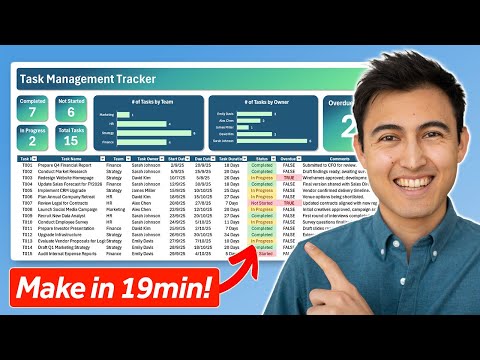
- Interactive Task Management Tracker: The video shows how to build an interactive tracker and dashboard in Excel that reports tasks completed, in progress, not started, and overdue.
It also displays task distribution by owner and employee for quick oversight. - KPIs and visuals: Use shapes, text boxes and bar charts to present key metrics on the dashboard for fast decision-making.
Visual KPIs make it easier to monitor progress at a glance. - Excel tables and formulas: Implement dynamic tables plus functions like COUNTIF, SUM and TODAY to calculate live counts, totals and overdue items.
Tables keep ranges dynamic so formulas update automatically as you add tasks. - Conditional Formatting and data controls: Apply conditional formatting to highlight status and overdue tasks, and use drop-down lists for consistent status and owner entries.
These features improve readability and reduce input errors. - VBA and automation options: Advanced templates use VBA for recurring tasks, smart filters and interactive features like drag-and-drop scheduling.
Choose VBA when you need automation, or stick to native formulas for simpler, no-code solutions. - Structure and benefits: Organize workbooks with multiple sheets, use data validation, and plan for future updates to keep the tracker scalable.
Excel trackers offer accessibility, customization and cost-effective visualization for teams and individuals.
Overview of the Video
Kenji Farré (Kenji Explains) [MVP] publishes a concise walkthrough that shows how to build a dynamic task management tracker in Excel in about 19 minutes. In the video, he demonstrates a practical, step-by-step approach that aims to make task tracking visual and interactive for teams and individuals. Viewers see how to set up data, add KPI displays, and improve the user interface while using standard Excel features to keep the file flexible and easy to update. The presentation balances speed and clarity, making it useful for people who want a working tracker without long development time.
How the Tracker Is Constructed
Farré begins by structuring tasks on a dedicated sheet and then converts that range into an Excel table to benefit from structured references and easy filtering. He applies data validation for drop-down lists and uses formulas such as COUNTIF, SUM, and TODAY to calculate dynamic values like tasks completed, tasks in progress, and overdue items. Next, he layers conditional formatting to highlight statuses and due dates, which helps users scan priorities at a glance without reading every row. Overall, the construction shows how simple building blocks in Excel combine to create a responsive tracker that updates with minimal manual work.
Throughout the video, Farré also addresses practical workbook organization, recommending separate sheets for raw data, KPI calculations, and the dashboard. He shows how using named ranges and table references reduces errors when expanding the dataset, which helps future-proof the tracker as task volumes grow. Furthermore, he highlights the value of a clean input area to ensure consistent data entry from multiple users, thus reducing the need for corrective fixes later. These steps emphasize maintainability and make collaboration less error-prone when several team members update the same file.
KPIs, Charts and Interface Choices
For the dashboard, Farré focuses on a compact KPI row that displays key counts and a distribution of tasks by owner and status, using bar charts, shapes, and text boxes to improve readability. He demonstrates how to tie those visuals directly to the table-driven calculations so the KPIs remain current as records change or dates roll forward. In addition, he tweaks the user interface with clear headings, color-coded status markers, and interactive elements like drop-downs that let users filter without altering the raw data. These visual choices aim to reduce cognitive load and let managers spot overdue or blocked work quickly.
While charts and shapes make the dashboard attractive, Farré also notes that simple visuals often serve teams better than complex graphs; thus he favors clarity over decorative detail. He suggests balancing compact KPIs with enough context so viewers understand what each number represents, which reduces follow-up questions in meetings. By keeping visuals linked to live formulas, the tracker supports both quick daily checks and deeper weekly reviews without extra manual effort. This method shows how design decisions influence usefulness as much as technical features.
Trade-offs and Practical Challenges
The video candidly explores trade-offs, especially between using built-in Excel features and adding automation with VBA. Farré shows that relying on formulas and conditional formatting keeps the file transparent and easier for others to maintain, whereas VBA can add convenience such as custom filters or recurring task handling but increases complexity. He warns that VBA-based solutions may require more testing, version control, and trust from colleagues who must enable macros, so teams should weigh convenience against the support burden. In short, simplicity favors portability, while automation favors efficiency, and organizations must choose based on skills and governance.
Another challenge discussed concerns scale and performance: as task lists grow, formulas and conditional formatting can slow down a workbook, especially with many volatile functions or large ranges. Farré recommends using Excel tables, careful range definitions, and periodic clean-up to maintain speed. He also touches on collaboration issues, noting that shared online workbooks or cloud-sync can introduce version conflicts if multiple users edit simultaneously. Therefore, teams should plan how they share the tracker and consider whether a dedicated task tool may be better for very large or highly collaborative projects.
Practical Takeaways and Next Steps
In closing, the video delivers a practical starter template idea: build with tables, keep calculations visible, and design an uncluttered dashboard that answers daily management questions. Farré provides a free starter file to help viewers follow along and adapt the tracker to their workflows, which lets teams test the approach before committing to automation or more complex builds. He also recommends iterating the design after a few weeks of real use, because actual behaviors often reveal new fields or filters that matter most to the team. This iterative mindset helps balance immediate needs with longer-term maintainability.
Overall, Kenji Farré’s walkthrough offers a compact, usable method for making a smart task management tracker in Excel that suits small teams and individuals. By explaining both techniques and trade-offs, the video helps viewers decide when to keep things simple and when to add automation. For editors and readers looking for a pragmatic Excel-based solution, the tutorial provides clear guidance and a practical example to adopt and adapt.

Keywords
Excel task management template, Excel task tracker, task management tracker Excel, smart task tracker Excel, free Excel task tracker template, Excel project management tracker, automated task tracker Excel, Excel to-do list template