Excel Dynamic Attendance Template — Free
Co-Founder at Career Principles | Microsoft MVP
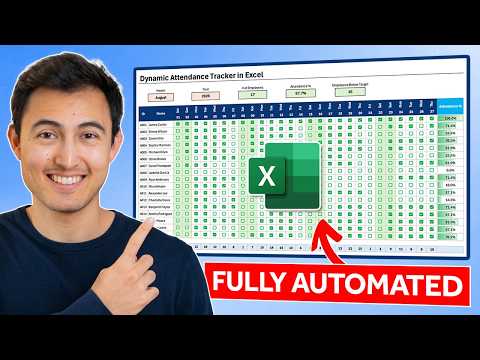
Build a dynamic attendance tracker in Excel with dropdowns, formulas, checkboxes, conditional formatting and KPIs
Key insights
- Dynamic Dates, Dropdowns, and Interactive Checkboxes: The tracker auto-generates the month’s dates from chosen year and month, provides dropdowns for attendance codes, and uses checkboxes to mark presence quickly.
- Formulas, EOMONTH, and SEQUENCE/Dynamic Arrays: Use month/year inputs with functions like EOMONTH or SEQUENCE to stop dates at month end and let arrays fill headers automatically for any month.
- Conditional Formatting and Highlight Today: Apply rules to shade weekends, hide unused date columns and checkboxes, and highlight the current date for faster review and cleaner visuals.
- Attendance KPIs and Data Bars: Build summary formulas (COUNTIF, SUM) to show employee totals, daily attendance, per-person percentages, and use in-cell data bars for quick visual comparison.
- Data Validation and Reusable Template: Lock attendance choices with data validation, keep formulas in structured tables, and design the sheet so adding new employees won’t break calculations; then save as a reusable template.
- Best Practices and Sharing: Structure headers and formulas clearly, test month changes before use, remove extra gridlines and add borders for readability, and share the workbook via Excel for the web or your organization’s preferred file system.
Overview of Kenji Farré’s Excel Attendance Tracker Video
Kenji Farré (Kenji Explains) [MVP] demonstrates how to build a dynamic attendance tracker in Excel in a clear, step-by-step YouTube video. He shows how a single workbook can update automatically when you change the selected month and year, making monthly rollouts fast and consistent. Moreover, the video offers a free template so viewers can follow along and apply the techniques to their own teams or classrooms.
How the Tracker Works
First, the tracker uses dropdowns and formulas to generate dates from a selected year and month, and then stops the series at the correct day count for that month. Next, Kenji adds a row that displays the weekday for each date and uses simple logic to hide unused dates and checkboxes when the month is shorter. In addition, interactive checkboxes or symbols let users mark presence, absence, or lateness, and conditional formatting highlights weekends and the current date.
Key Features and KPIs
The spreadsheet also includes ready-made attendance KPIs, such as the total number of employees, daily attendance totals, attendance per person, and attendance percentages with in-cell data bars to visualize performance. These summaries build from COUNTIF-style formulas that update automatically, which reduces manual counting and makes review easier. Consequently, managers can spot trends faster and export clean data for payroll or HR reports.
Design Choices and Tradeoffs
Kenji balances automation with simplicity: dynamic dates and data validation reduce manual work, but they add formula complexity that some users may find harder to edit. For instance, using dynamic arrays and nested functions speeds updates and reduces repetitive formulas, yet older Excel versions or different regional settings can break these features unless the file is adjusted. Similarly, interactive checkboxes create a friendly interface, however they can increase file size and complicate copying or bulk edits compared with using compact codes like "P" or "A".
Challenges to Watch For
One common challenge is cross-compatibility: a workbook built for Excel for the web may behave slightly differently in desktop Excel or on another platform, so teams should test the file before wide deployment. Another issue is handling holidays and irregular schedules, which require either a separate holiday table or manual overrides to avoid miscounting. Additionally, protecting formula areas while allowing new rows for staff requires careful structuring so adding employees does not break references.
Practical Setup Tips
Kenji recommends structuring the sheet so new employees can be added without changing core formulas, often by using structured tables and ranges that expand automatically. He also suggests keeping validation lists and summary areas on a separate sheet to make maintenance easier and to reduce accidental edits during daily use. Finally, finishing touches like borders, titles, and removing gridlines make the tracker clearer for non-expert users while the template remains reusable month after month.
Performance and Maintenance Considerations
Over time, a tracker with many formulas, conditional formatting rules, and checkboxes can slow down on large teams, so Kenji notes that simplifying some rules may be necessary for very large rosters. Likewise, using compact codes with conditional formatting can be lighter on processing than thousands of separate controls. Therefore, teams must trade off between interface friendliness and file performance depending on roster size and how often the sheet is updated.
Balancing Accuracy and Usability
To keep data accurate, Kenji emphasizes data validation so entries stay consistent, which improves reporting accuracy and reduces cleanup work. However, strict validation can frustrate casual users, so adding clear instructions and a small legend helps reduce errors while preserving structure. As a result, the tracker remains both useful for managers and approachable for staff who must enter attendance daily.
Final Takeaways for Teams
Overall, the video provides a practical blueprint for anyone who needs a reusable, month-aware attendance system in Excel, and the free template speeds adoption. While implementing the tracker, teams should weigh ease of use against complexity, test compatibility across platforms, and plan for maintenance so the workbook remains reliable as the organization grows. In short, Kenji’s approach offers a strong balance between automation and clarity, making it a valuable starting point for many small to mid-sized teams.

Keywords
excel attendance tracker, dynamic attendance tracker excel, free excel attendance template, employee attendance tracker excel, class attendance tracker excel, attendance tracker with formulas excel, automated attendance tracker excel, pivot table attendance tracker