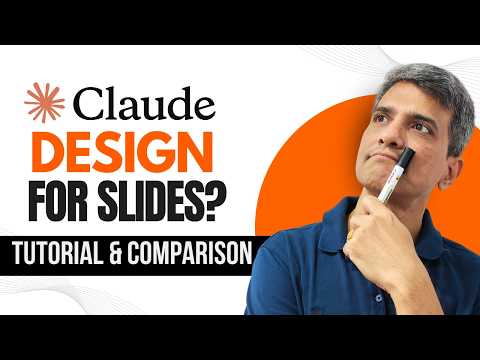
Claude Design: Presentation Tool Review
Microsoft expert review of Claude Design for PowerPoint and Office: AI streamlines slide creation, limits noted
Key insights
- Claude Design overview: Claude Design is an AI tool that helps create and edit slide decks inside a visual editor.
It uses prompts and uploaded documents to auto-generate slide content and layouts for faster presentation building. - Claude Chat vs Claude Design: Claude Chat focuses on conversational drafting and editing, while Claude Design targets slide layout, visuals, and deck assembly.
The video shows how each suits different steps: ideation with chat, then layout and export with design. - Key workflows: The tutorial demonstrates direct workflows like Claude to PowerPoint and Claude to Canva, using slide-by-slide prompts for precise control.
Users can upload outlines, Word or PDF documents, or Excel data to produce structured slides and charts. - Core strengths: Strong points include fast deck generation, preservation of template fidelity (masters, fonts, spacing), and contextual edits that keep slide structure intact.
Export options include PPTX and screenshots for easy handoff and final editing. - Limitations: The tool can produce weak visuals from scratch and may need manual polishing; reviewers said it’s not yet worth a paid upgrade for everyone.
Other issues include token costs on advanced models and some usage restrictions, so expect human review for accuracy and charts. - When to use it: Best as a drafting accelerator for data-heavy or repeatable decks—quickly turn reports into slides, then refine by hand.
Use it to save time on structure and messaging, but plan manual design and fact-checking before final delivery.
Overview of the Video
Presentation Process YouTube published a focused tutorial that reviews the newly launched Claude Design and demonstrates how it can help build presentations with AI. The creators clarify up front that the episode is not sponsored, and they walk viewers through the interface, core flows, and early impressions. As a result, the video serves both as a how-to and as a practical evaluation, showing slide-by-slide prompts and real exports so viewers can judge output quality for themselves. Overall, the coverage aims to help business users decide whether to add Claude Design into their presentation workflow.
The video also compares the different ways to use Claude in presentation work, including a contrast with Claude Chat and integrations that push content to visual tools like Canva and PowerPoint. Viewers get a timed walkthrough with clear chapters that highlight the launch, creation flows, editing tools, and export options. That structure makes it easy to jump to the parts most relevant to your needs, whether you are testing automation or learning how to set up a design system first. Consequently, the episode balances practical steps with candid commentary about strengths and weaknesses.
What the Video Demonstrates
The presenters begin by showing how to create a PowerPoint deck from an outline or document using Claude, moving from text to slides in a few automated steps. They then illustrate a Claude to Canva workflow that hands off slide content for visual layout and a Claude to PowerPoint flow that preserves slide masters and templates where possible. By demonstrating both approaches, the video highlights how automation can handle structure and language while leaving visual polish to graphic tools. This combination makes the tooling useful for teams that separate content creation from final design.
Importantly, the tutorial walks through setting up a design system inside Claude Design and shows how prompts, supporting content, and iterative edits shape the deck. The presenters use a slide-by-slide prompting technique to refine content and then use built-in editing tools like comment, tweak, and draw to adjust visuals and text. They also export examples to PPTX and screenshots so viewers can see the quality in editable and static formats. Thus, the video emphasizes practical, repeatable steps rather than theoretical claims.
Strengths and Practical Benefits
The video highlights clear benefits for users who want faster first drafts and consistent messaging across many slides, especially when starting from long documents or reports. Because Claude Design can read context and preserve templates, it often reduces time spent on reformatting and helps maintain brand elements across generated slides. Moreover, the ability to hand off content to Canva or export to PowerPoint provides useful flexibility for teams with different design workflows. Consequently, professionals who need to convert research or financial reports into summaries can find notable time savings.
Presenters also demonstrate that the editing toolkit allows quick iterations, enabling reviewers to request tone changes or simplifications without rebuilding slides from scratch. The tool’s extended context window helps when decks require coherent narratives across many slides, and the walkthrough shows real examples where that coherence shines. Therefore, for users who view AI as a drafting accelerator, Claude Design appears to deliver practical wins. At the same time, the presenters caution that these benefits work best when the user provides good initial templates and guidance.
Limitations and Tradeoffs
Despite the advantages, the video calls out several tradeoffs that matter to decision makers. First, visuals are not yet strong enough to replace a dedicated designer; generated imagery and layout choices often need manual polish to achieve professional quality. Second, the presenters question whether the current output justifies a paid upgrade, noting rough edges and a developing feature set that may improve over time. Therefore, teams must weigh the convenience of automation against the additional cost and the need for final human review.
The tutorial also points to operational constraints, including token costs with certain models (the presenters reference Opus 4.7) and usage restrictions that affect heavy users or enterprise scenarios. Formatting quirks occasionally require manual fixes, and some edits can change slide structure unintentionally if prompts are not precise. In short, the tool reduces repetitive work but shifts some effort into prompt design, quality checks, and export validation—challenges that organizations should plan for.
Recommendations and Verdict
For many users, the practical recommendation is to use Claude Design as a drafting and research-to-slide accelerator, while keeping designers or power users in the loop for visual refinement. The presenters suggest building a design system first, then applying automated generation to save time on text, structure, and initial layout before handing the deck to a visual tool for polish. This hybrid approach preserves control over brand consistency and final aesthetics while still benefiting from automation.
Finally, teams should test the tool on representative documents, monitor token usage, and compare the workflows with alternatives such as native AI features in presentation platforms. With careful setup and realistic expectations about visual quality, Claude Design can speed creation and improve storytelling, but it does not eliminate the need for human review and design judgment. Thus, the video by Presentation Process YouTube offers a balanced, practical guide for anyone deciding whether to add this new AI tool into their presentation toolkit.
Keywords
Claude Design review, Claude for presentations, Claude design presentation tips, Is Claude Design good for presentations, Claude AI presentation maker, Claude design pros and cons, Claude presentation templates, Claude design tutorial