ElevenLabs + Power Automate: Clone Voice
Currently I am sharing my knowledge with the Power Platform, with PowerApps and Power Automate. With over 8 years of experience, I have been learning SharePoint and SharePoint Online
Microsoft Power Automate clones a voice with ElevenLabs, automates SharePoint storage and gives API troubleshooting tips
Key insights
- ElevenLabs + Power Automate overview:
Video demo clones a voice with ElevenLabs and runs it inside a Power Automate workflow that triggers from SharePoint and saves the generated audio to a library. - Setup essentials:
Create a voice model from sample audio, copy the API key, and test sample voices before connecting them to your flow. - How the flow works:
A trigger (for example, a new SharePoint item) sends an API call to ElevenLabs, receives the synthesized audio file, and stores that file back in the SharePoint library. - Troubleshooting tips:
Check authentication and endpoints first, confirm file formats and size limits, and add clear error handling steps in Power Automate to log failures. - Key benefits and use cases:
Use the setup for automated narration, notifications, content production, and multilingual voice responses to improve productivity and scalability. - Safety and best practices:
Obtain consent for cloned voices, protect your security (store API keys safely), monitor costs, and test voice quality before wide release.
Video Snapshot and Context
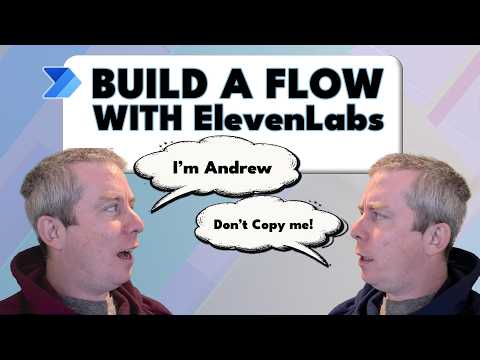
Andrew Hess of MySPQuestions published a hands-on YouTube video that walks through cloning his voice and integrating it into an automated workflow. He frames the piece as an experiment rather than an endorsement, stressing that he is not affiliated with or paid by ElevenLabs. The video documents the entire process from initial setup to a successful run of a Power Automate flow, and it includes timestamps for each key stage. As a result, viewers can follow along or skip to sections of interest.
How the Workflow Was Built
First, Hess shows how to create a voice model in ElevenLabs, explaining the difference between quick and professional cloning approaches. Then he generates an API key and configures a Power Automate flow that triggers from a SharePoint event and writes synthesized audio back to a library. He demonstrates the flow end-to-end, including sending text to the voice API and saving the returned audio in a SharePoint folder. Consequently, the audience sees how cloud services and no-code tools can work together to produce audio assets automatically.
Technical Steps Demonstrated
Next, the video goes step-by-step through the API calls and Power Automate actions. Hess edits the flow to include HTTP requests, payload formatting, and file creation steps so that a text string becomes an audio file stored in SharePoint. He also plays examples of different voices and shows the finished voice model speaking in context, which helps viewers judge fidelity and tone. Therefore, the sequence makes the integration approachable for administrators and creators who already use the Microsoft ecosystem.
Troubleshooting and Practical Challenges
Importantly, Hess does not shy away from errors; he demonstrates a troubleshooting session when the flow initially fails. He walks through common failure points such as authentication headers, payload size limits, and response parsing, and then shows the corrected flow running successfully. However, deploying voice cloning in production raises other challenges, including API rate limits, latency concerns, and ongoing maintenance of voice models. Moreover, storing voice models and generated audio in SharePoint requires clear governance to keep costs and storage under control.
Tradeoffs, Risks, and Best Practices
Balancing quality, cost, and privacy drives many tradeoffs in this approach. For instance, using the quick cloning option will save time and money but may produce less accurate or expressive results, whereas professional cloning yields higher fidelity at higher cost and data requirements. Additionally, organizations must weigh the convenience of automated voices against consent and ethical issues, since cloning a human voice can raise legal and reputational risks if used without permission. Consequently, Hess advises careful consideration of who can trigger flows, how audio files are stored, and which samples are used for training.
Why This Matters for Microsoft Users
For teams invested in Microsoft tools, the demonstration highlights a practical path to add synthetic speech into existing workflows without heavy development. Integrating Power Automate and ElevenLabs gives users automated notifications, content generation, and accessibility features that previously required manual recording or custom code. Still, administrators should plan for monitoring, billing, and security to avoid unexpected costs or data leakage. Ultimately, the video serves as a clear primer for people who want to experiment responsibly with voice synthesis in a Microsoft environment.
In sum, Andrew Hess’s video offers a balanced and practical walkthrough of voice cloning integrated into an automated Microsoft workflow. It provides stepwise instruction, live troubleshooting, and cautionary notes about tradeoffs and governance, making it a useful resource for creators and IT pros alike. Readers and viewers should treat the demonstration as a starting point and evaluate legal, ethical, and operational implications before deploying similar solutions at scale.
Keywords
voice cloning ElevenLabs Power Automate, ElevenLabs voice cloning tutorial, clone my voice Power Automate workflow, automate voice cloning with ElevenLabs, ElevenLabs text-to-speech workflow, AI voice cloning step-by-step, Power Automate TTS ElevenLabs integration, how to clone your voice with ElevenLabs