Microsoft Outlook on iPad: 2025 Tips
Ex-Microsoftie with over 10 years experience
Outlook on iPad expert guide for Microsoft Office: manage email, signatures, focused inbox, schedule messages, security
Key insights
- Setup & Installation: Install the Microsoft Outlook app from the App Store or add an Outlook account in iPad Settings > Mail > Accounts.
Sign in with your account and enable Mail, Calendar, Contacts, and Notes for full sync across devices. - Navigation & Home: Place Outlook on the Dock or Home Screen for quick access and set it as the default mail app in iPad Settings if you prefer.
Use the main panes to switch between Mail, Calendar, People, and Notes quickly. - Inbox Management: Use Focused Inbox, filters, and folders to prioritize messages and reduce clutter.
Customize swipe gestures to delete, archive, schedule, or mark messages with one swipe for faster triage. - AI Copilot & Search: Copilot can summarize long threads, suggest drafts, and improve tone when you write emails (requires a Microsoft 365 plan with Copilot enabled).
Rely on the improved search to find messages, attachments, and contacts fast. - Compose, Attach & Schedule: Create new emails, attach photos or files from the iPad, and use the scheduling or delay send option to time messages.
Mark messages as important or set reminders to follow up. - Security & Personalization: Add an email signature, set automatic replies, and lock the app for privacy.
Control notification styles in both the Outlook app and iPad Settings to reduce interruptions and tailor alerts.
Overview of the YouTube video
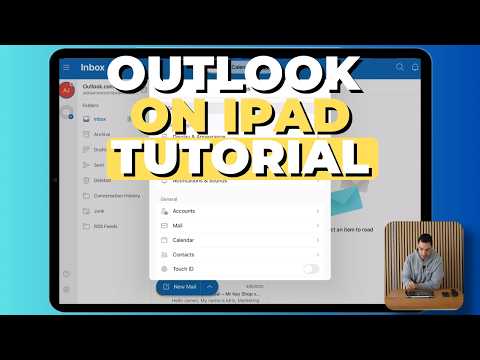
The YouTube video by Aldo James offers a clear, step-by-step guide to using Microsoft Outlook on an iPad in 2025. It is aimed at beginners and covers both basic setup and several productivity features that are useful on the move. The presenter uses timestamps to organize the tutorial, making it easy to jump to topics like signing in, swipe gestures, and composing messages.
Overall, the video presents the app as a unified workspace that merges email, calendar, contacts, and notes into a single interface. Moreover, the tutorial highlights recent additions such as AI-assisted drafting while also noting some user friction points after UI updates. This balanced approach helps viewers understand both benefits and potential annoyances before they adopt the app fully.
Getting started and navigation
Aldo James begins by explaining how to download the native Outlook app from the App Store and how to add it to the home screen or dock for quick access. He walks through first-time sign-in steps, and then shows how to set Outlook as the default mail app on the iPad. These basic steps are useful for new users who need a fast setup routine to start managing email and calendar items.
After installation, the video moves into navigation, explaining the app layout and the main panes for Mail and Calendar. The host clearly demonstrates customizing appearance and swipe gestures, which helps people tailor the interface to their workflow. He also points out where to find folders, favorites, and the search bar so users can quickly locate messages or attachments.
In practice, this section underscores a tradeoff between ease of access and personalization: adding shortcuts to the dock improves speed, but too many customizations can complicate the interface for occasional users. Therefore, viewers are encouraged to start with a few changes and build up settings as they grow comfortable with the app.
Key features demonstrated
The tutorial highlights helpful features such as creating new folders, marking emails important, and setting up signatures and automatic replies. In particular, the video demonstrates how to attach photos and files, schedule or delay emails, and use quick actions to speed routine tasks. These demonstrations show practical ways to reduce inbox clutter and manage time more effectively.
One notable section covers the difference between conversation view and individual message view, and how filters and the Focused Inbox can prioritize important messages. The presenter shows the steps to toggle the Focused Inbox and to filter emails for unread or flagged items. This is useful because it clarifies how automated prioritization can both help and sometimes hide messages users want to see.
There is a clear tradeoff here: tools like the Focused Inbox and automatic rules can save time, but they require tuning to avoid missed messages. As a result, the tutorial recommends periodically reviewing filtered folders and refining swipe gestures and notification settings to match personal preferences.
AI, search, and advanced tools
The video explains new 2025 enhancements, such as integration with Microsoft Copilot and improved on-device search. Copilot can summarize long threads, suggest drafts, and help refine tone, which is helpful for people who write many professional emails on the go. The host demonstrates quick summary and draft suggestions to show how these features reduce typing time and improve clarity.
At the same time, the tutorial notes that advanced AI tools often require a Microsoft 365 subscription and may raise privacy or cost considerations. Better search and categorization make it easier to find attachments and contacts, but some users reported that recent interface changes to swipe actions temporarily broke familiar workflows. Thus, there is a balance between adopting powerful AI features and maintaining a predictable, efficient interface.
Tradeoffs, challenges, and practical tips
The closing section lays out practical advice and tradeoffs: use basic customizations to gain speed, but avoid overcomplicating settings until you understand the app’s behavior. The video suggests enabling or disabling notifications in both the app and iPad settings depending on whether users need real-time alerts or less distraction. This approach balances responsiveness with focus, and it fits both busy professionals and casual users.
Finally, the host offers troubleshooting tips for common issues such as sign-in errors, missing messages due to filtering, and confusion after UI updates. He recommends periodically updating the app and reviewing account sync settings to keep mail, contacts, and calendar items aligned. In short, the video is an approachable primer that highlights powerful tools while also explaining the tradeoffs and challenges users should expect when using Microsoft Outlook on an iPad.

Keywords
outlook for ipad 2025, how to use outlook on ipad, outlook app ipad setup, microsoft outlook ipad tips, outlook ipad keyboard shortcuts, outlook ipad mail calendar sync, outlook ipad multitasking 2025, outlook ipad best settings