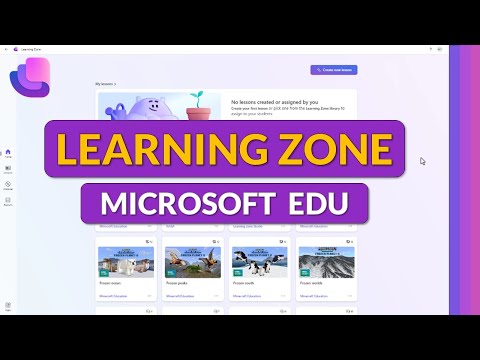
Microsoft Learning Zone AI for Educators
Principal Group Product Manager - Microsoft Education
Microsoft Learning Zone on Copilot plus PCs uses AI in Windows to speed lesson creation and empower educators
Key insights
- Microsoft Learning Zone: A free, AI-powered Windows app for educators that runs on Copilot+ PCs. It helps teachers build interactive lessons faster and lets students access lessons on any Windows device.
- Generate lessons: Create lessons from your files or the resource library. The app auto-produces slides, practice items, and optional quizzes you can edit, preview, and save.
- Assign and share: Use the My Lessons area to assign lessons with a code or link. Students join easily and work on the lesson from their Windows device.
- Reports and insights: View student counts, average grades, and engagement metrics to spot gaps and adjust instruction quickly.
- On-device AI and security: AI runs on the device to keep data local. Schools must enable the app through IT, and it is available for Microsoft 365 Education users.
- Personalized learning and partner content: The app supports tailored lessons and includes vetted resources from trusted partners to add real-world context and ready-made activities.
Introduction: Video Overview
In a recent tutorial-style video, educator and presenter Mike Tholfsen walks viewers through Microsoft Learning Zone, an AI-powered app designed to speed up lesson creation for teachers. He demonstrates how the app uses on-device AI to generate lesson slides, student activities, and practice tasks, showing realistic classroom scenarios step by step. As a result, the video highlights how educators can move from planning to assignment quickly while keeping student engagement in mind. Overall, the presentation aims to show practical use rather than theoretical promises.
How the App Generates Lessons
First, Tholfsen shows teachers how to start a lesson by uploading a file or choosing from the app’s resource gallery, then selecting learning goals to guide AI-generated content. Next, the app produces a sequence of slides, practice questions, and optional game-based checks that teachers can edit before saving. Importantly, the video stresses that AI runs on Copilot+ PCs, meaning the most advanced generation features require that specific hardware, while students can access lessons on broader Windows devices. Consequently, the workflow reduces repetitive drafting but still leaves final control with the teacher.
Classroom Workflow and Student Access
Tholfsen walks through assigning lessons via join codes or links and then follows a student’s view working through the material, demonstrating cross-device accessibility. He also opens the app’s Reports area to show aggregated insights such as participation numbers and average scores, which can help teachers spot learning gaps quickly. Moreover, the video highlights simple sharing and editing tools so educators can reuse or adapt lessons for future classes. Thus, the tutorial underlines a streamlined loop from authoring to assignment to evaluation.
Benefits and Tradeoffs
The video frames major benefits as speed, personalization, and integrated practice, which together can free teachers to focus more on instruction than on content assembly. However, Tholfsen also makes clear that these gains come with tradeoffs: relying on on-device AI delivers privacy and latency benefits, yet it requires Copilot+ PCs for full functionality, creating potential hardware and equity concerns. In addition, while partner content can enrich lessons, teachers must still vet materials for curriculum fit and accuracy. Therefore, the technology offers real advantages but does not remove the need for professional judgment.
Challenges and Implementation Considerations
Beyond individual classroom use, the video points out administrative challenges such as IT enablement, app deployment, and data governance that schools must handle before broad rollout. Furthermore, while students can open lessons on various Windows devices, districts need to consider device parity to avoid leaving some learners behind. The tutorial also touches on the balance between automated generation and teacher oversight, noting that poorly tuned prompts or unchecked content could reduce learning quality. Consequently, effective adoption requires training, policy alignment, and ongoing review.
Conclusion: Practical Takeaways for Educators
In closing, Tholfsen’s video presents Microsoft Learning Zone as a practical tool that can reduce preparation time and support differentiated instruction when used thoughtfully. Nevertheless, schools should weigh the benefits of on-device AI and partner resources against the realities of hardware requirements and the need for teacher review. Finally, the video serves as a useful demo for educators considering pilot programs, as it combines step-by-step guidance with an honest look at tradeoffs and next steps. Thus, teachers and administrators can use the video as a starting point for planning pilots, training, and phased rollouts.

Keywords
Microsoft Learning Zone, Microsoft Learning Zone app, Microsoft Learning Zone tutorial, learning zone AI for educators, AI-powered education tools Microsoft, Microsoft tools for teachers and students, how to use Microsoft Learning Zone, Microsoft AI teaching assistant