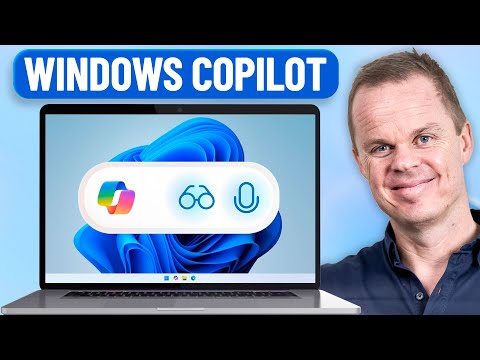
Copilot Windows 11: Easy Setup Guide
RPA Teacher. Follow along👆 35,000+ YouTube Subscribers. Microsoft MVP. 2 x UiPath MVP.
Microsoft guide: Use Copilot on Windows Eleven with Vision and voice, automate workflows and set privacy and performance
Key insights
- Copilot is built into Windows 11 — open it from the taskbar or press the Copilot key.
Start by typing or enabling voice so you can interact immediately. - Use Hey Copilot to speak naturally; voice activation supports 40+ languages for hands‑free control.
This makes dictation and quick commands easier across apps. - Vision lets Copilot read your screen, screenshots, or uploaded files to provide context-aware help.
It can summarize, explain, or act on visible content to speed up tasks. - Copilot Actions can automate multi-step workflows while requiring your approval for sensitive steps.
Pause or disable Actions anytime to keep full control. - Privacy and security settings let you control what Copilot stores and shares, including voice transcripts and chat history.
Adjust these options to match your comfort level and workplace rules. - Settings and customization let you tune shortcuts, performance, and quick views for your workflow.
Use Copilot to write, summarize, manage files, and automate repetitive tasks like Excel workflows.
Overview: Anders Jensen’s YouTube tutorial
In a clear, step-by-step YouTube video, Anders Jensen [MVP] shows viewers how to turn a machine into a practical AI PC using Copilot on Windows 11. The video aims to guide both new and experienced users through activation, voice control, and the visual features that let the assistant interact with on-screen content. Consequently, the presentation balances practical demonstration with explanations of settings that affect privacy and performance, making it useful for everyday users and IT professionals alike.
Moreover, Jensen emphasizes real-world tasks such as writing assistance, file management, and automation through agentic features. He walks through enabling voice commands like “Hey Copilot”, uploading screenshots, and configuring privacy options so users can make informed choices. Thus, the tutorial serves as a compact introduction to features that Microsoft has built into the OS rather than a separate app installation.
Getting started: enabling Copilot and voice control
First, Jensen demonstrates how to open Copilot from the taskbar or by using a dedicated Copilot key on supported keyboards, and he shows the toggle for voice activation. He notes that voice support covers many languages and that turning on “Hey Copilot” permits hands-free interactions, which is helpful for multitasking. Therefore, users who rely on dictation or want to speed up workflows will find this especially useful.
Next, the video covers the basics of permissions and initial setup so that Copilot can access local files or respond to voice reliably. Jensen advises enabling only the features you need, and he suggests testing voice recognition in a quiet environment to reduce errors. In short, the setup is straightforward, but tailoring permissions early helps avoid later surprises and improves the overall experience.
Vision, file uploads and Actions: how the assistant guides workflows
Jensen highlights the Vision capability, which lets Copilot analyze on-screen content and respond with contextual suggestions or actions, effectively reading the screen to guide users. He also explains how uploading files or screenshots provides targeted help, such as summaries, edits, or answers based on the document content. As a result, creative tasks and troubleshooting become faster because the assistant works from actual context instead of general prompts.
Additionally, the tutorial introduces Copilot Actions, a preview feature that allows the assistant to perform multi-step tasks under user control. Jensen shows that while Actions can automate workflows, the user must always approve sensitive steps, which maintains transparency and control. Thus, Actions increase productivity but come with safeguards to prevent unintended changes, striking a balance between convenience and user oversight.
Privacy and performance: tradeoffs to consider
Jensen devotes time to privacy controls and performance settings, underscoring that enabling advanced features often means granting broader data access or using more system resources. He points out that richer features like Vision and Actions may require cloud processing for best results, which introduces tradeoffs between local privacy and capability. Consequently, users must weigh whether the productivity gains justify the additional data flows and potential battery or CPU impact.
For those with strict privacy needs, Jensen recommends limiting uploads and adjusting history or transcript retention settings, while enterprise users should consult IT policies before enabling agentic features. He also shows how to tune performance options to minimize resource use when needed, which helps on laptops or older hardware. Therefore, careful configuration can reduce risks without fully sacrificing functionality.
Challenges, practical tips and final thoughts
Finally, the video addresses common challenges such as occasional inaccuracies, misunderstood voice commands, and the need to manage permissions thoughtfully. Jensen recommends simple troubleshooting steps like restarting the Copilot session, rechecking permissions, and updating Windows to ensure compatibility and accuracy. In practice, patience and incremental testing yield the best results when adopting AI features into daily routines.
Overall, Jensen’s tutorial provides a useful, balanced walk-through for users who want to adopt Copilot on Windows 11. While the assistant offers clear productivity advantages, the video responsibly highlights tradeoffs in privacy, performance, and reliability, and it supplies practical tips to manage those tradeoffs. Therefore, the tutorial reads as both a how-to guide and a measured appraisal, helping viewers decide how best to use AI features on their own terms.

Keywords
copilot windows 11 tutorial, how to use copilot windows 11, windows 11 copilot setup, enable copilot windows 11, copilot ai setup windows 11, copilot features windows 11, copilot tips windows 11, copilot installation guide windows 11