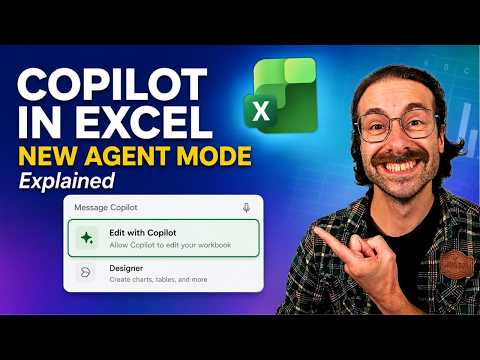
Copilot in Excel: New Edit Mode Tips
Master Copilot in Excel Edit Mode with pro tips and Microsoft Copilot best practices for Office and team training
Key insights
- Edit with Copilot (formerly Agent Mode) lets Copilot make direct changes inside your Excel workbook based on plain instructions.
It acts as an editing partner that plans, applies edits, and shows its steps while updating the sheet live. - Live edits happen in real time and you can see the tool’s thinking in the chat pane (reasoning pane).
This visibility lets you review, correct, or stop actions at any time and keeps you in control. - Iterative editing speeds up revision and alignment by keeping Copilot involved through drafting, polishing, and formatting.
By reducing repetitive tasks, teams can focus on decisions rather than manual cleanup. - To start in Excel for the web, open a workbook, select the Copilot option, and confirm editing in the chat area (Copilot chat).
You can enable or disable editing from the selector at any time. - Give Copilot simple natural language prompts like “highlight values above 100,” “add this formula,” or “create a summary column.”
Use the stop/pause control if you want to interrupt or review progress while it runs. - Platform support is expanding: Copilot editing is generally available on Windows, rolling out on Mac, and supported on the web.
Expect broader regional and channel rollouts as Microsoft continues deployment.
Video Overview
The YouTube video by Piggy Bank Accountant walks viewers through the new editing capabilities in Excel powered by Copilot, which the presenter refers to as Edit with Copilot (formerly called Agent Mode). The host demonstrates how Copilot can act directly on a workbook based on plain-language instructions, and shows live examples of formatting, formulas, and data cleanup. Throughout the video, the presenter highlights both the visible changes in the spreadsheet and the reasoning that appears in the Copilot chat pane, giving viewers a clear sense of the tool’s step-by-step process. Overall, the clip aims to show practical workflows that teams can adopt to reduce repetitive work and speed up common Excel tasks.
How Edit with Copilot Works
In the demonstration, Copilot reads a natural language prompt, creates a plan, executes edits in the workbook, and then reviews the result, all while showing its reasoning in the chat pane. This real-time explanation helps users understand why Copilot made each change and offers checkpoints where they can pause or stop the operation. The feature uses built-in Excel actions so every modification stays editable and integrates with standard workbook history, giving users a familiar safety net. As a result, users see immediate edits while retaining control over undoing or adjusting any change.
The video also explains how to enable and disable editing in the Copilot interface, and points out that the edit selector appears automatically when Copilot is opened in Excel for the web. Viewers are shown examples such as highlighting cells with specific values, adding columns with formulas, and formatting ranges to match report standards. The presenter emphasizes that Copilot may take a minute or two to run some tasks, and that users can interrupt processes using a stop button in the chat. This hands-on walkthrough helps viewers gain confidence in trying the feature themselves while understanding expected delays and controls.
Practical Workflows and Tips
The video lays out several practical use cases that are relevant to finance and budgeting workflows, such as generating summary columns, flagging outliers, and standardizing number formats across sheets. The presenter demonstrates how to ask Copilot to both create formulas and explain them, which can be a useful teaching moment for junior staff or for auditing newly produced calculations. In addition, the host shows how Copilot can suggest step-by-step changes and then implement those steps, allowing users to review intermediate results rather than only seeing a final output. This makes the tool useful not only for speed, but also for learning and quality control.
Moreover, the presenter offers advice on prompting Copilot: use clear, concise instructions and break complex tasks into smaller steps when possible. This approach balances efficiency with accuracy since smaller, verifiable edits reduce risk and make it easier to catch mistakes early. The video reinforces that while Copilot can automate repetitive formatting and formula generation, human oversight remains essential for validating logic and ensuring that results match business rules. Consequently, the recommended workflow pairs automated edits with quick manual reviews to preserve accuracy.
Benefits, Trade-offs, and Challenges
The video highlights major benefits, including faster revision cycles, reduced manual formatting work, and clearer documentation of edits through the visible reasoning pane. These advantages can free up analysts to focus on interpretation and strategy rather than tedious cleanup. However, the presenter also addresses trade-offs: increased automation reduces manual checks, which could let subtle errors slip through if teams rely solely on Copilot without validation. Therefore, organizations must balance speed against the need for review and governance.
In addition to accuracy concerns, the video discusses practical challenges such as handling very large or complex workbooks where automation may run slowly or fail to anticipate nuanced dependencies. Collaboration requires clear rules about when Copilot can edit a shared file versus when a human should lock changes. Finally, considerations around data sensitivity and access control surface as teams decide how widely to enable editing by AI. These trade-offs show that effective use of Edit with Copilot depends on policy, training, and a culture of verification.
Availability, Adoption, and Next Steps
The presenter notes that the editing capability has been rolling out across platforms and regions, with availability expanding on web and desktop clients. For organizations, the video suggests starting with pilot teams that can establish best practices and document prompt patterns that reliably produce correct results. Training and change management become important because realistic prompts, verification steps, and version control determine whether Copilot reduces workload or introduces new review overhead.
In conclusion, the Piggy Bank Accountant video provides a clear, practical introduction to using Edit with Copilot in Excel. It balances enthusiasm for faster workflows with measured advice about oversight, governance, and training. As teams experiment with the tool, they should prioritize simple, testable prompts and maintain review checkpoints to manage the trade-offs between automation and accuracy. With that approach, Copilot can become a productive assistant rather than a black-box shortcut, improving efficiency while keeping humans in the loop.

Keywords
Excel Copilot edit mode, Copilot in Excel tutorial, Excel AI Copilot guide, New Edit Mode Excel, how to use Copilot in Excel, Copilot Excel tips and tricks, Agent Mode Excel Copilot, Microsoft 365 Copilot Excel