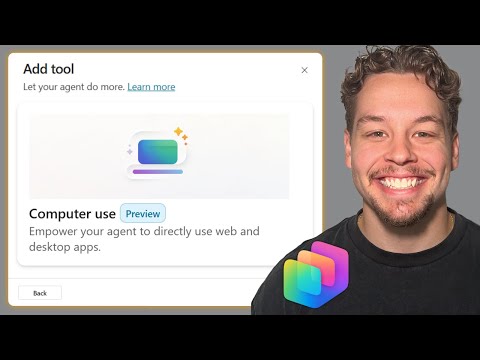
Copilot Studio: Set Up Computer Access
Certified Power Apps Consultant & Host of CitizenDeveloper365
Microsoft Copilot Studio Computer Use lets AI agents automate web and Windows apps for data entry and invoices
Key insights
- The Computer Use feature lets AI agents control websites and desktop apps with virtual mouse and keyboard actions and uses AI vision to keep working when interfaces change.
- Use the Setup Wizard to walk through checks and key steps: verify prerequisites, set connection references, configure environment variables, and activate necessary flows for your agent.
- Create agents with no-code or low-code tools by describing tasks in natural language, adding knowledge sources, testing in the studio, and then publishing when ready.
- Common uses include automated data entry, invoice and document processing, and form completion; agents perform user-like interactions to speed routine work and reduce errors.
- Integrate agents with Microsoft 365 Copilot, add tools and triggers for system actions, and use Copilot Tuning to improve relevance with your organization’s data.
- Follow best practices: enable only needed features, test agents thoroughly, add tools gradually, and monitor agent performance and usage metrics after deployment.
Introduction: New Capabilities Demonstrated
In a recent YouTube video, Griffin Lickfeldt (Citizen Developer) walks viewers through Microsoft’s new Computer Use feature inside Copilot Studio. The video serves as a hands-on tutorial that shows how agents can act like a user by clicking, typing, and navigating both web pages and desktop apps. Accordingly, Griffin highlights how this feature can automate data entry, form completion, and other repetitive tasks without direct API access. The piece is practical and aimed at non-developers who want to reduce manual work.
Griffin frames the feature as a way to extend AI agents beyond text responses into real-world interactions with software interfaces. He demonstrates the setup steps, basic testing, and a sample invoice processing scenario that underscores practical value. Moreover, the video emphasizes using natural language to instruct agents, making the tool accessible to a wider audience. As a result, the presentation shows both concept and immediate utility.
What the Video Demonstrates
The tutorial begins with an overview of what a Computer-Using Agent or CUA can do and why it matters. Griffin uses a live screen demonstration to show the agent filling a web form on a sample site, using virtual mouse and keyboard events to simulate a human operator. He then explains how AI vision helps the agent adapt when screens change, which is critical for reliability in real environments. Thus, viewers see a clear before-and-after view of manual versus automated workflows.
Additionally, Griffin tests the agent in an invoice processing flow that involves both web interactions and local file handling. He explains how the agent extracts data, enters values into form fields, and navigates menus as needed. The example highlights the combination of pattern recognition and step-based actions that makes the feature versatile. Consequently, the demo offers a realistic glimpse of how businesses might apply the tool immediately.
Step-by-Step Setup Overview
Griffin guides users through using the Setup Wizard inside Copilot Studio to enable Computer Use. First, the wizard checks prerequisites and prompts for connection references that tie the agent to services like Microsoft 365. Next, it helps set environment variables and activates flows that let the agent run specific tasks, and Griffin stresses enabling only the features you need to keep things lean. Therefore, the walkthrough is practical for people who want to avoid overwhelming complexity.
He also points out that some tasks, such as publishing dashboards or enabling detailed usage metrics, require manual steps after the wizard runs. Griffin recommends testing in a safe environment and iterating on the agent’s behavior before deploying to live users. He shows how to adjust prompts and add knowledge sources to refine responses, which helps improve relevance over time. Thus, the setup path balances guided automation with needed manual checks.
Tradeoffs and Practical Challenges
While Griffin praises the low-code approach, he also outlines tradeoffs between ease and control. On one hand, the wizard and natural-language instructions let non-technical users build agents quickly; on the other hand, this simplicity can hide important details about security, access permissions, and failure modes. For example, automating UI interactions can break when an application updates its layout, and maintaining resilience requires extra testing and monitoring. Therefore, teams must weigh speed against the need for ongoing maintenance.
Security and privacy also come up as practical concerns during the demonstration. Griffin urges careful control of credentials and attention to which systems the agent can access, because automated agents acting like users can amplify mistakes. He suggests implementing logging and approval steps where sensitive data or high-risk actions are involved, which improves oversight. As a result, thoughtful governance becomes essential as organizations adopt computer-using agents.
Best Practices and Next Steps
Finally, Griffin offers actionable tips for getting started and improving outcomes over time. He recommends beginning with simple workflows, validating success criteria, and then expanding scope as confidence grows, since small wins make it easier to justify broader automation. He also encourages adding tools and triggers to agents to connect them to business systems, noting that measured steps reduce risk and increase adoption. Consequently, teams can build momentum while managing technical debt.
Looking ahead, Griffin points to ongoing improvements in the 2025 release wave that expand integration with Microsoft 365 Copilot and refine the authoring canvas. He urges viewers to provide feedback during preview phases so Microsoft can tune features like agent publishing and analytics. Overall, the video serves as a clear, practical starting point for professionals and citizen developers who want to harness AI-driven interactions with real software. In short, the tutorial balances optimism with realistic advice on deployment and care.

Keywords
Microsoft Copilot Studio setup, How to set up Copilot Studio computer access, Copilot Studio computer use settings, Enable computer use in Copilot Studio, Copilot Studio tutorial 2025, Configure Copilot Studio device permissions, Copilot Studio setup guide, Troubleshoot Copilot Studio computer setup