Outlook: Custom RSVP Text with Copilot
M365 Adoption Lead | 2X Microsoft MVP |Copilot | SharePoint Online | Microsoft Teams |Microsoft 365| at CloudEdge
Microsoft Copilot transforms Outlook calendars: set custom rules to auto RSVP, clear canceled meetings, cut clutter
Key insights
- Custom Calendar Instructions
A new Outlook feature where Microsoft 365 Copilot automatically handles RSVPs and calendar cleanup based on rules you set.
It can accept, decline, or “follow” meetings and remove canceled events for you. - How it works
Copilot continuously monitors incoming invites and applies your rules in real time while showing notifications and activity logs for transparency.
Rules respect your calendar availability to avoid double bookings. - Rule examples
Use plain language such as “Always accept meetings from Alex if my calendar is free” or “Follow meetings after 5pm.”
“Follow” signals interest without blocking your time; acceptance reserves the slot on your calendar. - Setup
Create rules from Settings > Copilot > Calendar instructions or by typing a natural‑language instruction directly into Copilot in New Outlook or Outlook for the web.
Setup is quick and guided; no admin changes are required. - Availability & requirements
The feature requires a Microsoft 365 Copilot license and is rolling out worldwide from January to March 2026, currently in English and available in New Outlook and Outlook for the web.
No tenant admin configuration is needed for users to enable it. - Benefits
Reduces RSVP workload, cuts calendar clutter, and lowers decision fatigue so you can protect focus time and work more efficiently.
Copilot’s proactive automation improves calendar hygiene while keeping you informed of actions it takes.
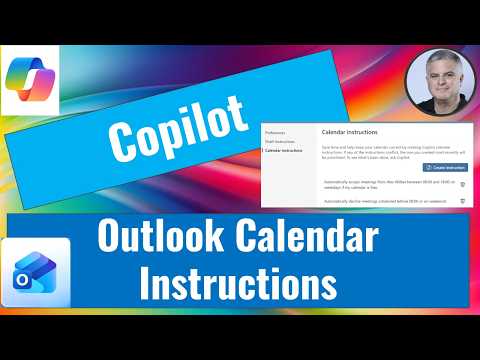
Ami Diamond [MVP] released a concise YouTube video demonstrating how to set Custom Calendar Instructions in Outlook using Microsoft 365 Copilot. In the clip, Ami, who is male and an established MVP, walks viewers through automated RSVP workflows that can accept, decline, or follow meeting invites. Furthermore, he frames the feature as a productivity win that reduces decision fatigue and calendar clutter. This report summarizes his demo, explains setup steps, and evaluates the tradeoffs organizations and individual users will face.
According to the video, the feature is rolling out worldwide between January and March 2026 and works in the New Outlook and Outlook for the web. Also, it currently supports English and requires a Microsoft 365 Copilot license, but it needs no tenant admin configuration. Consequently, many end users can enable rule-based automation quickly without waiting for IT changes.
Video Demonstration and Key Features
Ami demonstrates four core capabilities: Auto‑RSVP to new invites, automatic removal of canceled events, rule-based acceptance or following of meetings, and streamlined notifications and activity logs. For example, he shows rules like "Always accept meetings from Alex if my calendar is free" and "Always follow meetings after 5pm" to illustrate how Copilot applies conditions. Moreover, the video highlights that "following" an event signals interest without blocking time, which is useful for after-hours items. Overall, the demo focuses on practical scenarios that many knowledge workers face daily.
Ami also walks through the interface where Copilot confirms actions and surfaces a summary that users can approve before the agent acts autonomously. Importantly, Outlook keeps a visible log and sends notifications so users can review actions and reverse them if needed. Thus, Copilot balances automation with traceability, and the video emphasizes that transparency prevents unexpected calendar changes.
How to Set Up Custom Calendar Instructions
The video outlines two simple setup paths: via Outlook Settings under Copilot > Calendar instructions, or directly through the Copilot chat using natural language prompts. Ami demonstrates typing commands like "Automatically delete canceled meetings" or "Always accept meetings from my manager if my calendar is free" and then confirming Copilot's summary. He notes that setup typically takes under two minutes and that rules apply to new invites going forward, so users see changes after activation. Consequently, this approach suits people who want quick wins without complex configuration.
Ami offers practical tips, such as using filters for specific people or subject keywords and adding conditions like "if my calendar is free" to avoid conflicts. He also advises testing rules with narrow criteria before broad application to prevent unintended acceptances or deletions. Finally, he highlights that Copilot's confirmations and activity logs simplify troubleshooting when rules misfire.
Benefits, Tradeoffs, and Best Practices
According to the video, major benefits include saved time, fewer interruptions, and clearer schedules that support sustained focus on important work. In addition, automating routine RSVPs can improve consistency by ensuring similar invites are handled the same way every time. However, Ami cautions that automation carries tradeoffs: overly broad rules may accept meetings you would prefer to review, or they might delete events that you later regret removing. Therefore, balancing convenience against control requires measured rule design and ongoing monitoring.
Another tradeoff involves context and nuance: natural language rules may misinterpret ambiguous subjects or unfamiliar organizer names, creating false positives or missed opportunities. Moreover, organizations should weigh policy and compliance needs because automated calendar changes could affect shared scheduling or record keeping. As a best practice, Ami recommends starting small, reviewing Copilot's activity logs regularly, and refining rules over time.
Challenges, Rollout Considerations, and Conclusion
The video acknowledges technical and UX challenges, including handling exceptions, ensuring cross-platform parity, and parsing varied natural language expressions reliably. Furthermore, enterprise admins will likely want visibility into how the feature behaves at scale, even though no admin setup is required for basic use. Language support also limits immediate adoption because Copilot's rules are English-only for now, which affects multinational teams. Consequently, organizations must plan training and governance to avoid unintended scheduling outcomes.
In summary, Ami Diamond's YouTube demonstration makes a persuasive case that Microsoft 365 Copilot's Custom Calendar Instructions can reduce calendar friction and free time for higher-value tasks. Nevertheless, users should balance automation with caution, test rules, and monitor Copilot's activity to ensure the agent aligns with personal and organizational priorities. Ultimately, as the rollout continues, this feature could become a practical example of proactive AI improving day-to-day productivity when deployed thoughtfully.

Keywords
custom calendar instructions outlook copilot, set RSVP instructions outlook copilot, outlook copilot RSVP tutorial, customize RSVP message outlook, add RSVP instructions to outlook calendar, outlook meeting RSVP copilot guide, use copilot to edit calendar RSVP, outlook calendar RSVP custom text