Teams
24. Jan 2026 19:11
Microsoft Teams: Schedule Channel/Chat
von HubSite 365 über Mike Tholfsen
Principal Group Product Manager - Microsoft Education
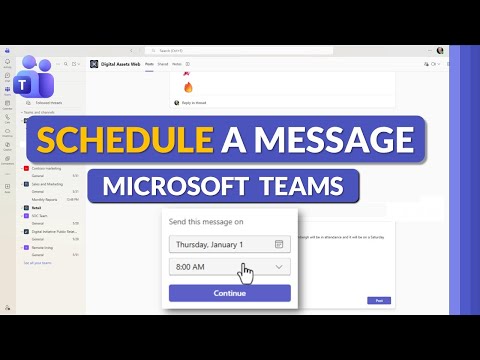
Microsoft Teams expert guide to schedule messages in channel or chat for smarter collaboration—watch the YouTube Short
Key insights
- Compose box
Open the chat or channel and click the message compose box to start writing your message. Use the formatting options if you need bold, links, or attachments. - Schedule send
Click the small down-arrow or three-dot menu next to the Send button and choose "Schedule send" or "Send later." On mobile use the message options menu to find the same command. - Date and time picker
Pick the date and time you want the message delivered, confirm the selection, and save. Verify the displayed timezone before scheduling. - Scheduled messages
Find your scheduled messages in the same chat or channel where you created them; they usually show a clock icon or a "scheduled" label so you can spot them quickly. - Edit or cancel
Open a scheduled message before it posts to edit the text, change the delivery time, or cancel the send. Changes take effect immediately after you save them. - Channel moderation
Remember channel posting rules: moderation or restricted permissions can block scheduling for some users. If scheduling is unavailable, ask a channel owner to update permissions.
Keywords
schedule message in Microsoft Teams, schedule Teams message, send message later Teams, schedule message in Teams channel, schedule chat message in Teams, Teams message scheduling guide, schedule messages Teams desktop mobile, how to schedule a message in Teams
HubSite 365 Apps