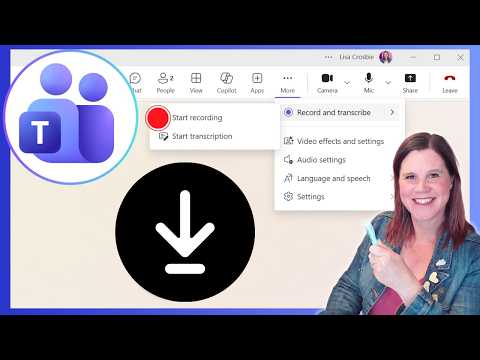
Teams: Download Meeting Recordings
Evangelist at Barhead Solutions | Microsoft Business Applications MVP | Content Creator
Microsoft guide to find, download, edit and manage access to Teams recordings in OneDrive and SharePoint with Copilot
Key insights
- Storage locations: Teams saves personal meeting recordings to OneDrive and channel meeting recordings to the team’s SharePoint site in a Recordings folder.
Check the appropriate cloud location based on whether the meeting was a channel meeting or a regular call. - Where to find recordings: Open the meeting Chat and the Shared tab, view the meeting Calendar entry under "Meeting recap," or go to the channel Files tab and the Recordings folder.
You can also look directly in your OneDrive "Recordings" folder for personal meetings. - How to download: The meeting Organizer (and co-organizers if allowed) can select the file and use the download option to save the .mp4 locally.
For channel recordings, download from the SharePoint file list or use the recording’s "more options" menu. - Permissions and sharing: By default, invited attendees can view recordings but may not be able to download them.
Grant download or external access by updating the file’s Permissions or sending a shared link so External users can open it. - Edit and expiry: Trim or edit recordings using the Teams or Stream editing tools, and adjust or remove the file’s Expiry date in OneDrive/SharePoint to extend access.
Changing expiry and edit settings helps keep important recordings available longer. - Special cases and Copilot: Teams Rooms recordings may save to the room’s OneDrive account and Channel recordings stay within team SharePoint.
Copilot can later search and summarize recordings if you have the right access and the file is stored where Copilot can read it.
Overview: A clear guide from Lisa Crosbie [MVP]
The YouTube video by Lisa Crosbie [MVP] walks viewers through locating, downloading, and managing Microsoft Teams meeting recordings. In clear step-by-step segments, the author explains where recordings land, how to grant access, and how to edit files so teams can reuse meeting content. Consequently, the tutorial is practical for everyday users and IT pros who support collaboration workflows. Importantly, the video also covers modern features such as recording expiry and the role of Copilot with meeting recordings.
Where recordings live: OneDrive versus SharePoint
The video highlights that recording location depends on meeting type: personal and non-channel meetings go to the recorder’s OneDrive, while channel meetings are saved to the team’s SharePoint site in a folder called Recordings. Therefore, locating a file requires understanding whether the meeting was a private chat, group call, or channel event, because storage paths differ and affect permissions. For example, Teams Rooms may use a room account and thus a different OneDrive, which adds another layer for admins to track.
Furthermore, Crosbie points out that channel-based storage makes recordings visible to the team by default, while OneDrive keeps files more private until shared. As a result, organizations must balance convenience and data governance: channel storage simplifies team access but demands more careful retention and permission policies. In practice, this tradeoff means IT teams should document where each meeting type stores files so users know where to look and how to share safely.
Finding and downloading recordings: practical steps
The author walks viewers through finding recordings in the Teams chat, calendar meeting recap, channel Files tab, and directly in OneDrive or SharePoint. She demonstrates how the meeting organizer can use the Shared tab or file options to open and download the .mp4 file, and she explains the small but critical difference in how channel downloads use SharePoint controls. Thus, users can follow predictable paths to retrieve files, though the exact steps depend on the recording’s storage location.
However, Crosbie emphasizes that download rights are limited: by default, only the meeting organizer and co-organizers may download, while attendees can view the file. This restriction protects content but can create friction when teams need offline copies or external partners must receive files. Therefore, organizers must deliberately change permissions or share a downloadable link when necessary, which introduces administrative overhead and potential security tradeoffs.
Permissions and sharing: balancing access and security
The video covers how to modify expiry dates, grant download permissions, and share recordings with internal and external users, while explaining why external access sometimes fails. Crosbie shows that admins and organizers can extend or remove expiry dates so recordings remain available, but she also warns that loosening restrictions increases exposure risk. Consequently, teams must weigh the convenience of long-term access against the need to protect sensitive conversations.
Moreover, Crosbie points out practical challenges: external users may be blocked by tenant policies, and attendees who did not organize the meeting often cannot download until an organizer changes sharing settings. Thus, the process can become time-consuming and error-prone in distributed environments where multiple tenants and guest accounts are involved. To address this, she recommends clear sharing practices and checks to ensure recipients can access what they need without broadening access unnecessarily.
Editing, Copilot, and operational tradeoffs
In addition to retrieval and sharing, the video demonstrates trimming and basic editing options for recordings so teams can remove dead air or sensitive sections before wider distribution. Crosbie also explains how Copilot can assist by summarizing meetings and extracting action items, which speeds post-meeting workflows but raises questions about privacy and data handling. Consequently, organizations must decide how much automation to allow, balancing productivity gains with governance and compliance requirements.
Finally, the tutorial closes with a recap of storage locations and practical tips for administrators who manage tenant-level settings for recordings. Overall, the video offers a useful, hands-on guide that helps viewers find, secure, and reuse meeting recordings, while also highlighting the tradeoffs between ease of access and protecting organizational data. As a result, teams can adopt better habits and IT can tighten policies to match the organization’s risk tolerance.

Keywords
download Teams meeting recording, find Teams recording, where are Teams recordings saved, access Teams recordings OneDrive SharePoint, download Microsoft Teams cloud recording MP4, recover deleted Teams recording, Teams meeting recording permissions, locate Teams meeting recordings web app