Stream
15. Okt 2026 11:55
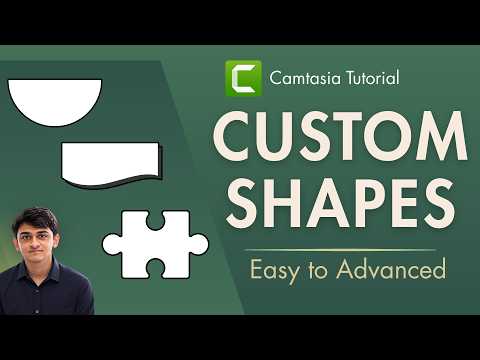
Camtasia: Any Shape with Media Matte
von HubSite 365 über Presentation Process YouTube
Microsoft expert guide to Camtasia Media Matte for custom shapes, pro visuals for PowerPoint and Microsoft Office
Key insights
- Media Matte: a mask method where a shape or graphic on the top track controls what appears on the track below.
Use a shape, image, or video as the matte and the underlying media will show only where the matte allows. - Modes: choose how the matte reveals content — Alpha shows opaque parts, Alpha Invert reverses that, Luminosity uses brightness, and Luminosity Invert flips brightness control.
Pick the mode that best fits your mask design. - Quick creation steps: place the content to reveal on the timeline, add a shape from Annotations and put it on a track above, then apply the Media Matte effect to that shape and select the mode.
Resize and position the shape to shape the visible area. - Adjustments & animation: use the Intensity control to fine-tune the mask strength and add Ease In/Out or keyframes to animate reveals.
Animated mattes can create smooth transitions and dynamic effects. - Practical uses: make custom-shaped video windows (circles, arrows, speech bubbles), hide sensitive UI parts, build multi-video layouts, or create branded visuals without external editors.
Examples include chevrons, flowcharts, and puzzle pieces. - Save and formats: save custom shapes to the Library for reuse and speed up future projects.
Camtasia supports transparent media like PNG, GIF, MOV and transparent MP4/BMP for matte workflows.

Keywords
camtasia media matte tutorial, create any shape camtasia, camtasia mask shapes, camtasia shape overlay, camtasia masking techniques, camtasia custom shapes, camtasia video masking, camtasia media matte effect
HubSite 365 Apps