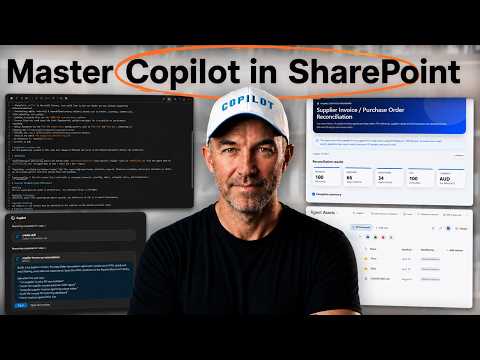
Copilot: Reusable SharePoint Skills
A Microsoft MVP 𝗁𝖾𝗅𝗉𝗂𝗇𝗀 develop careers, scale and 𝗀𝗋𝗈𝗐 businesses 𝖻𝗒 𝖾𝗆𝗉𝗈𝗐𝖾𝗋𝗂𝗇𝗀 everyone 𝗍𝗈 𝖺𝖼𝗁𝗂𝖾𝗏𝖾 𝗆𝗈𝗋𝖾 𝗐𝗂𝗍𝗁 𝖬𝗂𝖼𝗋𝗈𝗌𝗈𝖿𝗍 𝟥𝟨𝟧
Microsoft Copilot in SharePoint reconciles invoices and purchase orders, surfaces exceptions and generates HTML reports
Key insights
- Copilot in SharePoint: The video demonstrates using Copilot to reconcile supplier invoices with purchase orders in SharePoint.
It processes 100 invoices, finds 66 matches and flags 34 exceptions that need review. - Microsoft Lists matching: The workflow runs across two lists (supplier invoices and purchase orders) and matches each invoice by PO reference.
Copilot highlights why records don’t match and marks matched records automatically. - HTML reconciliation report: Copilot generates an interactive HTML report stored in the site that summarizes matches and exceptions.
The report includes a filterable interface and slide-out panels that show discrepancy details for easy review. - Reusable Copilot skill: The demo shows how to turn the whole process into a saved skill that other site users can run again.
Create the skill in Copilot chat, review the draft steps, refine inputs/outputs, and save it to reuse later. - Agent Assets storage and permissions: Skills are saved in the site’s Agent Assets library under a Skills folder as markdown files.
Users need Edit permission to create skills and View permission to run them; skills do not change existing access rights. - Practical tips & new update: Start with one high-value, repeatable process and model real work with human checkpoints.
The 2026 update adds built-in skills that help draft and initialize new site skills, lowering setup effort and improving consistency.
Video overview and key results
Daniel Anderson [MVP] published a practical YouTube tutorial titled Build a Reusable Copilot Skill for SharePoint, which demonstrates how to reconcile supplier invoices and purchase orders using Copilot in SharePoint. In the video, Copilot works across two Microsoft Lists — one for supplier invoices and one for purchase orders — to match records and flag discrepancies. Notably, the demo processes 100 invoices and reports 66 matches with 34 exceptions that require human review, which gives a clear metric for the example’s effectiveness and limits.
Moreover, Anderson shows how to turn that multi-step process into a saved, repeatable asset that other site users can run. Consequently, the tutorial emphasizes both the automation flow and the user interactions needed to validate results. Therefore, the piece serves as a hands-on guide for teams that want to formalize a reconciliation workflow in SharePoint.
Demonstration: matching and reporting
First, the video walks viewers through matching each invoice’s PO reference to the corresponding purchase order and identifying why records don’t match. Then, Copilot generates an HTML reconciliation report that lists matches and exceptions and includes a filterable interface for analysts to review records more efficiently. Additionally, Anderson adds slide-out panels that show discrepancy details, improving transparency during the validation step.
Consequently, the report supports a practical review loop: Copilot handles bulk matching while humans adjudicate exceptions. However, the demonstration also makes clear that AI-driven matching is not perfect and that manual checkpoints are essential. For that reason, the tutorial models how to combine automated matching with human judgment to maintain accuracy.
Building and saving a reusable skill
Anderson then packages the validated process as a reusable Copilot asset that lives in the site, showing how to save the steps alongside the site content. Specifically, the tutorial highlights the site’s Agent Assets library and a Skills folder where Copilot skills are stored, typically as a markdown file such as SharePoint.md. After reviewing and refining the draft, the user saves the skill so it can be invoked again without rebuilding the workflow from scratch.
Moreover, the video explains the simple flow for creating a skill: describe the workflow in the Copilot chat panel, refine the draft definition, and then confirm and save. As a result, teams can capture site-specific rules and standards inside a reproducible asset. This approach reduces repeated setup work and helps standardize processes across users on the same site.
Tradeoffs: automation, control, and governance
While reusable skills promise consistency and speed, the video and blog post make clear that there are tradeoffs to consider. For example, automation increases throughput but can also surface false positives or miss edge-case mismatches, so teams must balance efficiency with appropriate human checkpoints. Additionally, skills are site-scoped assets, so organizations must plan how to replicate or adapt skills across multiple sites when needed.
Furthermore, permissions and discoverability impose limits: users need Edit rights to create skills and View to run them, and skills remain constrained by SharePoint’s access model. Therefore, while skills do not expand data access, they do require governance around who can author and who can run repeatable workflows. Ultimately, these controls help protect data but add administrative steps when scaling skills across a broader estate.
Challenges and practical recommendations
The tutorial also highlights practical challenges such as mapping fields between lists, handling inconsistent data, and designing friendly report interfaces that support reviewer workflows. Moreover, performance considerations appear when datasets grow beyond the demo’s 100 records, and Copilot’s response time may vary with larger lists or more complex matching logic. For these reasons, Anderson recommends starting with one high-value process and modelling the real workflow rather than an idealized version.
In practice, teams should build around human checkpoints, use site-specific memory so the workflow improves over time, and keep the skill focused on repeatable tasks. Additionally, periodically reviewing and updating saved skills is important when site structure or business rules change. In short, the path to a useful, reusable Copilot skill combines careful setup, ongoing validation, and clear governance so automation can scale without compromising control.
Implications for SharePoint users
For organizations using SharePoint and Microsoft Lists, the video provides a practical pattern to automate data matching, exception reporting, and other repeatable tasks. By contrast, the tradeoffs mean that not every routine should be fully automated; instead, reusable skills work best when they augment human work and reduce repetitive steps while preserving oversight. Consequently, teams that adopt this pattern can save time and improve consistency while managing risk through defined review points.
Overall, Daniel Anderson’s tutorial offers a clear, step-by-step example that shows both the promise and the limits of turning a reconciliation workflow into a reusable Copilot skill. Therefore, readers who want to adopt the pattern should pilot with a small, high-value process, involve reviewers early, and plan governance so the saved skills remain useful and secure over time.

Keywords
reusable copilot skill for sharepoint, build copilot skill sharepoint, sharepoint copilot integration, copilot skill tutorial for sharepoint, microsoft copilot developer guide, create copilot skill azure, sharepoint ai assistant development, copilot skills best practices