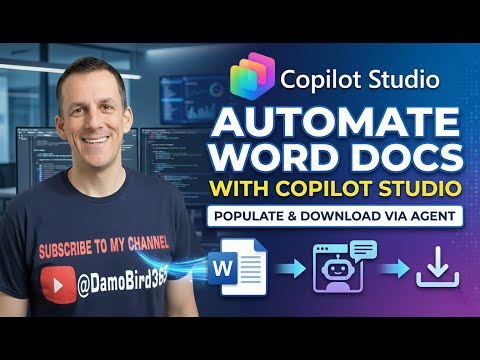
Copilot Studio: Export Word Docs Fast
Power Platform Cloud Solutions Architect @ Microsoft | Microsoft BizApps MVP 2023 | Power Platform | SharePoint | Teams
Microsoft expert guide to generate and download Word documents in Copilot Studio using Power Platform automation
Key insights
- Copilot Studio agents: Use a "Generate documents, charts, and code" skill to turn natural-language prompts into fully formatted Word files ready to download.
Agents orchestrate generation using advanced models (including GPT-5 Chat) to produce editable .docx outputs. - Word Agent: Drafts, refines, and iterates documents inside Copilot chat and Word while keeping conversation context.
Agents can pull data from Microsoft 365 sources so drafts reflect current team content and decisions. - Copilot Tuning: Train custom document-generation models with example document pairs and changelogs stored in SharePoint.
Requirements include permissions and a set of labeled examples; workflow: label data, train, evaluate, and publish. - Data grounding (SharePoint): Ground agents in SharePoint with metadata filters (filename, owner, date) to return accurate, recent content.
Agents can also access directory info for organizational context, improving relevance. - Implementation essentials: Build dialogs in the conversational editor and add the generation skill; use Action Groups to simplify file and mailbox actions.
Connectors and Model Context Protocol enable integrations across Power Platform and many enterprise systems. - Key advantages: Automates repetitive drafting to save time and reduce manual editing.
Delivers more contextually accurate outputs, integrates across Word/Excel/PowerPoint/Teams, and supports enterprise scalability and security controls.
Damien Bird, a Power Platform Cloud Solution Architect at Microsoft, published a YouTube video that explains how Copilot Studio can generate and download Word documents from natural language prompts. In clear steps, the video demonstrates how agents within the studio draft, refine, and export professional documents while drawing on Microsoft 365 data. This report summarizes that video, highlights the key workflows, and explores tradeoffs and practical challenges for teams evaluating the feature.
Video summary and context
In the video, Bird walks viewers through the newly enhanced "Generate documents, charts, and code" skill inside Copilot Studio, showing how agents create editable Word files from conversational inputs. He situates the feature within recent Microsoft updates and explains how it complements the broader Microsoft 365 ecosystem. As a result, organizations can produce formatted reports quickly, while keeping data grounded in SharePoint and other corporate sources.
Bird emphasizes that the tool is useful both for rapid drafting and for automating repetitive reporting tasks. Moreover, he highlights integrations that let agents pull context from Excel, Teams transcripts, and directory data, which improves relevance and reduces manual editing. Consequently, teams can iterate on documents without leaving their collaborative workflow.
How Copilot Studio generates Word documents
The video breaks down the underlying workflow: creators configure an agent in the conversational editor, invoke the "generate" skill with a natural prompt, and receive a downloadable, editable Word file. Bird explains that this flow builds on custom model tuning—referred to in the video as Copilot Tuning—which trains models using example pairs and changelogs to better match organization style and structure. He also mentions the use of advanced models like GPT-5 Chat for orchestration in more complex scenarios.
Importantly, Bird shows how the Word Agent maintains context across chats and apps, which allows iterative refining of a draft without losing prior inputs. He demonstrates agents pulling metadata-filtered content from SharePoint so that generated documents reflect the latest, relevant information. This grounding reduces hallucinations and helps maintain compliance with internal document standards.
Setup, configuration, and practical steps
The video outlines practical steps to get started: create an agent in Copilot Studio, add the document generation skill, ground the agent in SharePoint, and then test prompts to refine output. Bird walks through the prerequisites for model tuning, noting that teams typically need a set of example document pairs and structured changelogs. He stresses the importance of selecting appropriate security groups and labeling training data correctly before initiating training and evaluation.
Bird also explains operational details such as the use of Action Groups to add SharePoint or Outlook capabilities quickly, and how connectors via the Model Context Protocol (MCP) and Power Platform expand the agent's reach. He shows that agents can scale to handle hundreds of files and that enterprise settings allow administrators to set controls to block maker-provided credentials for added security. Thus, the setup balances ease of use with necessary governance.
Advantages and tradeoffs
According to Bird, the most obvious benefit is time savings: teams can automate repetitive drafting tasks and generate polished drafts in seconds rather than hours. In addition, grounding agents in SharePoint and directory data improves contextual accuracy, which reduces manual rework and aligns outputs with current organizational facts. The seamless integration across Microsoft 365 apps also supports iterative refinement without breaking workflow continuity.
However, the video also notes tradeoffs. Custom tuning and high-quality results require a meaningful investment in example data and governance, which can be time-consuming to prepare. Moreover, while agents reduce manual effort, organizations must balance automation with review processes to catch subtle errors or policy issues. Therefore, teams should plan for both technical setup and ongoing human oversight to achieve reliable outcomes.
Challenges and recommendations
Bird highlights practical challenges including data quality, access controls, and the need for clear training examples. He points out that poor or inconsistent examples will produce weaker outputs, and that permissions must be carefully managed to prevent accidental disclosure when agents access SharePoint or other sources. Consequently, organizations should audit data sources and set strict metadata filters before broad deployment.
Finally, Bird recommends iterative rollout: start with a small pilot, measure accuracy and user feedback, and expand once governance and tuning practices mature. He also suggests maintaining human-in-the-loop checks for critical documents and updating training pairs regularly to reflect style changes. By following these steps, teams can capture efficiency gains while managing risk.
Overall, the YouTube video provides a clear, practical guide to using Copilot Studio for Word document generation and download, while candidly discussing the setup effort and governance tradeoffs needed to deploy it safely in enterprise environments.

Keywords
generate Word document Copilot Studio, download Word file Copilot Studio, Copilot Studio export DOCX, create DOCX Copilot Studio, automate Word generation Copilot, Copilot Studio document download, export Word document Microsoft Copilot Studio, Copilot Studio Word template export