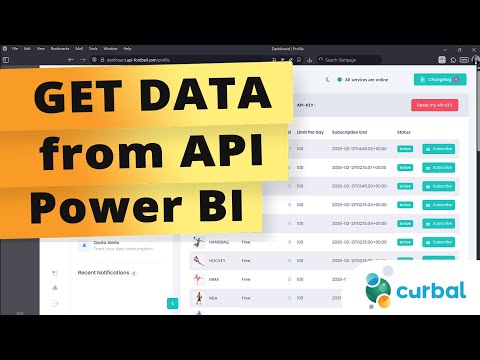
Football Project: Fetch API Data Fast
Microsoft expert guide to authenticate API-Football, fetch leagues and build Power BI and Excel dashboards
Key insights
- The video shows how to pull football data into Power BI by connecting to a football API, authenticating, listing available leagues, and choosing one to build reports.
- First, get an API key from the provider and use it for authentication; keep the key secure and avoid sharing it in public files.
- In Power BI Desktop, use the Web connector (Get Data → Web) or set HTTP headers to call the provider's endpoint and retrieve JSON responses.
- Use Power Query to parse JSON, expand nested records into tables, clean fields, and shape data for visuals like calendars, match lists, or leaderboards.
- Common endpoints include fixtures, standings, team and player data; filter by league, date, or team before loading to improve performance and focus reports.
- Enable a scheduled refresh in the Power BI Service with proper credentials so scores and fixtures stay current, enabling near real-time dashboards and automated updates.
Overview of the Video
In a recent tutorial, Curbal demonstrates how to fetch football data into Power BI using a public sports API. The video walks viewers through the authentication step, retrieving available leagues, and selecting the league they want to work with. Consequently, the guide is practical for analysts and hobbyists who want to build interactive match calendars and dashboards without heavy coding.
First, the presenter emphasizes obtaining an API key from a provider and then using Power BI's Web connector to call the API endpoints. Next, the video shows how to parse JSON responses and transform them into useful tables for visualization. Therefore, viewers can replicate the steps to show fixtures, teams, and match details in their reports.
What the Tutorial Demonstrates
The tutorial starts by explaining authentication: how to include your API key in requests so the provider permits data access. Then, it demonstrates a basic query to list all available leagues, allowing users to pick the league they want to analyze. As a result, users can scope their reports to a specific competition such as a national league or a regional tournament.
Subsequently, the video shows how to handle the JSON payload in Power Query, turning nested arrays into flattened tables that Power BI can use for visuals. The presenter also covers common transformations like renaming fields, setting data types, and creating date fields for calendar visuals. Thus, the workflow becomes repeatable and clear for analysts who need to refresh or expand the dataset later.
Workflow and Practical Steps
First, viewers are advised to secure an API key and keep it safe, because the key authenticates requests and controls access. Next, the video demonstrates entering the API endpoint into Power BI's "Get Data" > "Web" option and shows how to include the key either as a query parameter or an HTTP header. Consequently, this approach supports both simple GET requests and slightly more secure header-based methods.
In Power Query, the tutorial outlines how to parse and expand JSON, merge tables, and build a date-driven calendar to filter fixtures. Additionally, the presenter shows how to set up scheduled refreshes in the Power BI Service so reports can update when new match data appears. Therefore, the setup targets both one-off analyses and ongoing dashboards that require periodic updates.
Tradeoffs and Technical Challenges
While the video makes the process look straightforward, there are several tradeoffs to consider, especially around data freshness, cost, and complexity. Free or low-tier API plans may restrict request volume, so relying on frequent automated refreshes can hit limits or incur charges. Conversely, higher-tier plans improve reliability and data depth, but they increase operational costs and require stronger governance.
Moreover, handling API rate limits and nested JSON structures introduces technical challenges for many users. For example, flattening deeply nested responses can produce large tables that slow down Power BI reports if not modeled carefully. Additionally, using header-based authentication is more secure but slightly more complex to configure than passing the key in the URL, so teams must balance security against ease of setup.
Recommendations and Next Steps
For practical adoption, start small by pulling a single league and building a lightweight calendar or match list to validate the data pipeline. Then, gradually add additional endpoints such as standings or player stats, making sure to optimize queries and reduce redundant columns. As a result, you keep report performance acceptable while expanding analytical value.
Finally, consider automated refresh strategy and error handling: schedule refreshes during low-usage windows, monitor usage quotas, and add simple checks to catch failed refreshes. In the long run, teams may want to centralize data into a dedicated store or use incremental refresh to minimize load. These tradeoffs and incremental improvements help maintain reliable, scalable football analytics with Power BI.
Resources Mentioned
- API-Football (example football API provider)
- Power BI (data visualization and ETL in Power Query)
- Curbal (video author and tutorial source)

Keywords
football API tutorial, get football data from API, football data API example, soccer API integration, live football data API, football stats API, sports data API football, football API JavaScript