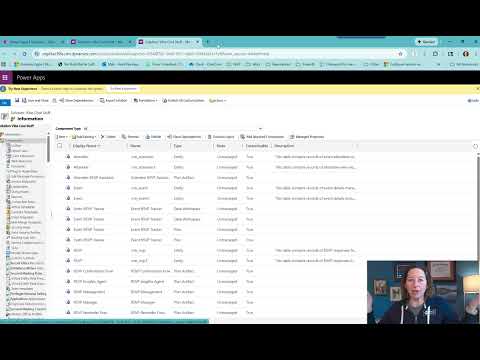
CRM: When to Switch to Classic
Microsoft MVP | User Adoption, Dynamics 365 + Power Platform Expert at Reenhanced
Microsoft expert tip: Speed up Dynamics CRM Classic by duplicating browser tabs for faster load and smoother workflows
Key insights
- Dynamics 365 overview: explains how the platform centralizes sales, service, and operations data for faster decisions.
It highlights the value of the Unified Interface for consistent user experiences across devices. - Classic interface performance tip: switching to Classic can reduce load time for some tasks.
CRM Tip: When switching to Classic, duplicate the tab to open pages faster and keep your workflow stable. - Power Automate and Dataverse integrations: use flows to automate routine tasks and move data reliably between systems.
Standard connectors speed setup, while Dataverse stores structured CRM data for reuse. - Role-based security and governance: apply roles and environment controls to protect data and limit access.
Enable auditing and data loss prevention to meet compliance and track changes. - Telemetry logs and diagnostics: collect logs and use built-in tools to find slow pages and errors quickly.
Combine telemetry with browser dev tools or server traces to pinpoint and fix issues. - Change management best practices: plan releases, train users, and document processes to boost adoption.
Use small pilot groups, clear guidance, and regular feedback to reduce disruption and improve results.
Introduction
In a concise YouTube clip, Heidi Neuhauser [MVP] shares a practical tip for users of Microsoft Dynamics CRM who need to switch between interfaces. The video focuses on a simple browser technique: when you switch to Classic, open a duplicate tab to speed up the load. This advice arrived as a quick workaround rather than a formal feature change, and it aims to save time for people who still rely on the older interface.
What the Tip Shows
Essentially, the video demonstrates that duplicating a tab can prevent a full reload of resources when moving into Classic. Therefore, the duplicated page often draws from cached assets and an active session, which makes the transition faster. Heidi frames this as a user-level trick that anyone can apply without admin rights or system changes.
Moreover, the approach works across common browsers (for example Microsoft Edge) by using the standard duplicate-tab command or right-click menu. Consequently, users can move between the modern and classic user experiences with less waiting time. The clip emphasizes ease of use and immediate benefit for individual productivity.
Why It Can Improve Load Times
From a technical perspective, duplicating a tab often preserves authentication cookies and in-memory session data, so the browser does not need to reauthenticate or reinitialize heavy scripts. In addition, cached JavaScript, CSS, and images can be reused, which reduces network calls and accelerates rendering. Thus, switching to Classic via a duplicate tab can feel much snappier than loading it from scratch.
However, performance depends on browser behavior, available memory, and server-side settings. For example, some environments aggressively expire sessions or use load-balanced servers that require fresh authentication, which reduces the effectiveness of this trick. Therefore, results will vary and users should test the approach in their own environment.
Tradeoffs and Operational Challenges
While the trick is useful, it carries tradeoffs that teams should consider before recommending it broadly. On one hand, the method reduces wait time and boosts short-term productivity for tasks that need the Classic view, but on the other hand, it can create confusion when multiple tabs edit the same record. In particular, unsaved changes in one tab may be overwritten by actions in another, so users must coordinate when they work in parallel windows.
Security and compliance also present challenges because duplicating a tab keeps the same session alive in multiple places, which may not align with strict session policies. Furthermore, relying on user workarounds can mask underlying performance issues that administrators should address, such as slow server responses or suboptimal customizations. Consequently, organizations must weigh the quick gains against longer-term maintenance and governance concerns.
Best Practices and Alternatives
To reduce risk, users should save work before duplicating a tab and avoid editing the same record in more than one window. In addition, teams can document the tip as an approved workaround while encouraging users to clear cache or use a dedicated testing environment when needed. Meanwhile, administrators can pursue server tuning, platform updates, and modernization to address systemic delays.
Alternatively, consider using the modern interface features or browser profiles to separate tasks, because those approaches keep sessions distinct and reduce the chance of accidental overwrite. For organizations committed to the modern UI, investing in training and optimizing customizations often yields a more sustainable performance improvement than user-level tricks. Thus, combine immediate workarounds with long-term fixes for best results.
Conclusion
Heidi Neuhauser’s short video highlights a small but practical way to make interface switching feel faster by duplicating a tab. Nevertheless, the tip is a stopgap that comes with operational tradeoffs related to data consistency, security, and supportability. Therefore, teams should adopt it cautiously, apply clear rules for usage, and pursue backend optimizations to solve root causes.
Ultimately, the video provides useful, actionable advice for users who must keep using Classic today, while reminding organizations that sustainable performance comes from combining user best practices with administrative improvements. As a result, this simple technique can improve day-to-day workflow when used wisely and with awareness of its limitations.

Keywords
switch to classic CRM, CRM switch to classic view, revert to classic CRM interface, Dynamics 365 switch to classic, return to classic view CRM, enable classic UI Dynamics 365, switch back to legacy CRM, how to change CRM to classic