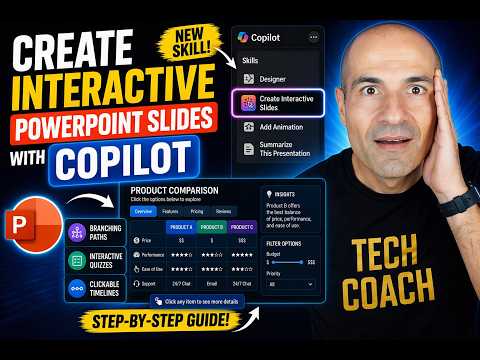
PowerPoint Copilot: Interactive Slides
Microsoft MVPs, YouTube Creator youtube.com/giulianodeluca, International Speaker, Technical Architect
Microsoft Copilot in PowerPoint turns bullets tables and data into clickable interactive slides for Teams and SharePoint
Key insights
- Create Interactive Slides
The video demonstrates how Microsoft Copilot in PowerPoint turns static bullets, tables, and data into clickable, interactive slides inside the normal editing view. - Manage Copilot Skills & Plugins
It shows where to enable and configure Copilot skills and plugins so you can access the new interactive features quickly. - Generate New Slides from Existing Content
Learn how to create a new slide based on a selected slide, including examples like a budget allocation and growth forecast with an added ROI filter. - Clickable Elements & Animations
The tutorial covers adding clickable icons and rotating topic layouts that respond in edit mode for richer audience interaction. - Education-Ready Media Slides
See how to build interactive educational slides using real hominid images and layered content to explain concepts like human evolution. - Present Interactive Slides in Microsoft Teams
The presenter explains best practices for showing these interactive slides in Teams and concludes with tips for smooth delivery.
Overview of the new Copilot skill in PowerPoint
In a recent YouTube video, author Giuliano De Luca [MVP] demonstrated a notable update to Copilot in PowerPoint called Create Interactive Slides. The video walks viewers step-by-step to transform static bullet points, tables, and data into clickable, interactive elements directly within PowerPoint's normal editing view. As a result, authors can build richer presentations without switching tools or adding complex plugins.
Importantly, this update focuses on ease of use and integration with existing slides, which Giuliano De Luca [MVP] shows throughout the tutorial. Consequently, teams that already use PowerPoint can prototype interactive content faster and present it more dynamically. Moreover, the feature aims to keep the editing workflow familiar while adding new interaction capabilities.
How the feature works in practice
First, the video shows how to manage Copilot skills and plugins inside PowerPoint before creating a new interactive slide based on an existing slide. Then, the presenter demonstrates converting a budget allocation slide into a filterable, clickable overview, which highlights the practical steps to generate interactivity. Therefore, the process emphasizes reuse of existing content rather than rebuilding slides from scratch.
Next, the tool can add interactive icons and rotating topic layouts, which the presenter uses to make content feel more exploratory and engaging. For example, a slide with clickable icons rotates around a central image, allowing presenters to guide the audience through each point selectively. In addition, the feature supports adding real images and educational overlays, such as an evolution-themed slide that mixes imagery with clickable hotspots.
Demo highlights and presentation flow
The video includes clear timestamps and short demonstrations to help viewers follow each use case, starting with setup and moving through several practical examples. Notably, the presenter shows a budget forecast slide where filters for ROI are added so audiences can refine the view during a presentation. Afterwards, the tutorial highlights how to present these interactive slides in Microsoft Teams, which matters for remote and hybrid meetings.
Beyond the finance example, Giuliano De Luca [MVP] also crafts an education-oriented slide using real hominid images to illustrate the human evolution sequence with clickable stages. Consequently, teachers and trainers could use the same workflow to create lessons that invite exploration, while corporate users might use it for dashboards or product overviews. The video ends with a concise conclusion that ties the examples back to practical adoption steps for everyday users.
Tradeoffs and practical challenges
While the new skill reduces manual work, it introduces tradeoffs between interactivity and simplicity that teams must consider. For instance, interactive slides can increase file size and add complexity, which may affect loading speed on older machines or in bandwidth-constrained meetings. Moreover, adding many interactive elements can complicate slide maintenance and make version control more challenging for collaborative teams.
Accessibility is another critical consideration because interactive elements can behave unpredictably for screen readers and keyboard-only navigation, so authors must test different scenarios. Although Copilot automates much of the creation, designers still need to ensure alt text, focus order, and clear labels are present so content remains usable for everyone. Consequently, balancing visual richness with accessibility and performance becomes an important part of the design process.
Security and privacy also present tradeoffs, especially if interactive content pulls from external data or relies on Copilot extensions that require permissions. Teams should evaluate how plug-ins interact with corporate policies and whether interactive slides expose sensitive data unintentionally. Thus, organizations will need clear guidelines and governance to adopt the feature safely.
Adoption tips and next steps for teams
For teams considering adoption, the video recommends starting with a single slide and iterating while testing in real presentation settings, such as a Teams meeting. Additionally, users should manage Copilot skills centrally and document which templates support interaction to keep standards consistent across decks. By piloting the feature in low-risk scenarios, teams can learn about performance, accessibility, and file management before wider rollout.
Finally, the new skill represents a step toward more interactive, audience-driven presentations that blend design and data more tightly within PowerPoint. As long as organizations weigh the tradeoffs and address the practical challenges outlined by Giuliano De Luca [MVP], the feature can enhance storytelling and engagement in both educational and business contexts. Going forward, systematic testing and governance will help teams get the most value from these interactive capabilities.
Keywords
Copilot PowerPoint tutorial 2026, interactive PowerPoint slides Copilot, PowerPoint Copilot features 2026, AI-powered PowerPoint design, create interactive slides with Copilot, Copilot for presenters PowerPoint, PowerPoint tips and tricks 2026, Microsoft Copilot PowerPoint guide