PowerPoint: Bulk Import & Export Slides
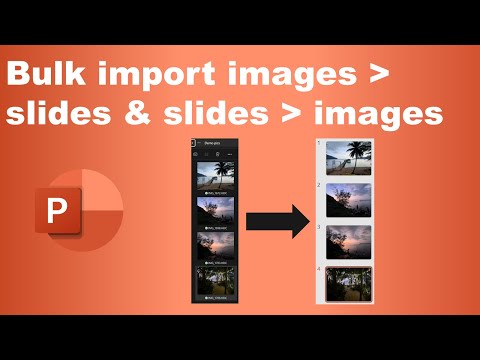
Microsoft PowerPoint tips to bulk import images with Photo Album and export slides as PNG for fast design workflows
Key insights
- Photo Album feature
Summary of a YouTube tutorial that shows how to use PowerPoint’s built-in Photo Album tool to bulk import many images into a presentation.
Steps shown: Insert > Photo Album > New Photo Album, then use the File/Disk button to select images and create slides automatically. - Bulk import efficiency
The Photo Album places each selected picture on its own slide to save time compared with inserting images one by one.
You can reorder images inside the dialog and choose how pictures fit on slides before creating the album. - Bulk export slides
To turn slides into image files, use File > Save As and choose an image format (for example PNG) and export “All slides.”
This lets you convert a presentation into many image files for reuse or re-import workflows. - VBA macros
For very large or custom projects, a VBA macro can automate importing, sizing, and positioning with more control than Photo Album.
Note: macros may be restricted in some IT environments for security reasons. - Mac workarounds
On Mac, Photo Album has limited availability, so users often use Keynote or third‑party add-ins and scripts to batch import or create custom layouts.
Newer PowerPoint versions also improved drag-and-drop, but Photo Album remains the most reliable option on Windows. - Preparation tips
Apply your theme and set matching slide size before importing to reduce cropping and keep a consistent look.
Organize and name image files, decide on captions or text boxes in advance, and test with a small batch before processing hundreds of images.
Introduction to the video
David Benaim’s YouTube video walks viewers through quick methods to move many images into and out of PowerPoint. In a short runtime, he demonstrates the built-in steps and highlights faster alternatives, with clear timestamps for each topic. For editors and designers looking to process large photo batches, his rundown is practical and direct.
He begins with the essentials at 00:00 and then shows how to turn a folder of pictures into slides at 00:15. Next, he explores the Photo Album options at 00:52 and finishes by explaining how to export a full presentation to images at 02:23. Overall, the video is a compact tutorial that balances speed with useful tips for real workflows.
How bulk importing works
The core feature Benaim demonstrates is PowerPoint's Photo Album tool, accessed via Insert > Photo Album > New Photo Album. This tool lets you select multiple files at once, and then PowerPoint creates one slide per picture automatically, which saves a lot of manual work. Furthermore, the dialog lets you reorder images and change basic fit options before the album is made.
As a result, designers can quickly assemble a visual deck without inserting images one by one, which boosts productivity. However, users should apply a presentation theme and check slide size first, since mismatched ratios can cause unwanted cropping. Thus, while the process is fast, a little preparation improves the final look.
Exporting slides to images
Benaim also covers how to convert an entire presentation into separate image files using File > Save As and choosing PNG or another image format. When you save, PowerPoint asks whether to export every slide, which lets you generate a folder of images in one step. This is handy when you need to publish slides on the web or reuse them in other tools.
On the other hand, exporting introduces tradeoffs in image quality and file size, depending on the chosen format and resolution. For instance, PNG preserves clarity but can produce large files, whereas JPEG reduces size but may introduce compression artifacts. Therefore, you should decide based on whether fidelity or transfer speed is more important for your use case.
Advanced options and tradeoffs
For users who need more control, Benaim points to automation with VBA macros, which can size, position, and label images in batch. This approach provides precision and repeatability for large projects, but it demands scripting skills and may conflict with organizational macro policies. In these environments, IT restrictions or security settings can limit the practical use of macros, creating a tradeoff between power and portability.
Additionally, third-party add-ins and scripts offer richer layouts and more format options, particularly for Mac users where the native Photo Album feature is less robust. Yet, relying on external tools introduces dependency and sometimes extra cost, and it can complicate collaboration if colleagues do not have the same toolset. Consequently, teams should weigh ease of use against the need for advanced layouts.
Practical tips and common challenges
Benaim’s quick tips include applying a theme ahead of time and matching slide size to image aspect ratio to reduce cropping and maintain visual consistency. Also, he highlights drag-and-drop as an easy alternative in newer PowerPoint versions, but notes that Photo Album remains the most reliable method for batch imports. These small steps can save time and reduce post-import editing.
Still, users often face challenges such as inconsistent image sizes, long filenames, or the need for specific captions and metadata. While Photo Album can add simple captions, complex text layouts usually require post-import adjustments or custom scripting. Therefore, balancing speed against the need for polish remains the main decision point for most projects.
Conclusion and takeaway
David Benaim’s video delivers a concise, hands-on guide to moving large image sets into and out of PowerPoint, emphasizing practical steps and brief demonstrations. In short, the built-in Photo Album tool is the go-to solution for most users, while VBA and third-party tools serve advanced or platform-specific needs. Consequently, content creators should choose the path that best balances speed, control, and compatibility for their workflow.
Finally, by preparing themes and slide sizes before importing, and by considering export format tradeoffs, editors can achieve consistent results with minimal rework. The video’s clear structure and timestamps make it easy to follow and apply the techniques in real projects. Overall, the tutorial helps users make informed choices about bulk image handling in PowerPoint.

Keywords
bulk import images to PowerPoint, import multiple images to PowerPoint, batch import images PowerPoint, bulk export slides from PowerPoint, export many slides as images PowerPoint, batch export slides PowerPoint, automate image import PowerPoint, bulk convert slides to images PowerPoint