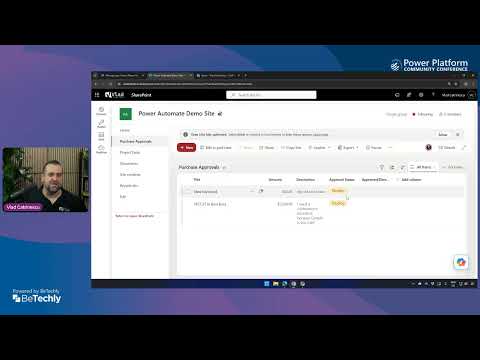
Power Automate: Approval Flow in 20 Min
Build Power Automate approval flows with triggers, decision logic and Teams alerts to streamline Microsoft automation
Key insights
- This YouTube video shows how to build a complete Power Automate approval flow in about 20 minutes, covering triggers, approvals, decision logic, and Teams notifications.
- The core pattern is: create an Automated cloud flow, pick a trigger (for example SharePoint - When an item is created or Forms - When a response is submitted), add Start and wait for an approval, then branch with a Condition to handle the result.
- The video highlights modern approvals features like Sequential Approval and Custom Responses, including options to Wait for all responses or Wait for one response depending on the scenario.
- Use templates and scenario-based guidance to speed up common flows such as SharePoint item approvals, manager approvals, or form-based approvals.
- Approvals replace manual email loops and capture an Approve or Reject decision so processes become auditable, repeatable, and easier to integrate with SharePoint, Outlook, and Teams.
- The walkthrough is beginner-friendly: it shows how to create the flow, assign approvers, test the workflow, and send outcomes to email or a SharePoint list, matching current Microsoft Learn guidance.
Overview of the video
The Power Platform Community Conference’s YouTube presentation titled Build your first Power Automate approval flow in 20 minutes walks viewers through a compact, hands-on build of a basic approval process. The session targets beginners and frames the workflow as a practical path from trigger to decision, with notifications and simple downstream actions included. As a newsroom summary, this article presents the video's core ideas and places them in context for readers who plan to adopt or evaluate Microsoft Power Automate.
Importantly, the presenter emphasizes accessibility and speed, showing that a useful approval flow can be assembled in a short time without deep developer skills. The video follows Microsoft Learn patterns, so viewers who later consult official docs will find the same concepts and actions. Consequently, the material serves as both an introduction and a stepping stone for more advanced automation work.
Core steps demonstrated
The walkthrough begins by creating an Automated cloud flow, selecting a trigger such as a new SharePoint item or a submitted Microsoft Form, and then adding the Start and wait for an approval action. After assigning approver(s) and configuring the approval type, the presenter shows how to check the approval result with a conditional branch and then send a notification or update a SharePoint item. This sequence gives beginners a clear template for common business scenarios.
Moreover, the video demonstrates testing the flow, which helps viewers see how approvals move through the system and where outcomes land, for example in email or Microsoft Teams messages. The presenter's pace keeps each step practical and focused, while pointing out where users can customize titles, details, and approver lists. Therefore, the session helps remove friction for teams that want to move from manual email approvals to an automated, auditable process.
Along the way, the speaker recommends templates when appropriate, which saves time for frequent scenarios but may limit customization if used without adaptation. The demo balances a fast build with reminders to test and to adjust error handling and notifications for real-world users. As a result, viewers learn both the basic pattern and the small choices that affect outcomes.
What’s new: modern approvals and newer options
The video aligns with Microsoft’s evolving emphasis on modern approvals, which updates older, one-off guides to a more structured, scenario-driven approach. For example, it highlights newer approval modes such as Sequential Approval and flexible responder behaviors provided by Custom Responses. These additions let organizations match approval mechanics more closely to their governance and process needs.
Furthermore, the presenter explains the difference between waiting for the first response and requiring all responses, which matters for turnaround times and compliance. With sequential chains, approvals flow in defined order, but that introduces delays if an approver is unavailable, so the video stresses planning for backups. Thus, designers must trade speed against control when choosing an approval type.
Tradeoffs and challenges to consider
Choosing between speed and control presents one of the clearest tradeoffs: templates and simple approval types get processes running fast, while custom responses and sequential flows give tighter governance at the cost of complexity. Implementers should weigh the immediate benefit of reducing manual email work against the longer effort needed to maintain complex conditional branches and responder logic. In practice, teams often start with a simple flow and iterate toward more structured designs as policy needs grow.
Another challenge is error handling and visibility: automated flows simplify tracking, but they can fail silently if connectors or permissions change, which requires proactive monitoring. Also, integrating with Microsoft Teams and SharePoint adds convenience but increases the surface area for permission issues and configuration drift over time. Therefore, teams must balance ease of use with adequate logging, retry logic, and a plan for ownership.
Finally, multi-approver scenarios raise design questions about auditability and user experience; for instance, requiring every approver to sign off increases assurance but may stall urgent requests. On the other hand, first-to-respond options speed decisions but reduce consensus, which can be risky for regulated processes. Consequently, organizations should match approval types to the sensitivity and urgency of each business process.
Practical implications and next steps
For Microsoft 365 and Power Platform users, the video demonstrates a realistic path to reduce manual approval overhead and improve traceability. Viewers who follow the walkthrough will gain a working approval flow and a clearer sense of where to add notifications, error checks, and integrations with SharePoint or Teams. Moreover, the demo helps teams see how to standardize approvals while leaving room for later refinement.
As a next step, teams should test flows with real users and scenarios, evaluate backup approvers for sequential chains, and document expected behavior for responders. If desired, the newsroom can produce a follow-up step-by-step guide tied to the latest Microsoft Learn modules that compares first-to-respond, everyone must approve, sequential approval, and custom responses. Overall, the video provides a clear, practical introduction that helps non-developers get started with reliable approval automation.

Keywords
power automate approval flow, build approval flow power automate, power automate tutorial beginners, create approval flow in 20 minutes, microsoft power automate approvals, quick power automate approval guide, approval workflow power automate, power automate approval step tutorial