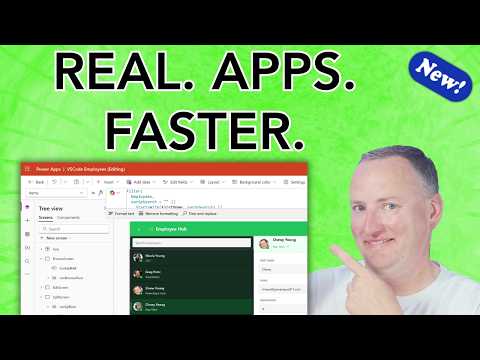
Power Apps: Build Canvas Apps in VS Code
SharePoint & PowerApps MVP - SharePoint, O365, Flow, Power Apps consulting & Training
Microsoft expert builds Power Apps Canvas Apps in VS Code with MCP Server and GitHub Copilot for AI debugging
Key insights
- MCP Server lets you build Canvas Apps inside VS Code using AI copilots like GitHub Copilot and Claude Code.
It’s experimental but practical for creating and iterating on apps quickly. - Demo workflow shown: open VS Code with Copilot, create a blank app via coauthoring, configure the canvas, update the data model, write a clear prompt, then review and refine the generated app.
The video walks through each step so you can replicate the process. - How coauthoring works: AI generates app structure from prompts, you review the canvas visually, and then refine code or controls with Copilot’s suggestions.
This speeds up initial builds and common UI tasks. - Debug and fix: the AI helps you find and fix bugs in existing apps by highlighting issues and suggesting edits.
Using AI for debugging can reduce time spent tracing errors in older projects. - Best practices: always backup your app before AI edits, test changes in a non-production environment, and manually review AI-generated code for logic and security gaps.
Treat AI output as a helpful assistant, not a final authority. - Next steps & resources: try a small demo app in VS Code, enable Copilot or Claude for coauthoring, and consult Microsoft docs on MCP Server for setup and limitations.
Start by debugging a simple existing app to learn the workflow safely.
Video Overview
Shane Young [MVP] released a hands-on video demonstrating how to build Canvas Apps using VS Code and AI tools through a new MCP Server. The clip walks viewers from creating a blank app to editing and debugging an existing app, and it aims to show practical steps rather than just concepts. Moreover, Shane highlights both the excitement and the experimental nature of these tools, so viewers know to expect some rough edges. Consequently, the video serves as a practical introduction for makers curious about integrating AI into their app workflows.
In addition, the video pairs the use of Claude Code and GitHub Copilot, demonstrating how each can assist different parts of the build and debugging process. Shane alternates between live demos and explanation, which helps clarify how the tools interact in real scenarios. Therefore, the presentation feels like a guided lab session that you can follow along with in your own environment. Finally, the author emphasizes that these capabilities are experimental but immediately useful for common tasks.
Demonstration and Workflow
The demo begins by creating a blank app with Coauthoring enabled and then configures the new Canvas App inside VS Code. Shane shows the step-by-step prompts and the changing app model as the AI assists with layout and components, which highlights how AI can translate natural language into app elements. Furthermore, the walkthrough includes concrete examples of prompts and the resulting UI adjustments, making the workflow easy to reproduce. As a result, viewers can see both the speed gains and the specific inputs that produce useful output.
Shane also demonstrates how to switch context and refine the app model when the initial AI suggestions need tuning, which reflects a realistic iterative process. Meanwhile, the video covers how to leverage Copilot for editing specific functions and properties, showing that AI can assist not only with scaffolding but also with detailed edits. Thus, the demo makes clear that AI speeds initial creation while still requiring human review for correctness and style. Ultimately, this hybrid approach combines the strengths of automation and human judgment.
Debugging and Fixing Bugs
One of the most practical portions of the video focuses on finding and fixing bugs in existing apps, and Shane shows how AI can accelerate that process. He walks through using the AI tools to identify likely issues and then applies targeted edits in VS Code, which often resolves problems faster than manual tracing. However, he also cautions that AI suggestions sometimes miss context or propose inefficient solutions, so verification is essential. Consequently, developers should treat AI output as a guided starting point rather than a final fix.
Moreover, the video underscores how debugging with AI can reduce repetitive tasks like renaming controls or adjusting formulas, thereby freeing makers to focus on logic and user experience. At the same time, Shane notes potential pitfalls: loose prompts may yield incorrect behavior, and automations can introduce subtle regressions. Therefore, teams must balance speed with careful testing and, where appropriate, include human code review and automated tests to catch regressions.
Tradeoffs and Challenges
While the tools promise productivity gains, they come with tradeoffs that teams must weigh carefully, such as reliability, governance, and maintainability. For example, AI-generated code may not follow a team’s naming conventions or performance best practices, which means additional cleanup work. Additionally, there are security and compliance considerations when feeding app logic or data into external AI systems, so organizations should evaluate data handling and privacy policies. Consequently, adopting these tools often requires a governance plan and clear rules for sensitive data.
Another practical challenge is the learning curve: makers need to learn how to craft effective prompts and how to validate AI outputs, which can take time. Meanwhile, integrating AI into existing pipelines may require updates to tooling, extensions, or server configurations like the new MCP Server. Therefore, teams should pilot these tools on low-risk projects first and gradually expand usage as confidence grows. Ultimately, the goal is to capture the benefits of AI while minimizing operational and security risks.
Takeaways and Next Steps
Overall, Shane Young’s video offers a clear, hands-on look at building Canvas Apps in VS Code with AI assistance, emphasizing practical tips and real-world tradeoffs. Viewers learn that AI can speed app creation and debugging, but they also learn to pair automation with human review and governance to ensure quality. Furthermore, the experimental nature of the tools means early adopters will need to accept occasional rough edges and adapt their processes. As a result, the best approach is incremental adoption: try the workflow on prototypes, refine prompts, and introduce testing to catch issues early.
Finally, for makers and teams considering these tools, Shane’s demonstration provides a useful template to replicate and adapt, and it encourages learning by doing. Consequently, professionals should weigh productivity gains against governance and maintenance work, and proceed with pilots that inform broader rollouts. In the end, this new capability represents a meaningful step toward faster app development when used thoughtfully and responsibly.
Related links

Keywords
power apps vs code, canvas apps vs code, power apps ai tool, build canvas apps, power apps extension vscode, ai-assisted power apps, power apps developer tools, create canvas app in vscode