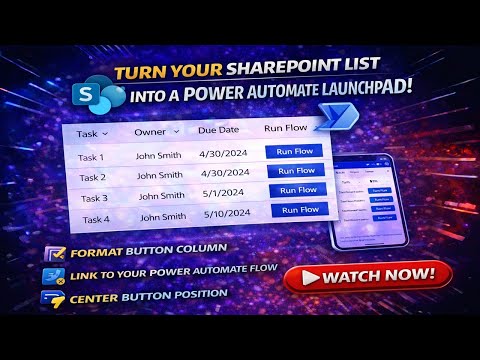
Power Automate: SP Button for PDF/Word
Microsoft expert: add one-click Power Automate button in SharePoint to run flows and export PDF Word with JSON templates
Key insights
- Overview: Based on a YouTube tutorial that shows how to add a clickable button inside a SharePoint list that launches a Power Automate flow to generate a Word document or PDF from a selected item.
It converts a list item to a finished file with one click and keeps the experience inside the list view. - Prerequisites: Prepare a source SharePoint list, a destination document library, and a stored Word template that uses content controls to receive list values.
Ensure you have permissions and access to the Word Online (Business), SharePoint, and Power Automate connectors. - Flow architecture (core steps): Select item → Get item → Populate Word template → create Word file → Convert to PDF (optional) → save file to library → update the list item with the file link.
This sequence keeps generation manual and predictable. - How to add the button: Create a column that will hold the button and apply column formatting (JSON) to render a clickable control inside the list.
Find the flow ID in the flow’s URL and insert it into the JSON template to wire the button to your instant cloud flow. - Advantages and use cases: Use on-demand generation to avoid unnecessary files, rely on reusable templates for consistent branding, and produce fixed-layout PDF outputs for distribution or archiving.
The approach is low-code and fits common needs like invoices, certificates, reports, and orders. - Testing and maintenance: Test the button from the list view and confirm the populated document and PDF save correctly.
Store templates centrally, use stable internal column names in flows, and manage flows from the SharePoint Integrate/Automate menus to keep the solution maintainable.
Overview
The YouTube video from Office Solutions Pro demonstrates how to add a clickable automation button inside a SharePoint list that launches a Power Automate flow to generate Word or PDF documents. The presenter shows a step-by-step process, including column creation, JSON formatting, and finding a flow's unique ID. Consequently, viewers can add a polished "Run Flow" control without installing custom web parts or third-party apps. Overall, the demonstration targets administrators and power users who want lightweight, in-place automation.
What the Video Shows
First, the presenter explains how to add the correct column type to a SharePoint list so it can host an action button. Then they walk through applying JSON formatting to make the button visually clear and horizontally centered, improving usability. In addition, the video highlights where to copy the flow identifier from the Power Automate URL and how to use that ID inside the JSON. Finally, the author points viewers to ready-made JSON templates to speed up deployment and reduce manual errors.
Moreover, the tutorial covers how to start a SharePoint-triggered instant cloud flow from a selected list item and then populate a Word template with the item’s data. Next, the flow can optionally convert the populated Word file to a PDF, save the result back to a document library, and link the output to the original list item. In short, the video builds a complete on-demand document workflow that stays inside Microsoft 365 tools. This approach keeps the experience familiar for users while centralizing document design in a Word template.
How It Works
The basic sequence begins when a user selects an item and clicks the custom button in the list row, which passes the item ID to Power Automate. The flow then retrieves the item details, maps list fields to Word content controls, creates a Word file, and optionally converts it to PDF. After that, the flow saves the output to a SharePoint library and updates the list item with a link or metadata about the generated document. Therefore, the automation ties data, templates, and storage together for repeatable document creation.
Technically, the solution relies on SharePoint triggers and Word Online actions that are part of the Power Platform connectors. Because of this, it is a low-code solution that does not require bespoke development, which reduces maintenance overhead for many teams. However, it does depend on proper permissions and available connector licenses, so admins must validate access and quotas before rolling it out. Also, the JSON column formatting is simple to deploy but can be fragile if internal column names or list schema change.
Benefits and Tradeoffs
A key benefit is on-demand generation: users create documents only when needed, which prevents clutter and reduces unnecessary processing. In addition, using a Word template ensures consistent formatting, logos, and signatures across documents while allowing centralized updates to templates. On the other hand, this approach trades off some flexibility for control; complex or conditional document layouts may require more elaborate templates or additional flow steps. Consequently, teams must balance template simplicity with the need for personalized document content.
Another advantage is that converting Word to PDF produces fixed-layout outputs suitable for distribution and archiving, which helps with compliance and recordkeeping. Nevertheless, the conversion step adds another dependency on the Word Online connector and can increase run time and connector usage. For organizations with large volumes, this may affect licensing costs or require batching strategies. Thus, decision makers should evaluate volume, licensing, and retention policies before scaling the solution.
Implementation Challenges
One challenge highlighted in the video is correctly mapping SharePoint columns to content controls in the Word template; mismatches will break the populated document. Moreover, JSON formatting for the list column works well but can be error-prone if the flow ID or internal field names change, so maintainability becomes a concern. Error handling and concurrency are additional issues: simultaneous button clicks could create file name conflicts or overwrite outputs if versioning is not enabled. Therefore, adding unique file names and using document library versioning are practical safeguards.
Security and permissions also require careful planning because flows run with the maker's or a service account's connector permissions, which affects who can generate and access documents. Admins should review connector permissions and consider using managed service accounts for production flows to avoid unexpected access gaps. Testing is essential; the video stresses running tests with sample items and checking the flow run history to diagnose failures. Ultimately, a small amount of upfront governance reduces operational problems later.
Practical Tips and Takeaways
The video by Office Solutions Pro offers actionable advice: use stable internal column names, store templates in a centralized library, and test flows with representative data before broad rollout. In addition, leverage existing JSON templates to speed configuration, but adapt them to your list schema to avoid runtime errors. For larger deployments, consider batching conversions or adding simple approval steps to control file generation volume and quality.
In conclusion, the tutorial presents a practical, low-code path to add an inline automation button in SharePoint lists that integrates with Power Automate and Word Online. While the approach improves user experience and document consistency, teams must weigh ease of setup against governance, licensing, and maintainability concerns. By planning permissions, naming, and error handling up front, organizations can deploy a reliable solution that brings one-click document generation to everyday SharePoint users.

Keywords
Power Automate SharePoint button, Add Power Automate button to SharePoint list, SharePoint list convert to PDF, Convert SharePoint item to Word with Power Automate, Power Automate convert to PDF Word, SharePoint flow button tutorial, Create flow button in SharePoint list, Export SharePoint item to PDF Word