Windows 11 Search: Hidden Tips Revealed
Principal Group Product Manager - Microsoft Education
Microsoft expert guide to Windows Eleven Search updates: cleaner results, faster access to apps and files, Insider tips
Key insights
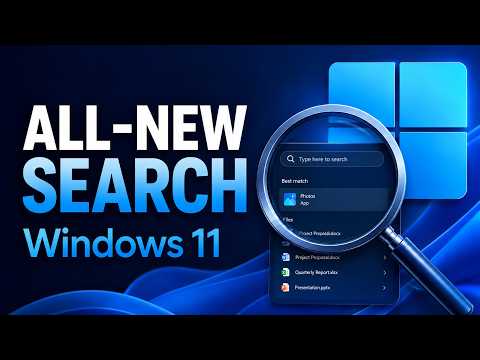
- Windows 11 Search: A tutorial video shows the redesigned search experience that makes finding apps, files, and settings faster and clearer.
- simplified Search home: The interface removes visual clutter, adds clearer result labels, and hides promotional web-style content for a cleaner view.
- local-first: Results prioritize on-device items (apps, files, settings) over web suggestions when they better match your query, and Settings now let you toggle web and Store suggestions.
- typo tolerance: Search now handles misspellings and partial names better, so you find apps and settings even with short or imperfect queries.
- two-character file search: File discovery improved with substring matching and support for very short queries, plus smarter handling of cloud or connected files when relevant.
- Experimental Channel: The biggest changes are rolling out to Windows Insiders in the Experimental Channel and may require enabling feature flags in Settings and restarting the PC to appear.
Mike Tholfsen’s recent YouTube video offers a clear walkthrough of the latest updates to Windows 11 Search, and this article summarizes his key points for readers who want a practical, balanced view. The video highlights design and ranking changes that aim to make search results cleaner and more useful, with an emphasis on on-device results and fewer distractions. Moreover, Tholfsen demonstrates settings and feature flags that Insiders can use to test the changes, while also pointing out where behavior remains in flux. As a result, this coverage helps readers understand both the benefits and the tradeoffs of the new Search experience.
What Microsoft Changed
First, Tholfsen shows a simplified Search home that reduces visual clutter and limits trending-style recommendations, which makes it easier to scan results at a glance. He also points to clearer labels on results so users can quickly tell whether an item is an app, file, setting, web page, or Store suggestion. In addition, the update removes promotional content from web-style entries, aligning the experience closer to productive work rather than discovery. Consequently, these adjustments prioritize speed and clarity over attention-grabbing elements.
Second, the update leans into a local-first model: files, apps, and settings now get higher ranking when they are the best match for queries. Tholfsen highlights improvements in typo tolerance, partial name matching, and two-character file searches that make it easier to find items with short or mistyped queries. Furthermore, the system handles connected and cloud files more intelligently, surfacing them when they are relevant. Therefore, users should expect a more forgiving and responsive search box for everyday tasks.
How to Try It: Insider Controls and Feature Flags
Tholfsen walks viewers through practical steps for testers who want to try the new Search features, noting that many changes are rolling out first to the Windows Insider Experimental Channel. He explains that some updates require manual enabling through feature flags found under Settings > Windows Update > Windows Insider Program > Feature flags. For example, flags such as Refined Windows Search, Searchable System Components, and Short Query File Search support may need activation before the behavior appears. After enabling flags, a restart is often necessary to apply changes.
However, Tholfsen cautions that the rollout is gradual and inconsistent: not every eligible machine receives the same features at the same time, and some testers report partial behavior or missing options. Thus, Insiders should be prepared for intermittent differences and limited availability depending on build and device. In short, exploring these features requires patience and a willingness to toggle flags and test repeatedly. Meanwhile, mainstream users will see some improvements through optional updates when Microsoft broadens the release.
Tradeoffs and Design Challenges
While the move toward local-first results improves relevance for on-device work, it also raises tradeoffs around discoverability and web integration. For example, prioritizing local content can speed up common workflows but might hide useful web suggestions that the old blended model sometimes promoted. Moreover, removing promotional content reduces clutter, yet it may also limit quick access to curated online resources that some users found helpful. Therefore, balancing local relevance and useful web content remains a core design challenge for Microsoft.
Another challenge lies in ranking and relevance tuning. Improved typo tolerance and substring matching increase recall, but they also risk returning broader or less precise results if ranking signals are not carefully calibrated. Furthermore, relying on usage signals to automatically show additional folders can be convenient, yet it raises questions about control and predictability for users who want explicit settings. Consequently, Microsoft must weigh convenience against transparency and user control as it iterates.
Why This Matters and Current Availability
Ultimately, the changes aim to make Search feel faster, less distracting, and more useful for routine tasks like opening apps, finding files, and changing settings. Tholfsen emphasizes that clearer labels and smarter ranking can reduce time spent hunting for items, which benefits both power users and casual users. In addition, giving people settings to turn off web and Store suggestions provides practical privacy and customization options. As a result, these updates reflect a broader shift toward user-first search behavior on Windows.
As of Tholfsen’s recording, most of the major redesign is still in testing and phased rollout, primarily reaching Insiders in the Experimental Channel with some file-search improvements appearing in optional updates. Therefore, everyday users may not see all features immediately, but the direction is clear: search on Windows is moving toward cleaner results and smarter local prioritization. Moving forward, Microsoft’s continued testing and feedback cycles will determine how quickly these improvements reach a wider audience and how the company resolves the tradeoffs described.

Keywords
Windows 11 search updates, Windows 11 search tips, Windows 11 search tricks, improve Windows 11 search, Windows 11 search features, Windows 11 file search, Windows 11 search settings, Windows 11 search shortcuts