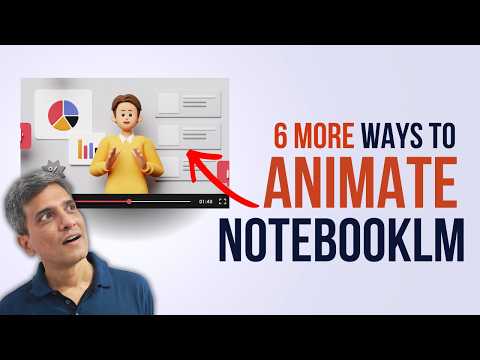
PowerPoint: 6 NotebookLM Animation Hacks
Make NotebookLM slides engaging with PowerPoint animations and Microsoft Office tips to sharpen AI slides
Key insights
- NotebookLM to PowerPoint: The video shows how to turn static NotebookLM slides into animated PowerPoint slides to make presentations clearer and more engaging.
Use this when you need to present AI-generated content to clients, teams, or students. - Export and Animation Pane: Export NotebookLM slides as images, import them to PowerPoint, then use the Animation Pane to sequence entrances and exits for smooth reveals.
Layer duplicates and crop images to control what appears and when. - Step-by-step reveal and one-point-at-a-time: Reveal table rows or list items gradually so the audience focuses on one idea at a time.
Apply simple entrance and exit effects and set timings to "With Previous" or "After Previous" for clean pacing. - Blur-to-focus and glow: Use blur effects to de-emphasize background items and add a glow to highlight key ideas, guiding viewer attention without clutter.
Combine masks or overlays with fades for a subtle, professional look. - Zoom, swipe and Morph: Use cropped duplicates plus Morph and swipe motions to zoom into details and move attention across long infographics or sketchnotes.
These techniques create cinematic emphasis and make complex visuals easier to follow. - Animation Painter and accessibility: Reuse effects with Animation Painter and keep animations simple, consistent, and well-paced to avoid distraction.
Always test timing, contrast, and readability for accessibility and live presentation flow.
Overview
The video by Presentation Process YouTube demonstrates how to bring static slides from NotebookLM to life using common tools in PowerPoint. First, the presenters explain why simple motion matters: static AI-generated slides often look polished but fail to guide the audience through ideas step by step. Consequently, they introduce a set of practical animation techniques that anyone with Office 365 can apply without extra plugins. Overall, the tutorial focuses on clarity, pacing, and viewer attention rather than flashy effects.
Key Techniques Demonstrated
Throughout the video, the hosts cover a compact set of methods that transform single-image slides into dynamic sequences, beginning with revealing table rows one at a time and showing individual bullet points cleanly. Additionally, they demonstrate a blur-to-focus effect to guide attention and a subtle glow to highlight key ideas, which helps emphasize priorities without overwhelming the viewer. They also show how to move attention across a slide, zoom into individual points for emphasis, and create swipe-based multi-step reveals for lists. Each technique relies on layering, duplication, and careful timing in the Animation Pane to feel natural and professional.
How the Workflow Fits Together
The workflow begins by exporting or screenshotting the NotebookLM slide image and inserting it into PowerPoint, then duplicating the slide to build progressive reveals. Next, the presenters use tools like the Freeform Shape or simple rectangles to mask areas, apply a subtle Fade or exit animation, and sequence these effects so content appears in logical order. In other cases, they crop duplicates to create framed zooms and apply the Morph transition or animated scale to simulate camera movement. Moreover, the video emphasizes the Animation Painter to copy timings and reduce repetitive setup when multiple slides need the same treatment.
Practical Examples and Tips
For lists, the hosts recommend revealing one bullet at a time rather than animating every single word, which preserves rhythm and comprehension for the audience. Then, when dealing with dense tables or long infographics, they suggest step-by-step row reveals and reverse masks that pull focus across a tall diagram without losing context. They also warn to avoid excessive glows, fast zooms, or long blurs because these can distract or induce motion sickness in sensitive viewers. Therefore, the video balances visual interest with simple design rules to keep slides readable and professional.
Tradeoffs to Consider
Animating NotebookLM slides in PowerPoint brings clear benefits but also involves tradeoffs between time invested and the final quality of delivery. On one hand, manual animation unlocks precise control and makes AI-generated slides feel authored and intentional, which improves audience engagement during live presentations. On the other hand, the process can be labor-intensive, especially for long decks or frequent updates, and it may require redoing animations when content changes. Thus, teams must weigh whether that extra polish justifies the setup cost for each presentation.
Challenges and Compatibility
Several practical challenges arise when animating exported images instead of native slide elements, including limited editability and potential quality loss after cropping or masking. In addition, some transitions and effects perform differently across PowerPoint versions, so presenters should test on the same platform they will use live to avoid surprises. Accessibility is another concern: relying solely on motion to convey structure can confuse viewers who use screen readers or who prefer static content. Consequently, presenters should pair animations with clear narration and non-motion cues to remain inclusive.
Final Takeaways
In short, the video from Presentation Process YouTube offers a practical, low-cost toolkit for converting static NotebookLM outputs into engaging presentations, and it emphasizes discipline over spectacle. For most presenters, the best strategy is to apply a few consistent, subtle animations that support the message, test timings in advance, and maintain fallback static slides for sharing or accessibility. Finally, while animations do require extra work, they often pay off by improving audience focus and retention when used thoughtfully and sparingly.
Keywords
PowerPoint animation hacks, NotebookLM slides, engaging PowerPoint animations, PowerPoint animation tips, animated slide techniques, make slides actually engaging, PowerPoint transitions and effects, PowerPoint animation best practices