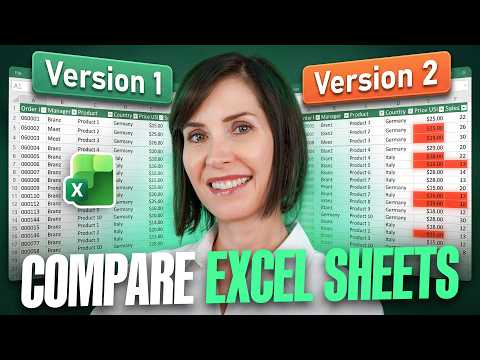
Excel: 3 Ways to Compare Sheets
Microsoft expert shows Excel and Power Query methods to compare Excel sheets, find hidden differences and clean data
Key insights
- Excel sheet comparison
Identify and analyze differences between two workbooks or worksheets to keep data accurate and support confident decisions.
Use comparison when you need version control, data validation, or to find broken formulas. - Side-by-side viewing
Open both files or use a new window of the same workbook and choose View Side by Side to scan two sheets visually.
Turn on synchronous scrolling so rows and columns move together for faster manual checks. - Conditional formatting
Create rules that color cells that differ between sheets to spotlight changes automatically.
This method scales better than visual inspection and helps you find mismatched values in larger data sets. - Microsoft Spreadsheet Compare
Use the dedicated compare tool for a full audit that lists every difference, including formulas, macros, and formatting.
It shows color-coded side-by-side grids and detailed change notes, which makes it best for formal reviews and audits. - Hidden differences
Watch for cells that look the same but differ because of data types, formulas vs. values, formats, or extra spaces.
Show formulas, use exact-match checks, or run a dedicated compare tool to catch these lookalike mismatches. - Best-practice workflow
Match the method to the task: use side-by-side for quick checks, conditional formatting for large sheets, and Spreadsheet Compare for audits.
Keep backups and track versions so you can review changes reliably and restore earlier data if needed.
Video Snapshot: Practical Comparison Techniques
In a recent YouTube tutorial, Mynda Treacy (MyOnlineTrainingHub) [MVP] demonstrates three straightforward methods to compare two Excel sheets and pinpoint every difference. The video promises actionable steps for both quick visual checks and deeper, automated analysis, and it highlights a subtle issue that many guides overlook: cells can appear identical but still differ underneath. Consequently, Treacy guides viewers through side-by-side viewing, rule-based highlighting, and a dedicated comparison tool. This piece summarizes her explanations and assesses the tradeoffs each method presents.
Method One: Side-by-Side Viewing
First, Treacy explains the familiar approach of opening two windows and arranging them Side by Side to scan for changes. This method requires no formulas or add-ins and works well for small sheets or when you want an immediate, visual check. However, it relies heavily on human attention and becomes time-consuming with many rows or when differences hide in formulas or formatting, not just visible values.
Moreover, she notes that enabling synchronous scrolling helps maintain context between sheets, but it cannot catch subtle mismatches like a formula replaced by a static value. Therefore, teams who rely solely on this technique risk overlooking hidden discrepancies during tight review cycles. For those reasons, side-by-side is best as a first pass rather than a final audit method.
Method Two: Conditional Formatting to Highlight Differences
The second method uses Conditional Formatting to automate visual detection of differing cells. Treacy shows how to apply rules that compare cell values across sheets, which then color-code mismatches so you can zero in on problems quickly. This approach reduces manual scanning and scales better than visual comparison for medium-sized datasets.
Still, conditional formatting has tradeoffs: it typically compares displayed values and may miss differences in underlying formulas or data types. In addition, complex workbooks with many tables may require careful rule design to avoid false positives or missed records. As a result, conditional formatting is highly useful but not foolproof, and it often needs to be paired with other checks for full confidence.
Method Three: Microsoft Spreadsheet Compare — The Overlooked Tool
Most tutorials skip this third option, yet Treacy highlights Microsoft Spreadsheet Compare as a professional-grade tool for thorough workbook analysis. This companion utility produces detailed reports that list differences in values, formulas, macros, and formatting, and it includes contextual information so reviewers can understand why a change occurred. Importantly, the tool can reveal cases where two cells look the same but differ in type or formula, addressing the blind spot that visual and formatting checks sometimes miss.
Nevertheless, Spreadsheet Compare comes with its own challenges: it may not be available in every Office installation, it demands some familiarity to interpret the output, and it can overwhelm users with detail in very large workbooks. Thus, while powerful, it introduces a learning curve and requires administrative access in some environments. Organizations should weigh the benefit of deep audits against the time needed to train staff and integrate the tool into standard review workflows.
Alternatives and When to Use Power Query
Treacy also alludes to other approaches such as Power Query, which excels at transforming and merging data before comparison. When datasets require matching on specific keys, cleaning, or reshaping, Power Query provides a repeatable and traceable process that supports robust comparisons over time. This method scales well for recurring reconciliations and helps enforce consistent matching rules across teams.
On the other hand, Power Query requires more setup and familiarity than conditional formatting, and it may be overkill for one-off checks. Consequently, teams must decide whether to invest in a reusable Power Query process based on the frequency and complexity of their comparisons. For many users, combining Power Query for data preparation with Spreadsheet Compare or conditional formatting for verification proves effective.
Practical Challenges and Recommendations
Across all methods, Treacy emphasizes common pitfalls such as hidden formulas, mismatched data types, and renamed columns that break automated checks. In practice, these issues demand a layered approach: start with a quick visual check, apply automated highlighting for medium complexity, and use dedicated comparison tools for final assurance. This balanced strategy helps manage time while improving confidence in results.
Finally, she suggests maintaining clear versioning and standardizing file layouts to simplify future comparisons. Teams should document which method they use and why, and they should train at least one person to interpret detailed comparison reports. By combining these practices, organizations can reduce the risk of missed differences and make reconciliations more reliable.
Conclusion: Choose Tools with Tradeoffs in Mind
Mynda Treacy’s tutorial offers a practical roadmap for comparing Excel sheets, moving from quick visual checks to the thoroughness of Microsoft Spreadsheet Compare. Each option carries tradeoffs between speed, accuracy, and required expertise, and Treacy helps viewers match the method to their needs rather than defaulting to a single approach. Consequently, viewers can adopt a tiered workflow that balances efficiency with rigorous verification.
In short, the video provides actionable steps and sensible guidance to help users catch differences they might otherwise miss. For teams that handle frequent or critical reconciliations, Treacy’s mix of techniques and attention to hidden mismatches makes the tutorial a valuable reference for improving data integrity in everyday work.

Keywords
compare Excel sheets, how to compare Excel spreadsheets, compare two Excel files, find differences in Excel, Excel compare worksheets tool, compare columns in Excel, highlight differences Excel, best way to compare Excel sheets