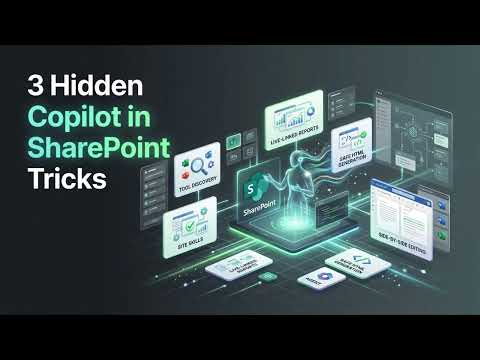
SharePoint Copilot: 3 Hidden Tricks
Software Development Redmond, Washington
Microsoft expert: hidden Copilot in SharePoint tips for site skills, init context and Excel live HTML safe for preview
Key insights
- Video overview: A short demo shows three lesser-known Copilot features in SharePoint that go beyond Q&A and help build site-ready artifacts like reports and HTML pages.
- Inspect agent tools: Use the /skills command to list available agent tools and see what actions Copilot can run on a site, so you pick the right tool before you ask it to act.
- Initialize site context: Run /init to load the site’s content and structure into Copilot so follow-up prompts return more relevant, site-aware results.
- Live-linked HTML reports: Copilot can turn Excel and library data into live-linked HTML reports and let you edit HTML side-by-side in the SharePoint viewer while keeping output safe for previews.
- SharePoint-safe HTML: The demo shows how to prompt for and use a SharePoint-safe HTML skill so generated pages render correctly and avoid blocked tags or unsupported scripts.
- Action-oriented assistant & governance: Copilot now acts as an action-oriented assistant that can create Word/Excel/PowerPoint files, suggest workflows, and reorganize libraries; always test skills with the right permissions and follow SharePoint governance and sensitivity controls.
Overview of the video and its purpose
Microsoft's YouTube video, titled "3 hidden Copilot in SharePoint tricks you should try," demonstrates practical ways to extend Copilot inside SharePoint beyond simple Q&A. The presentation focuses on three lesser-known capabilities that help users discover tools, set site context, and build or edit HTML content that remains safe for SharePoint surfaces. For newsroom readers, the piece offers a clear, demo-driven look at how Copilot can become an action-oriented assistant rather than only a summarizer. Moreover, it emphasizes hands-on techniques you can apply to real SharePoint sites today.
Hidden commands and initializing site context
First, the video shows how to inspect what Copilot can do on a given site by checking available agent tools and invoking the /skills command to audit those capabilities. Then, it demonstrates the /init command, which initializes the site context so Copilot understands the structure and content before you ask it to take action. As a result, subsequent prompts produce more relevant and site-aware outputs because the assistant is operating with local context and knowledge of the library or page. Consequently, teams can avoid vague or generic replies and get suggestions that align with their specific site layout and metadata.
Creating and editing live-linked HTML reports
Next, the demo explores creating live-linked HTML reports from Excel data and editing HTML directly inside the SharePoint viewer, which is useful for dashboards and visual summaries. The video walks viewers through prompting for SharePoint-safe HTML and using a dedicated skill that sanitizes and formats output so previews render correctly without exposing unsafe code. In addition, the presenter shows how to build a small HTML comic using user photos and then edit it side by side in the viewer, which highlights the flexibility of combining content creation and previewing in one flow. Thus, editors and site owners can craft interactive artifacts while keeping the site’s preview surfaces functional and secure.
Practical applications and real-world benefits
Practically, these tricks translate into faster content production and easier reuse of existing SharePoint knowledge. For example, teams can convert metadata into HTML dashboards for library visibility, generate reports that stay linked to source spreadsheets, and draft pages or documents from site content without starting from a blank page. Moreover, Microsoft’s broader updates allow Copilot to create Word, Excel, or PowerPoint files directly from SharePoint material, which speeds up common content tasks across Microsoft 365. Therefore, organizations can reduce manual reporting and improve consistency by leveraging site-aware skills.
Tradeoffs and challenges to consider
However, adopting these features involves tradeoffs between automation and control. While Copilot speeds up creation, it can also produce outputs that require human review for accuracy, compliance, and tone, particularly when content will be widely visible. Additionally, producing HTML inside SharePoint requires careful prompting and sanitization to avoid broken previews or blocked elements, so teams must balance richness of output against the need for SharePoint-safe markup. Finally, there is a learning curve: teams must understand commands like /skills and /init and manage which skills are available, which can be time-consuming to set up but pays off in long-term efficiency.
Governance, security, and operational considerations
Governance is central when Copilot works with site content, and the video underscores the need for permissions, sensitivity labels, and sharing settings to limit what the assistant can access. In practice, organizations should pair these capabilities with established SharePoint governance so Copilot only sees content meant for automated use. Moreover, auditing and logging of Copilot actions help teams trace changes and maintain compliance, especially when skills create or modify files. Therefore, administrators must weigh the convenience of site-level automation against the responsibility to enforce access controls and review outputs.
Takeaways for editors and site teams
In summary, Microsoft’s video offers a pragmatic toolkit for extending Copilot in SharePoint through discovery commands, context initialization, and SharePoint-focused HTML workflows. Editors should experiment in controlled environments, document the site skills they enable, and train content owners on how to prompt for safe outputs. Ultimately, when teams balance automation with governance and human review, Copilot can speed up production while keeping SharePoint experiences reliable and secure. For newsroom editors, these techniques present a way to produce linked reports and interactive content more quickly, provided they plan for oversight and ongoing maintenance.

Keywords
SharePoint Copilot tips, Copilot SharePoint tricks, hidden Copilot features SharePoint, Microsoft 365 Copilot SharePoint, advanced Copilot tips SharePoint, Copilot for SharePoint tutorial, SharePoint Copilot productivity hacks, secret Copilot tricks SharePoint