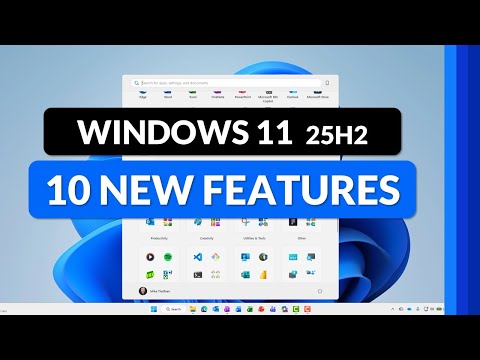
Windows 11 25H2: 10 Must-Know Features
Principal Group Product Manager - Microsoft Education
Windows Eleven Twentyfive Htwo update revamps Start menu, Widgets, Copilot, Phone Link and File Explorer dark mode
Key insights
- Enablement package update: Windows 11 25H2 arrives as a small enablement package that flips on features already in 24H2, so most users upgrade with a single restart.
It uses the shared servicing model to reduce download size and simplify installs while resetting the support lifecycle. - Start menu and Widgets improvements: The Start menu gains smoother interactions and layout tweaks for faster access.
Widgets see usability updates and a new Lock Screen Widgets option to surface quick info without unlocking the PC. - Snipping Tool and search tools: The Snipping Tool adds Visual Search powered by Bing for quick image lookups from screenshots.
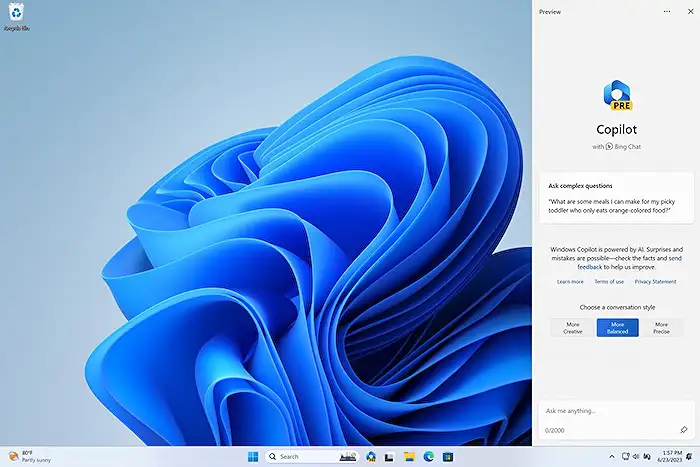
File Explorer supports a system-wide Dark mode for consistent low-light browsing. - Phone Link and Copilot upgrades: Phone Link tightens phone-to-PC workflows and file sharing, while deeper Copilot integration brings AI helpers directly into the OS.
Some AI features now appear enabled by default, expanding everyday productivity with AI actions. - Small but useful tweaks: You can now Show seconds on the system clock, use improved keyboard shortcuts for en dash and em dash, and see Your Accounts renamed for clearer account settings.
- Business and rollout notes: 25H2 adds enterprise features like native Wi‑Fi 7 support and finer app management policies to control preinstalled apps.
Microsoft uses a phased rollout to deliver features gradually for stability and compatibility.
Overview of the video
In a recent tutorial-style YouTube video, author Mike Tholfsen walks viewers through the top ten highlights of the Windows 11 25H2 update, blending features currently available with those visible in the Windows Insider builds. He structures the walkthrough with short demos and timestamps, focusing on practical tips and small refinements that affect everyday use. Furthermore, the video emphasizes how many of these improvements arrive via a single-file update model that simplifies installation for end users and administrators alike.
As a result, the presentation reads like a pragmatic guide rather than a marketing pitch, and it aims to help both consumers and IT pros understand what to expect. Consequently, viewers can quickly see how interface tweaks, AI integrations, and productivity tweaks fit into their workflows. Importantly, Tholfsen notes that some items remain in staged rollouts or require Insider builds, so timing varies by device.
Interface and productivity refinements
Tholfsen highlights notable interface adjustments, such as improvements to the Start menu and expanded Widgets, which collectively aim to streamline access to apps and information. For instance, the update also extends Widgets to the lock screen, enabling glanceable content without unlocking the device, and introduces a dark mode option in File Explorer for a more consistent visual experience. These changes reduce friction for users who juggle multiple tasks, while also aligning the visual language across Windows components.
However, there are tradeoffs to consider. Although Widgets and lock screen content increase convenience, they can also consume background resources and add to visual clutter, especially on smaller screens. Therefore, users and administrators must balance personalization against system performance and battery life. In turn, choosing which Widgets to enable and how frequently to refresh content becomes a small but meaningful decision for optimizing the user experience.
AI and device connectivity
Another focus of the video is enhanced AI integration, notably the deeper merge of Copilot features and AI-powered actions in File Explorer that make common tasks faster. Additionally, the update expands Phone Link functionality, improving cross-device continuity between Windows PCs and smartphones for messaging and file transfer. These changes demonstrate Microsoft’s push toward ambient intelligence and smoother device ecosystems, which can speed up workflows and reduce context switching.
Still, integrating AI and connected-device features raises important challenges. For example, enabling AI actions by default increases accessibility but also prompts questions about privacy, data residency, and enterprise governance. Likewise, richer phone-to-PC links depend on reliable network connections and compatible device firmware, so IT teams must weigh the benefits against support and security implications. Consequently, organizations will need clear policies that balance productivity gains with risk management.
Smaller but meaningful quality-of-life updates
Tholfsen also covers a series of smaller enhancements that matter in daily work, such as the Snipping Tool’s new visual search via Bing, keyboard shortcuts for en dash and em dash, and rebranding of account controls to Your Accounts. In addition, users who prefer precise timekeeping will appreciate the option to show seconds on the taskbar clock, which aids scenarios like timed testing and system monitoring. Although these items may seem minor individually, they collectively reduce friction in common tasks.
Nonetheless, these refinements illustrate a balancing act between feature density and discoverability. While the new shortcuts and search integrations speed up certain workflows, they can also add complexity for less technical users who might not find or use them. Therefore, Microsoft and downstream support teams face the challenge of documenting and surfacing these options so they reach the people who benefit most.
Deployment, lifecycle, and enterprise considerations
Crucially, Tholfsen explains that Windows 11 25H2 is delivered primarily as an enablement package, which activates features already present in the prior 24H2 baseline. This method minimizes installation time and reduces download sizes, enabling a near-instant update in many cases and resetting the support lifecycle for enterprises and education customers. Consequently, organizations can plan upgrades with less user disruption while regaining extended support timelines.
Despite those advantages, deployment teams face tradeoffs and technical challenges. Phased rollouts mean not all machines will receive features at once, which can lead to a fragmented environment and complicate testing and policy enforcement. Moreover, while smaller update packages reduce bandwidth, they still require robust change control and compatibility testing for drivers and legacy applications. As a result, IT leaders must combine pilot deployments with clear rollback plans to balance speed of adoption against operational stability.
Keywords
windows 11 25h2 features 2025, windows 11 25h2 update tips and tricks, new features in windows 11 2025, windows 11 25h2 performance improvements, windows 11 25h2 privacy and security changes, how to use windows 11 25h2 features, windows 11 25h2 release notes 2025, windows 11 25h2 productivity tips