- All of Microsoft
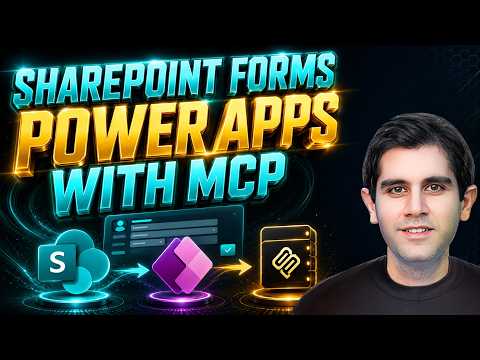
SharePoint: AI-Powered List Forms
Principal Program Manager at Microsoft Power CAT Team | Power Platform Content Creator
Microsoft expert shows customizing SharePoint list forms with AI in Power Apps Canvas using MCP Server and Power Fx
Key insights
- Canvas Apps Authoring MCP Server and Power Apps: The video shows how to use an AI-connected MCP server to turn a standard SharePoint list form into a modern Power Apps canvas app.
It demonstrates end-to-end form modernization done with natural language prompts rather than manual coding. - AI tools and prompts: The tutorial connects external tools like Claude Code or Copilot CLI to the MCP server and uses natural language prompts to generate UI, layouts, and logic.
This lets makers describe features (for example, a tabbed layout or branded header) and have the AI create them. - .pa.yaml, Power Fx, and co-authoring: AI outputs app definitions (.pa.yaml) and Power Fx formulas, then syncs changes live into Power Apps Studio using co-authoring.
That enables instant preview and iterative edits without import/export steps. - MCP setup and connection flow: Set up the Canvas Apps MCP Server, connect it to your Power Apps environment, and enable co-authoring in Studio.
The server discovers controls, data sources (like SharePoint lists), and connectors so AI can place fields and controls automatically. - Key benefits: Expect faster development, reduced coding, and simpler SharePoint form integration—AI can choose fields, control types, and create tabbed or multi-page forms.
Newer Power Apps AI features also help with image or file-based data entry suggestions. - Practical tips: Always validate generated formulas and test New/Edit/View behaviors, OnSuccess/OnFailure actions, and deep links.
Iterate with clarifying prompts, keep final control of design, and confirm permissions and environment settings before publishing.
Overview of the Video
In a new full-length tutorial, YouTuber Reza Dorrani demonstrates how to transform a standard SharePoint - Lists list form into a modern app experience by combining AI with Power Apps Canvas MCP Server. He centers the walkthrough on the Power Apps Canvas MCP Server and shows how external AI tools like Claude Code can generate UI, layouts, and formulas from natural language prompts. Consequently, the video frames AI as an accelerator for routine authoring tasks while keeping makers in control of final decisions.
How the Tutorial Demonstrates the Process
First, Dorrani connects the AI tool to the Canvas Apps authoring environment and then syncs generated definitions into Power Apps Studio in real time. Next, he customizes a SharePoint - Lists Asset Management list form by prompting the AI to add fields, build a branded header, and create a multi-tab form using a Modern Tabs control. Moreover, he shows iterative refinement: the AI asks clarifying questions, generates YAML-style app definitions, and updates the live app, so viewers can see each change take effect immediately.
Key Benefits Shown
The video emphasizes speed as a primary advantage, since describing desired features in plain language produces a working layout and initial Power Fx logic quickly. Furthermore, this approach reduces repetitive coding and helps users discover controls, connectors, and data sources automatically through the MCP Server, which can simplify SharePoint integration. In addition, the live co-authoring experience allows makers to iterate faster, which Dorrani highlights as useful for prototypes and for assembling complex, multi-page forms.
Tradeoffs and Practical Limits
However, Dorrani also underscores important tradeoffs that teams must weigh. For example, while AI can generate initial formulas and layouts, it can also produce logic that needs review and testing, so makers cannot rely on the output without validation. Also, the tutorial shows that advanced business rules or unusual UI behaviors still require manual refinement, meaning the AI speeds early work but does not eliminate the need for skilled makers.
Challenges in Real-World Use
Security and governance emerge as another set of challenges in the video because automated authoring touches data sources and connectors that require correct permissions and compliance checks. Moreover, debugging AI-generated Power Fx and YAML definitions can be tricky when the generated structure diverges from an organization’s established patterns, which increases maintenance overhead. Therefore, Dorrani recommends close collaboration with platform owners and a clear testing plan before deploying AI-assisted forms in production.
Best Practices Highlighted
Throughout the tutorial, Dorrani suggests practical steps to reduce risk and improve outcomes, such as starting with simpler forms, validating generated formulas, and keeping manual edits under version control. He also shows how to maintain accessibility and consistent branding by reviewing generated UI elements and adjusting them to organizational standards. Consequently, makers can combine the speed of AI with quality controls to produce maintainable apps.
Governance and Team Workflows
Importantly, the video addresses how teams should integrate these tools into existing workflows, noting that co-authoring in Power Apps Studio requires clear roles and communication to prevent conflicts. Additionally, Dorrani notes that administrators must set guardrails for who can run automated authoring and which environments can accept direct syncs from external AI tools. Therefore, thoughtful governance helps balance agility with enterprise safety.
Implications for Developers and Makers
For individual makers, the approach can cut development hours and help non-developers build richer forms faster, while for professional developers it can speed routine tasks and leave room to focus on complex logic. Yet, the video makes clear that relying solely on AI can introduce hidden technical debt, so teams should plan to review and refactor generated components over time. In short, the technology is a productivity multiplier but not a replacement for expertise.
Conclusion and Recommendations
Reza Dorrani’s tutorial offers a practical, hands-on look at how customizing SharePoint list forms with AI works in today’s Power Apps ecosystem and what teams must consider before adopting it widely. Overall, the video balances enthusiasm for faster development with sober advice about validation, governance, and maintainability, and it encourages viewers to experiment while preserving manual checks. Therefore, organizations should pilot AI-assisted authoring on low-risk forms, document findings, and build policies that let the benefits scale without compromising control.

Keywords
customize SharePoint list forms with AI, Power Apps Canvas tutorial, SharePoint list form customization, AI Power Apps forms, Power Apps MCP Server guide, full Power Apps form tutorial, AI-driven SharePoint forms, Power Apps canvas form design