- All of Microsoft
Copilot Studio: Build No-Code Agents
Principal Technical Specialist @ Microsoft | Engineer | YouTuber
Microsoft Copilot Studio: build no-code Copilot Agents with Computer Use to automate desktop and web apps via prompts
Key insights
- Microsoft Copilot Agents: AI-driven assistants you configure in Copilot Studio to automate tasks on your computer and in web apps.
They act like virtual operators that can run workflows, cut repetitive work, and link into Microsoft 365 tools. - Computer Use tool: A Copilot Studio capability that controls the mouse, keyboard, and UI to click buttons and fill forms when no API or connector exists.
Use it to automate desktop apps and web pages by simulating human actions. - No-code Copilot Studio: A visual builder that lets non-developers create agents step by step.
Typical flow: create an agent topic, add the Computer Use tool, write clear instructions, then test and refine the agent. - Natural language control: Tell agents what to do using plain instructions instead of code.
The agent translates those instructions into clicks, typing, and navigation to complete tasks. - Testing and troubleshooting: Test agents interactively and watch each step run.
If steps fail, refine selectors or timing, add explicit waits, and simplify instructions to improve reliability. - Benefits and limitations: Agents boost productivity by automating repetitive work and work without APIs, and they integrate well with Microsoft tools.
They can be fragile when UIs change or for very complex flows, so plan maintenance and fallbacks.
Overview: A hands-on look at the video
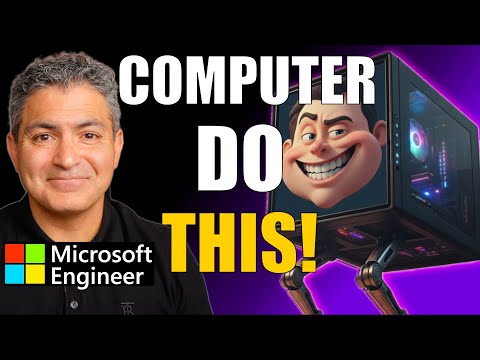
In a recent tutorial-style YouTube video, Microsoft Principal Engineer Shervin Shaffie (Collaboration Simplified) demonstrates how to make assistants control desktop and web apps from inside Microsoft Copilot Studio.
He focuses on the Computer Use capability, which lets Copilot Agents operate a computer through clicks, typing, and other simulated interactions when no API exists.
This story summarizes the video’s key steps and evaluates the practical tradeoffs for organizations thinking about deploying this approach.
Importantly, the piece treats the video as source material and not as the original authored opinion of our newsroom.
What the demo shows
The video walks through a step-by-step build of an agent that uses the Computer Use Tool to perform tasks automatically.
First, Shaffie outlines the scenario and the actions he expects the agent to take, then he creates an agent topic and adds the tool to the agent in Copilot Studio.
Next, he writes the natural language instructions that guide the agent and tests the behavior live, showing both success and when the agent struggles with certain UI elements.
Consequently, viewers see the full lifecycle from design to test, with concrete troubleshooting tips when interactions fail.
How to build and test the agent
The tutorial emphasizes a no-code approach that lowers the barrier to entry, enabling people without programming skills to assemble an agent visually.
Shaffie demonstrates creating an agent topic, inserting the Computer Use capability, and then telling the agent what to click, type, or select using plain language.
During testing, the agent executes those steps on both web pages and desktop windows, and the presenter shows how to iterate when the automation misaligns with page layout or dynamic content.
Overall, the process highlights speed and accessibility while also revealing where manual tuning remains necessary.
Tradeoffs and practical challenges
While the no-code approach boosts accessibility, it comes with tradeoffs in reliability and scale.
UI-driven automation is inherently fragile: small changes in layout, element IDs, or screen resolution can break sequences that worked moments earlier.
Therefore, although Copilot Agents can speed up many workflows, teams must weigh the convenience against maintenance overhead and potential interruptions to critical processes.
Additionally, this method can be slower and harder to monitor at enterprise scale compared with API-driven automation, and it raises governance questions around credentials and data access.
Security, governance, and operational concerns
Shaffie touches on troubleshooting but the video also implies broader operational and security issues that organizations must address before production deployment.
For example, allowing agents to control a desktop often requires elevated access and careful credential handling, so IT teams will want robust secrets management and auditing in place.
Moreover, because the agents replicate user actions, unexpected side effects are possible when they interact with live data or third-party systems, so staging and rollback plans are essential.
In short, the power of hands-on control demands stricter controls and testing discipline.
Use cases and recommendations
Practical uses for these agents include automating repetitive data entry, integrating with legacy apps without APIs, and creating lightweight automation proofs-of-concept.
However, the team must balance quick wins against long-term reliability and support costs, prioritizing processes that tolerate some fragility and where human oversight is available.
As a recommendation, start with well-scoped pilot projects, add layered monitoring, and plan to transition stable automations to API-based integrations when possible.
Finally, incorporate routine testing and maintenance schedules so that UI-driven agents remain dependable as interfaces evolve.
Conclusion: What newsrooms and teams should take away
The video by Shervin Shaffie (Collaboration Simplified) provides a useful, practical introduction to using Computer Use in Microsoft Copilot Studio for no-code automation of desktop and web tasks.
It clearly demonstrates how to build, instruct, and test a Copilot Agent, while also exposing common failure modes and fixes.
Consequently, organizations interested in rapid automation should consider this approach for targeted use cases but must plan for the tradeoffs in reliability, governance, and maintenance.
Overall, the tutorial is a solid starting point for teams exploring hands-on Copilot automation without writing code.

Keywords
Microsoft Copilot Studio tutorial,Create Copilot agents no code,No-code Copilot automation,Automate computer tasks with Copilot,Copilot agents for Windows,Copilot Studio walkthrough,Build AI assistant with Copilot,Boost productivity with Copilot