- All of Microsoft
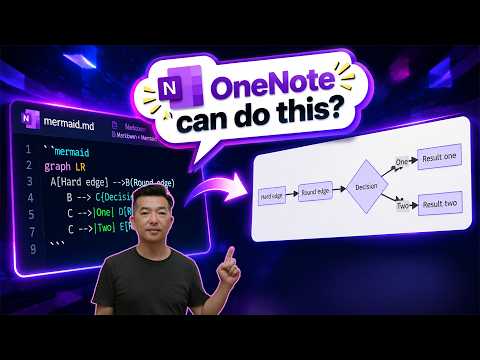
OneNote: Convert Markdown to Rich Text
This channel is about productivity and project management. New videos will be uploaded weekly, so check back regularly!
Render Markdown in OneNote with OneMark: convert AI output into headers, tables, Mermaid diagrams and custom themes
Key insights
-
The video demonstrates how to render Markdown directly inside OneNote using a plugin called OneMark.
It focuses on converting messy pasted AI output into clean, readable OneNote pages.
-
OneMark lets you paste or type Markdown and press F5 to render formatted content in place.
The demo shows headers, bold/italic text, code blocks, tables, and rendered diagrams working after rendering.
-
The guide covers advanced items like rendering Mermaid diagrams and creating mind maps inside OneNote.
It also shows how to apply simple custom themes to keep pages consistent and readable.
-
Important limitation: OneNote still has no native Markdown support, so plugins or conversion steps are required.
Raw .md files do not import as Markdown and need conversion before pasting to preserve formatting.
-
Alternatives shown include rendering Markdown outside OneNote (browser preview, editor preview, converters) and then pasting the formatted output.
That method helps when you cannot install add-ins or need a cross-platform workflow.
-
Practical takeaway: try OneMark for fast, in-place rendering and use external converters for reliable cross-device or round-trip workflows.
The workflow saves time for users who store AI outputs in OneNote and want cleaner, searchable notes.
Video overview
Andy Park's recent YouTube video demonstrates how to render Markdown directly inside OneNote, offering a practical workflow for people who paste AI outputs into their notes. He leads viewers step by step through converting messy pasted text into clean, readable OneNote pages, and he shows several real-world examples. In addition, the video highlights a third-party tool that brings Markdown features into an app that otherwise lacks native support.
Importantly, Park frames the workflow as a timesaver for users who work with outputs from large language models such as ChatGPT, Claude, or Gemini. He emphasizes that this approach is particularly useful when you need headers, bold and italic text, tables, diagrams, or mind maps rendered reliably in your notebooks. Consequently, the video targets knowledge workers who keep research, drafts, and technical notes inside OneNote.
How the plugin works
The core of the video is a walkthrough of the OneMark plugin, which Park uses to render Markdown in place inside OneNote pages. He demonstrates the simple workflow: paste or type Markdown into OneNote and press F5 to convert it into OneNote’s rich text, preserving common structures like headers and code blocks. Furthermore, he points out that the tool supports LaTeX and clipboard export, which helps bridge common gaps between plain-text authoring and formatted notes.
Park also mentions an alternative community add-in, NoteWidget, to show that users have choices beyond a single tool. However, he stresses that these solutions are third-party workarounds rather than native features, so installation and permissions require careful attention. For many users, the convenience of rendering in place outweighs the friction of installing an add-in, but that tradeoff deserves consideration.
Formatting capabilities shown
In his examples, Park converts pasted AI output into formatted headers, bold and italic text, and clean tables, which makes long model outputs far more readable. He also demonstrates rendering Mermaid diagrams and mind maps, showing how visual structures can be included in notebooks without leaving OneNote. These capabilities matter because they let users keep structured documentation and diagrams together, removing the need to switch between multiple apps.
At the same time, Park highlights theme and styling options so that rendered content can match a user’s visual preferences, which improves legibility for longer notes. He shows that themes can affect headings, code blocks, and tables, and he argues that consistent styling helps teams who share exported pages. Consequently, the plugin becomes a practical tool for organizing and presenting information saved from AI assistants.
Tradeoffs and challenges
While Park presents a compelling workflow, he also explains the limits and tradeoffs involved. First, Microsoft OneNote still stores content as rich text and does not natively parse Markdown, so raw .md files cannot be imported directly without conversion. Therefore, users must rely on third-party add-ins or external rendering tools to bridge the gap, which introduces dependency and potential compatibility risks.
Second, cross-platform differences matter: certain add-ins may behave differently on Windows, Mac, web, iPad, or Android, and the video notes that users should test their preferred pipeline on each device. Moreover, security and IT policies in corporate environments may restrict installing add-ins, which forces teams to consider server-side conversion or manual copy-paste methods instead. As a result, choosing a workflow often means balancing convenience against compatibility and governance needs.
Finally, Park remarks on the cost factor: some tools offer free trials but then move to paid tiers, so adopters must weigh ongoing subscription costs versus time saved. He suggests that heavy users who frequently archive AI outputs may find the investment worthwhile, while casual note-takers might prefer periodic conversion with external tools. This financial tradeoff is a key part of deciding whether to adopt an integrated plugin approach.
Practical recommendations
For readers interested in implementing the workflow, Park gives practical steps: install a trusted add-in, test the F5 render shortcut, and validate important outputs like tables and diagrams before relying on them. He also recommends keeping a backup copy of original Markdown text in case rendering introduces formatting changes, which helps maintain an audit trail for technical or legal notes. Consequently, a cautious rollout—starting with non-critical notebooks—reduces disruption.
Park closes by noting that the landscape remains community-driven and that third-party tools currently provide the best Markdown experience inside OneNote. He offers to provide a platform-by-platform comparison for readers who want a deeper 2026 update, signaling that workflows will continue to evolve. In short, his video delivers a practical, balanced guide for anyone who wants cleaner notes from AI outputs while acknowledging the tradeoffs involved in relying on add-ins.
Keywords
render Markdown in OneNote, OneNote Markdown support, OneNote Markdown plugin, convert Markdown to OneNote, use Markdown in OneNote, OneNote Markdown renderer, OneNote Markdown tips, OneNote Markdown extension