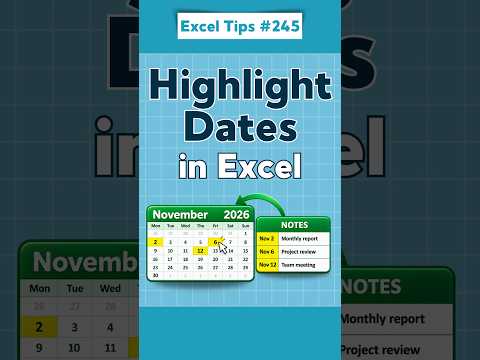
Excel: highlight important dates automatically
Use conditional formatting to flag dates such as overdue tasks, deadlines, and appointments without changing cell colors by hand.
Key insights
- Use Home > Conditional Formatting > Highlight Cells Rules > A Date Occurring for built-in date periods.
- Formula rules using TODAY() can flag overdue dates, dates due today, or dates due within seven days.
- Include a blank-cell check such as $G5<>"" to avoid highlighting empty date cells.
- Make sure date entries are real Excel dates; text values may not compare correctly with TODAY().
- Check Manage Rules if multiple conditions can apply to the same range.
Excel conditional formatting can highlight important dates automatically, helping a worksheet flag deadlines, overdue work, and dates coming up soon. This is useful for anyone tracking tasks, appointments, renewals, or other dates in a spreadsheet. Alan Murray (Computergaga) is the source of the demonstration of this date-highlighting technique.
What it does
Conditional formatting changes a cell’s appearance when its value meets a rule. For dates, Excel offers built-in conditions such as Today, Tomorrow, This week, and Next week, so the visual alert can update as the calendar moves forward.
For more specific logic, a formula-based rule can compare a date with TODAY(). For example, a deadline in the past can receive a different fill from a date due today or within the next seven days. This works as a visual aid; the dates themselves are not changed.
Who it is for and what you need
This technique is for Excel users who maintain date lists, including task and project trackers. The material does not state a required license, Excel edition, or rollout status; it describes conditional formatting as an existing Excel feature.
Use valid Excel date values in the cells being checked. If a date is stored as text, comparisons with TODAY() may not work as expected. The research notes suggest changing a cell’s format to General or Number as a quick check: a valid date typically displays as a serial number.
How it works
- Select the date cells, then open Home > Conditional Formatting > Highlight Cells Rules > A Date Occurring.
- Choose a period, such as Today, Tomorrow, or Next week, select a formatting style, and confirm.
- For custom rules, select the range and go to Home > Conditional Formatting > New Rule > Use a formula to determine which cells to format.
- For overdue dates in column G, use =AND($G5<>"",TODAY()>$G5). For dates due within seven days, use =AND($G5<>"",$G5>=TODAY(),$G5<=TODAY()+7).
- Choose Format, set the appearance, and confirm. Adjust the column and row references to match your range.
The blank check prevents empty cells from being treated as overdue. The dollar sign locks the date column while the row number can adjust for each row in the selected range.
Limitations and open questions
Conditional formatting depends on the dates being valid values and the rule references matching the selected range. If multiple rules cover the same cells, review Conditional Formatting > Manage Rules to check their order and avoid unexpected colors.
The source material does not specify compatibility differences, licensing details, or a Copilot workflow, so this article focuses on the documented conditional-formatting methods. The demonstration transcript was not provided; the steps and examples here come from the accompanying research notes.
Sources
- Alan Murray’s YouTube Short on highlighting important dates
- Computergaga article accompanying the date-highlighting tip
- Computergaga website
Frequently asked questions
How do I highlight dates in Excel automatically?
Select the date cells and use Home > Conditional Formatting > Highlight Cells Rules > A Date Occurring. Choose a period and formatting style.
How can I highlight overdue dates in Excel?
Create a formula-based conditional-formatting rule. For dates in G5 downward, the example is =AND($G5<>"",TODAY()>$G5).
Why is Excel not highlighting a date correctly?
Check that the cell contains a valid Excel date rather than text, and confirm the conditional-formatting formula references the intended range.
Do I need a specific Excel license for date conditional formatting?
The supplied material does not state licensing requirements or edition-specific availability.