- All of Microsoft
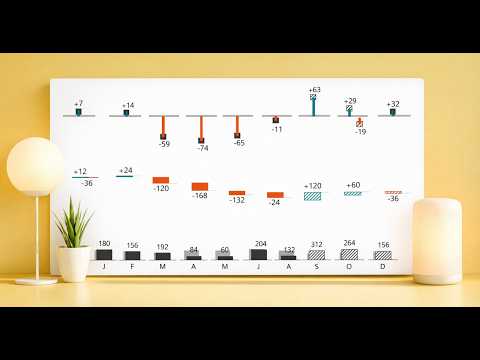
Power BI Button Slicers: Best SVG Visual
Technical Lead - Business Intelligence • Microsoft Certified PL-300 • Data Analyst • Power BI Youtube
Power BI expert guide to Button Slicers with SVGs for app like reports, image filters, KPI cards and IBCS styled visuals
Key insights
- Button Slicer
Power BI’s Button Slicer replaces old dropdowns with interactive buttons that make filtering faster and more visual.
Use it to create app-like report navigation that feels intuitive for report consumers. - Customization
The visual supports customizable button styles, grid layout, and conditional formatting for labels, backgrounds, borders, and callouts.
These options let you match report design and highlight important states clearly. - Paste selections
You can paste up to 2,000 values into a Button Slicer for fast, exact-match filtering instead of selecting items one by one.
This speeds up bulk workflows when copying values from Excel or other sources. - SVG with DAX UDFs
Combine DAX SVG user-defined functions with Button Slicers to render dynamic graphics inside buttons, enabling visuals standard visuals can’t produce.
That lets buttons display mini charts or custom icons that update with user selections. - Multi-state SVGs
Buttons can switch between multiple SVG states so a single button can both filter and show different visual representations of data.
This supports compact, interactive dashboards where controls double as informative visuals. - Recent enhancements
Recent Power BI updates expanded paste selections beyond Button and List slicers and improved input slicer workflows with Fabric user data functions for write-back and approvals.
These changes make bulk operations and integrated workflows easier across slicer types.
Overview of the Video
In a clear and practical YouTube tutorial, author Injae Park demonstrates how to use the Button Slicer in Power BI to build app-like reports that leverage SVG graphics. The video walks viewers through real examples, showing how buttons can act as both filters and small visual elements, giving dashboards a modern, interactive feel. Park structures the tutorial around step-by-step demonstrations, which makes it accessible to report authors who want to move beyond standard slicers and create more polished user experiences. Overall, the presentation focuses on applied techniques rather than theory, so designers can reproduce the effects on their own reports.
How the Button Slicer Works
The Button Slicer replaces traditional dropdowns and checkboxes with clickable tiles that support rich formatting and multiple states. Park explains basic customization like label formatting, responsive grid layouts, and conditional styling that highlights the selected state while dimming others, helping users focus on relevant data. He also shows a useful feature that allows bulk input: pasting a list of values to select multiple buttons simultaneously, which speeds up workflows when dealing with many items. Consequently, the button approach reduces clicks and improves clarity, especially on touch screens or reports that aim to feel like an app.
SVG Integration and Advanced Customization
One of the most powerful parts of the tutorial is the integration of SVG graphics via DAX UDFs, which lets a button display different visual states based on data. Park demonstrates how to embed small charts, icons, or multi-state graphics directly into a button so that a single control both filters the report and communicates a quick visual summary. This dual role can significantly enhance the immediacy of a dashboard, because users see key trends or KPIs without switching visuals.
However, this approach introduces tradeoffs. For example, generating SVGs dynamically with DAX increases model complexity and may slow rendering for large or complex datasets. In addition, building and maintaining SVG-based expressions demands more technical skill compared with standard visuals, so teams must weigh the visual benefits against development time and future maintenance costs. Finally, accessibility and cross-platform behavior can be more difficult to guarantee when using custom SVGs, which requires extra testing on different devices and viewers.
Practical Use Cases and Design Tradeoffs
Park highlights practical scenarios where button-based SVGs shine, such as KPI dashboards, small multiples inside buttons, and interactive reports that need an app-like navigation layer. He shows examples like a basketball report where images and icons make filters more intuitive, and KPI cards driven by field parameters that update instantly with selection. These designs reduce visual clutter and make insights more discoverable, yet they also raise questions about scalability because highly customized visuals can become brittle as data or business rules change.
Moreover, there is a balance to strike between aesthetics and performance. While SVG-enhanced buttons can improve user engagement, they can also increase report load times or complicate row-level security and testing. Teams must decide whether the improved user experience justifies the added complexity, and they should plan governance and documentation so that others can update or fix visuals without unintended side effects. In many cases, a hybrid approach—using button slicers for navigation and standard visuals for heavy aggregation—offers a practical compromise.
Recent Enhancements and Implementation Challenges
Park also touches on recent updates in the Power BI ecosystem that affect button slicer workflows, including broader availability of the paste selections feature and deeper integrations that enable advanced input scenarios. These changes make bulk filtering easier and expand how slicers interact with modern data flows, which is helpful for teams automating approvals or write-back patterns. At the same time, adding write-back or notification flows brings governance and security challenges that organizations must address before deploying to business users.
Another challenge is testing and performance tuning. As Park shows, enabling multi-state SVGs and complex DAX increases the need for performance profiling and careful dataset design. Developers should monitor rendering times, limit complex SVG generation to only where it adds clear value, and document dependencies so future updates do not break visual behavior. In short, technical benefits come with operational responsibilities, and teams should prepare to manage both.
Conclusion
Injae Park’s tutorial presents the Button Slicer as a compelling visual for creating modern, interactive Power BI reports that use SVG graphics to convey data quickly and attractively. While the approach offers clear gains in usability and design, it also requires tradeoffs around performance, maintainability, and accessibility. Therefore, organizations should evaluate use cases carefully, adopt best practices for governance, and balance visual ambition with pragmatic constraints. Ultimately, Park’s video provides a practical starting point for teams that want to raise the polish of their reports while staying mindful of the technical and operational implications.

Keywords
Button Slicers Power BI, SVGs in Power BI, Power BI SVG visual, Button Slicer tutorial Power BI, Custom visuals SVG Power BI, Interactive SVG buttons Power BI, Best slicers Power BI, Power BI data visualization SVG