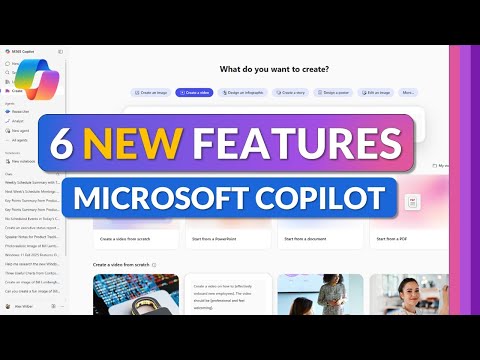
Microsoft 365 Copilot: 6 New Features
Principal Group Product Manager - Microsoft Education
Microsoft Three Sixty Five Copilot brings faster nav scheduled prompts AI video and surveys to boost productivity
Key insights
- Improved Navigation: The Copilot app adds a cleaner navigation experience (private preview) so you move faster between chats, files, and agents.
It helps you find recent work and switch contexts without hunting through menus. - Library: A central Library stores saved prompts, templates, and assets for quick reuse across Word, Excel, and Teams.
Use the Library to standardize prompts and keep commonly used content ready for any project. - Create Video with AI: Copilot can generate short videos from text prompts, with automated scene suggestions, voice-over, and export options.
This speeds up making explainer clips, quick training videos, and visual summaries for presentations. - New Pinning Features (Settings): You can now pin favorite prompts, agents, or documents in Settings for instant access.
Pinning reduces friction by keeping key tools and files visible where you work most. - Scheduled Prompts: Schedule prompts to run automatically at set times or triggers, such as daily briefings or end-of-day reports.
Scheduled Prompts automate routine tasks like inbox triage, summaries, and status updates. - Surveys Agent: The Surveys agent helps create, send, and summarize surveys, then turns responses into concise insights.
This lets teams gather feedback and get actionable summaries without manual collation.
Overview
In a new tutorial-style YouTube video, Microsoft education and product specialist Mike Tholfsen walks viewers through the six headline updates to Microsoft 365 Copilot for 2025. He demonstrates practical workflows and highlights changes that aim to make Copilot faster, smarter, and more useful for work, school, and personal productivity. Moreover, the video serves as a hands-on guide to new navigation, creation tools, scheduling features, and agent-based workflows, helping users understand how to adopt them in day-to-day tasks.
Navigation, Library, and Copilot App Enhancements
First, the video explains an updated navigation experience that moved into private preview, which promises quicker access to core tools and a more organized Library for files and prompts. As a result, users should find it easier to locate previous chats, templates, and AI-generated content, while the Copilot app adds audio recaps and improved file summaries to support on-the-go consumption. However, Mike notes that preview features can change, so organizations should prepare for iterative updates and intermittent differences between preview and general availability.
In addition, search improvements integrate chat, Teams channels, and document context into Copilot prompts, which improves relevance when Copilot pulls information from across Microsoft 365. Consequently, responses can lean on more internal context, reducing the need to copy content manually into prompts. Yet, this deeper integration also raises questions about access controls and data scope, which admins must manage carefully to prevent unintended exposure of sensitive information.
Create Video with AI, Voice, and Scheduled Prompts
Mike demonstrates the new Create Video with AI capability, which lets users generate video content directly from prompts inside the Copilot app, speeding up simple video production tasks. Furthermore, voice interaction features allow hands-free inbox triage and calendar checks, and Outlook previews include voice-enabled reading and replies for selected users. These features improve accessibility and efficiency, but they also depend on good audio quality and clear prompting to avoid errors in generated output.
Additionally, the tutorial covers Scheduled Prompts, a convenience feature that automates recurring AI tasks such as morning briefs or weekly summaries. While scheduled prompts reduce repetitive work, they require careful configuration to avoid overuse or redundant notifications that can fatigue users. Therefore, teams should balance automation against alert volume and confirm that the scheduled prompts align with actual workflows and governance policies.
Agents, Collaboration, and Productivity Features
One of the most significant themes is an expansion of the agent ecosystem, where Copilot agents now operate in apps like Word, Excel, and PowerPoint using an Agent Mode that supports iterative, task-focused workflows. Mike shows how agents can update documents, propose spreadsheet formulas, or create slide notes, which reduces manual steps and helps non-experts complete complex tasks faster. In tandem, Teams improvements — such as turning 1:1 Copilot chats into group chats and automated thread summaries — strengthen real-time collaboration and meeting preparation.
The video also highlights the new Surveys agent, which simplifies creating and analyzing surveys directly within the suite, and integrations that make it easier to surface responses in meetings or reports. As a result, teams can iterate on feedback more quickly and feed insights into decisions without exporting data. Nevertheless, this convenience introduces responsibilities for data sampling, bias awareness, and transparency about how AI summarizes or interprets responses.
Governance, Costs, and Tradeoffs
Mike addresses governance changes, explaining how SharePoint agents and other Copilot components are now manageable from centralized admin surfaces, including controls to block, unblock, and view metadata for agents. Alongside that, Microsoft’s flexible billing options—such as prepaid Copilot credit capacity plus pay-as-you-go—give organizations ways to predict costs while scaling usage. Despite these options, IT leaders face tradeoffs between rapid adoption and the need for clear policies, training, and monitoring to avoid runaway consumption or misconfigured access.
Moreover, there is an important technical tradeoff between speed and depth: the use of multiple GPT-5-derived models lets users choose a fast, high-throughput model for quick replies or a deeper reasoning engine for complex tasks. Although this flexibility helps tailor responses, it can create confusion about when to use each model and may require additional user education. Finally, privacy, accuracy, and dependency on AI remain central challenges that organizations must balance against productivity gains.
Takeaways for Users and IT Administrators
Overall, the video by Mike Tholfsen provides a clear, practical look at how six new features make Microsoft 365 Copilot both more capable and more manageable. For end users, the enhancements promise faster content creation, better collaboration, and helpful automation, while administrators gain stronger controls and flexible billing. Yet, teams should proceed deliberately, balancing automation against governance, training, and evaluation to ensure helpful outcomes without creating new risks.
In short, the update emphasizes convenience and control, and Mike’s walkthrough offers an accessible starting point for organizations planning to test or deploy these features in 2025. As with any AI-driven change, the benefits grow with thoughtful implementation, iterative testing, and active oversight.

Keywords
microsoft 365 copilot 2025, copilot 2025 new features, microsoft copilot update 2025, m365 copilot features, copilot ai features 2025, microsoft 365 ai assistant, copilot productivity tools 2025, copilot enterprise features 2025